
Sign in and password
How to sign in, create an account, reset a forgotten password and confirm an email change.
Updated 2 min read
Where: the sign-in page.
Sign in
- Type your Email and Password.
- Click Sign in.
- If it says your email is not verified, click Resend verification and open the new email.
Create an account
- On the sign-in page, click Create one.
- Type your Email, a Password and Confirm password.
- Tick every item in Your password needs:. The password needs at least 10 characters, and very common ones are refused.
- Click Create account, then open the verification link we email you.
Reset a forgotten password
- Click Forgot password? on the sign-in page.
- Type your email and click Send reset link.
- Open the link in the email.
- Type a New password, confirm it and click Save new password.
The reset link only works in the browser where you asked for it. If it has expired, click Request new link.
What's on the screen
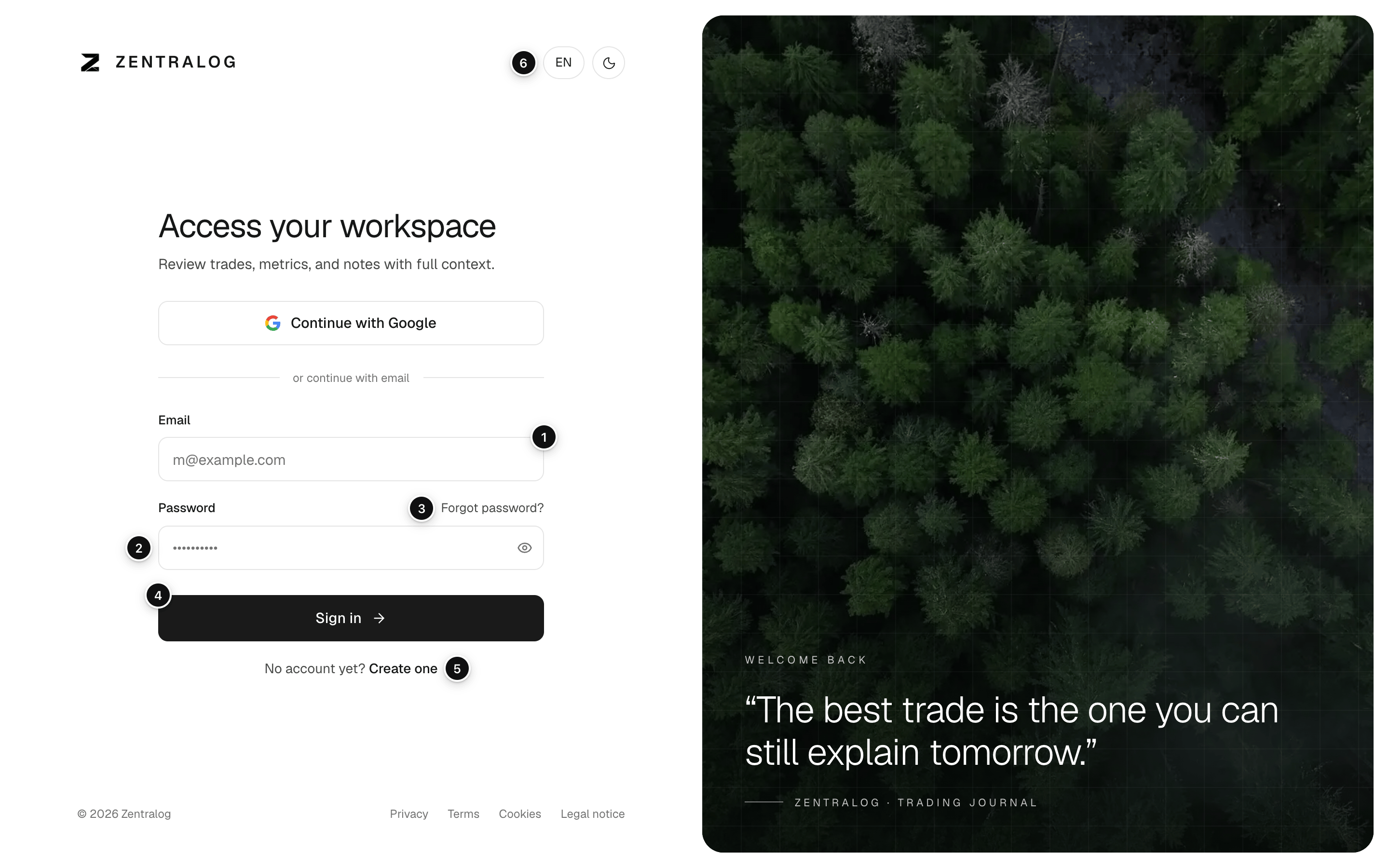
- Email: your account email.
- Password: your password.
- Forgot password?: get a reset link by email.
- Sign in: enter the app.
- Create one: no account yet? Sign up.
- Language: switch between English and Spanish. The button next to it switches light or dark mode.
FAQ
I can't find the email.
Check your spam or promotions folder. Wait a few minutes before asking for another one.
I changed my email. What do the confirmation pages mean?
Email updated means the change is done. One more step means you must also open the link sent to your other address. This link no longer works means it was used or expired: ask again in Settings → Profile.
How do I change my password when I'm signed in?
Go to Settings. See Security.
Related
Did this answer your question?