
Time: when you trade best
Your results split by day, month, hour, hold time, session, trade number and pause between trades.
Updated 1 min read
Where: Journal → Analytics → Analytics → Time
Find your best hours
- Click the Analytics tab. It opens on Time → Entry hour.
- Click 30 min or 1 h to change the size of each slot.
- Read Best hour and Worst hour at the top.
- Click another chip to change the dimension.
The eight dimensions:
- Weekday and Month: when you opened the trade.
- Entry hour: the local hour you opened at.
- Exit hour: the hour of the last exit. A consequence, not a cause.
- Duration: from first entry to last exit.
- Session: the session you configured that contains the entry.
- Position in day: which trade of the day it was (1st, 2nd–3rd…).
- Gap since previous: minutes since your last close, or Overlapped if you were still in another trade.
What's on the screen
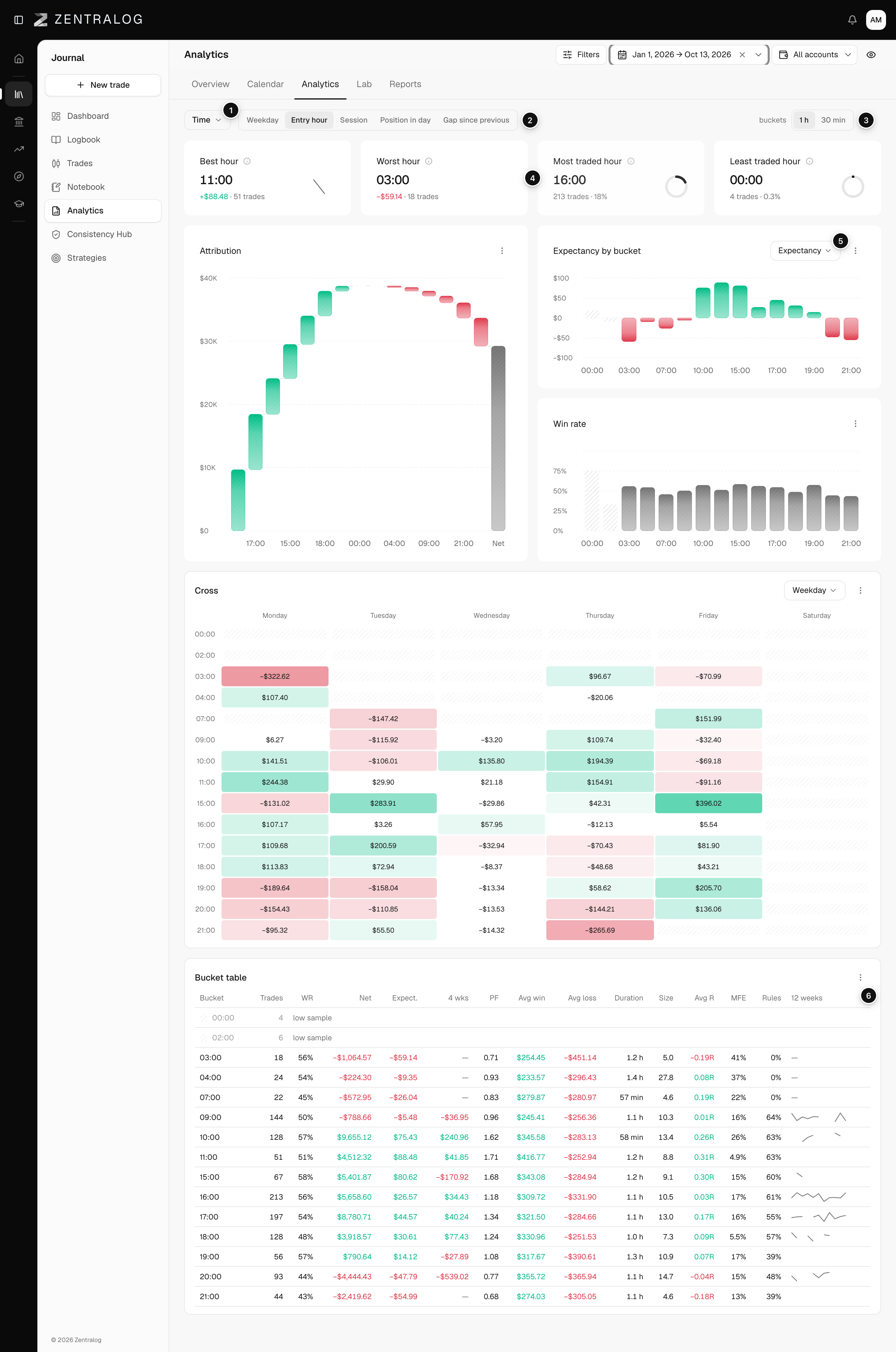
- Time family: the family selector set to Time.
- Chips: the eight time dimensions.
- Slot size: 30 min or 1 h, only on hours.
- KPIs: best, worst, most and least traded hour.
- Metric by bucket: one bar per hour.
- Bucket table: every number per hour.
If you see that part of your trades fall outside your configured sessions, those trades go to Out of hours. Click configure → to set your sessions.
FAQ
Why can't I turn Exit hour or Duration into a Hub rule?
They are a consequence of the trade, not a decision you make before entering.
Related
Did this answer your question?