
Dashboard filters
The date range, account selector, trade filters and privacy eye that decide what every number counts.
Updated 2 min read
Where: Journal → Dashboard → top bar
Pick a date range
- Click the date button. It shows All time or the active range.
- Pick a preset: Today, Yesterday, Last 7 days, Last 30 days, Month to date, Last month, Year to date, Last year or All time.
- Or click a start day and an end day in the calendar.
- Click the ✕ (Clear dates) to go back to All time.
Choose accounts
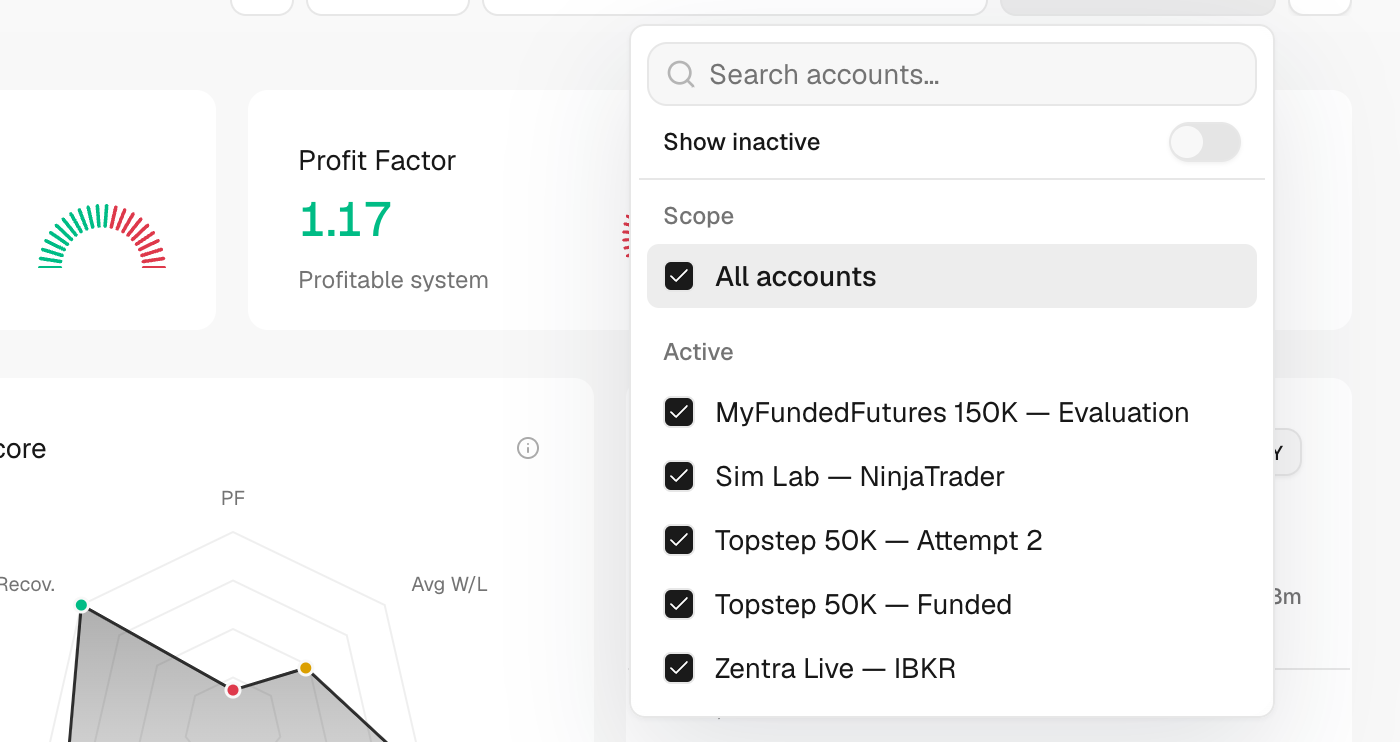
- Click the account selector (All accounts).
- Type in Search accounts… to find one by name.
- Tick one or several accounts. The change applies at once.
- Turn on Show inactive to list archived accounts too.
- Click the ✕ (Clear account filter) to return to all active accounts.
Filter trades and hide amounts
- Click Filters.
- Pick values in General, Performance, Day & Time or Strategy.
- Click Apply filters. The ✕ (Clear filters) removes them all.
- Click the eye (Hide sensitive values) to mask money amounts on screen.
Every filter field is explained in Filter trades.
What's on the screen
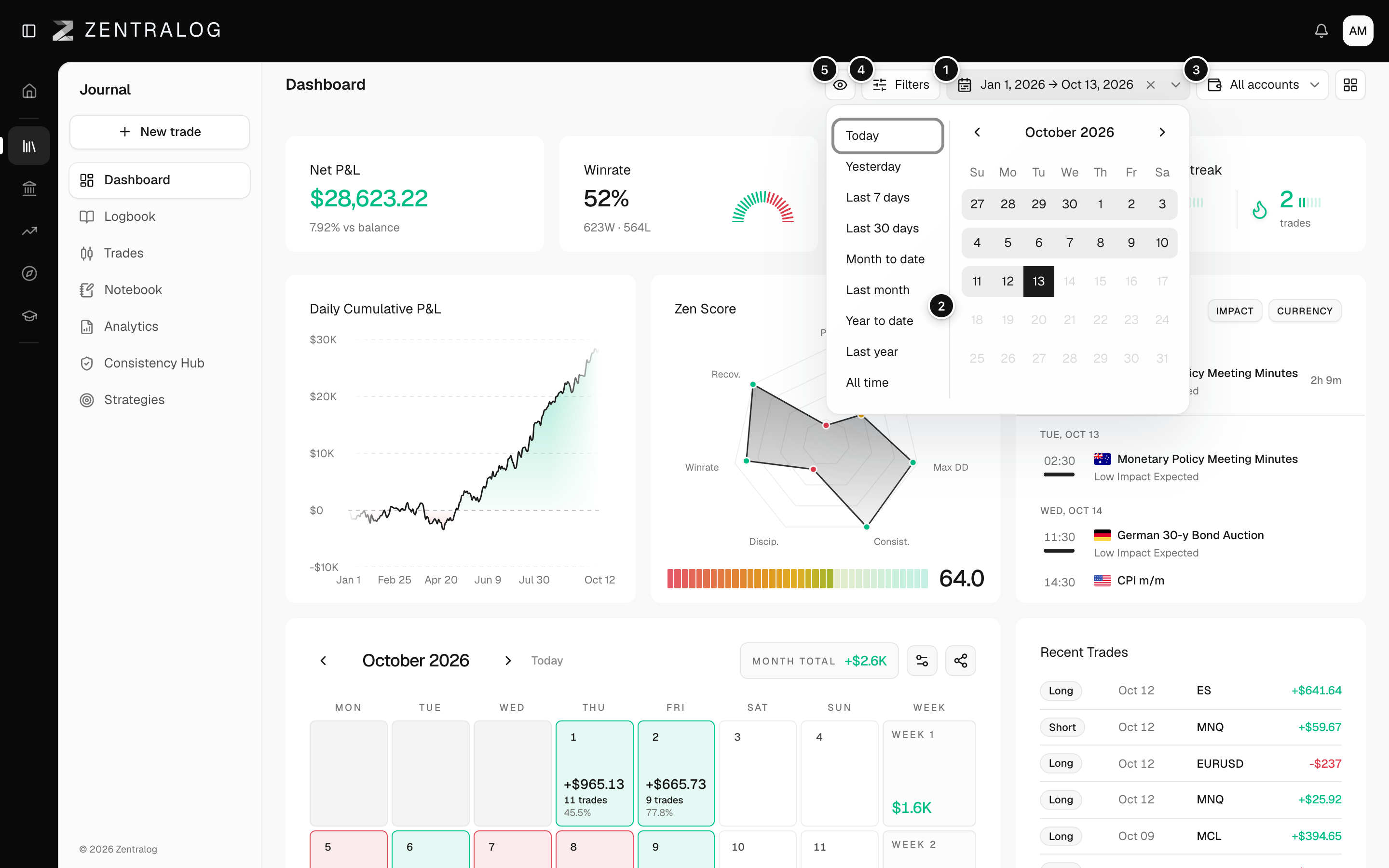
- Date button: pick a preset or custom dates.
- Presets: quick ranges from today to last year.
- Account selector: include one, several or all accounts.
- Filters: the same trade filters as Trades and Analytics.
- Eye: hide amounts for screenshots or streaming.
These filters are shared. The Dashboard, Trades, Analytics and Strategies all use the same dates, accounts and filters.
FAQ
What does All accounts include?
All your active accounts. Archived accounts are left out unless you turn on Show inactive.
Does hiding values change my data?
No. The eye only covers the amounts on your screen. Click it again (Show sensitive values) to see them.
Why does the date button show dates instead of the preset name after a reload?
Presets other than All time are saved as the dates they cover. The range is the same.
Related
Did this answer your question?