
Analytics overview
Five tabs that turn your closed trades into results, a calendar, an edge map, tests and reports.
Updated 2 min read
Where: Journal → Analytics
Move between tabs
- Click Analytics in the Journal group of the sidebar. It opens on Overview.
- Click a tab: Overview, Calendar, Analytics, Lab or Reports.
- Set the dates, the accounts and Filters in the top bar. The tab recalculates.
- Overview: your results for the period. See The Overview tab.
- Calendar: your year day by day, and a report for each month.
- Analytics: splits your trades by hour, symbol, setup and more, to show where you make and lose money.
- Lab: checks whether your edge is real or luck, in the Real or luck? sheet.
- Reports: your weekly and monthly reports.
On Calendar the top bar shows only the account selector.
Explain a chart or open its trades
- Click the ⋮ in a chart's corner.
- Choose Explain metric to read what it measures and how to read it with your own numbers.
- Or choose View trades, Export CSV or Share as image, when the chart offers them.
- Click a number marked ↗, a bar or a table row to open exactly those trades on the Trades page.
What's on the screen
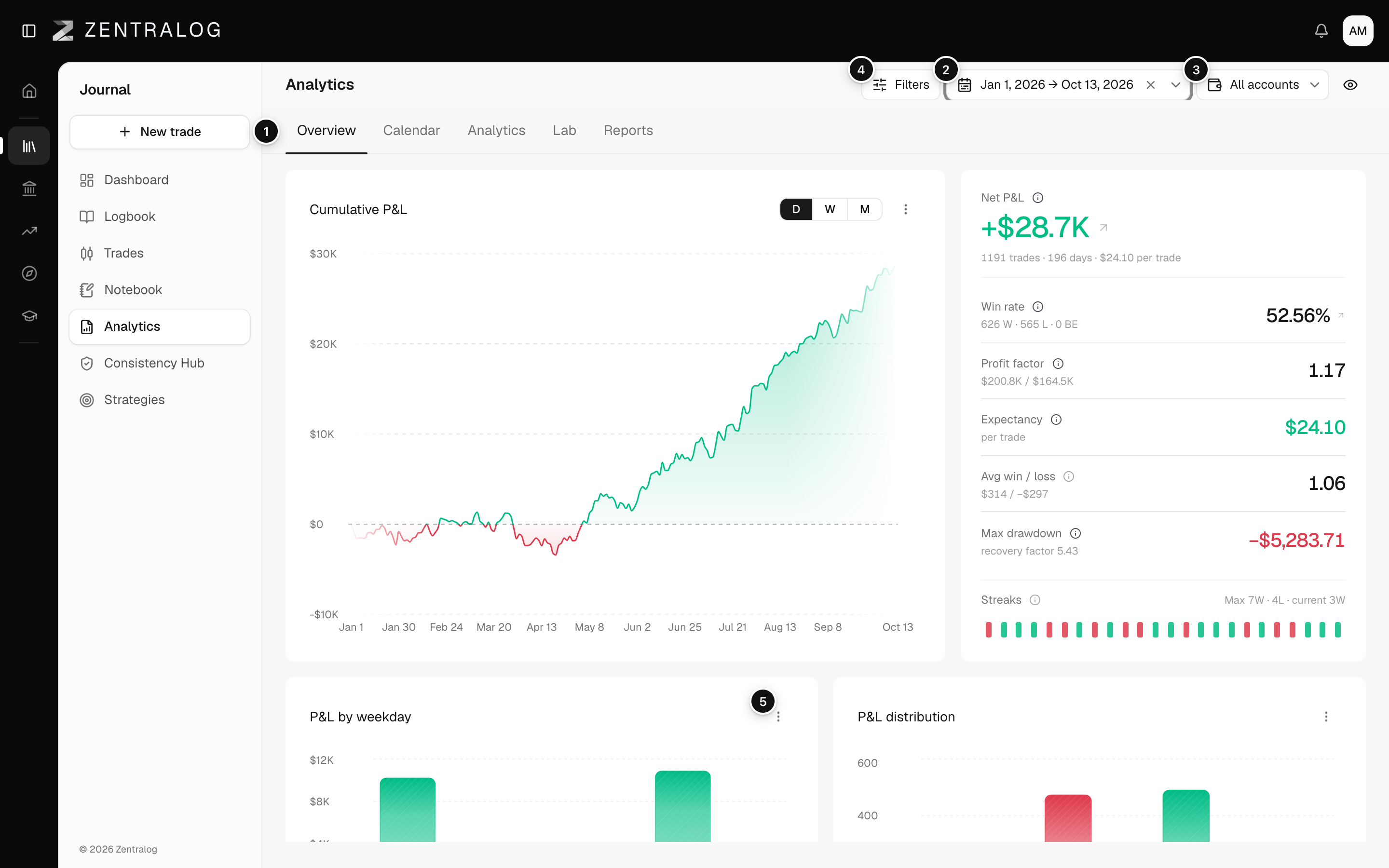
- Tabs: Overview, Calendar, Analytics, Lab and Reports.
- Date range: the period every chart counts.
- Account selector: one account, several or all.
- Filters: narrow the trades analyzed.
- ⋮ menu: explain, view trades, export or share a chart.
Analytics only counts closed trades. If Filters is set to open trades, you see Analytics measures closed trades and a Clear the Open filter button.
FAQ
Do I need to pick a single account?
No. Every tab works with any number of accounts. Only the account-limit line of the Monte Carlo needs one account.
Why does Analytics say No accounts selected?
No account is ticked in the account selector. Tick one or more.
Related
Did this answer your question?