
Filter your trades
The Filters panel narrows the trades list and its KPIs to the trades you want to study.
Updated 2 min read
Where: Journal → Trades → Filters
Apply filters
- Click Filters in the top bar of the Trades screen.
- Pick a category on the left: General, Performance, Day & Time or Strategy.
- Set the fields you need. You can mix fields from several categories.
- Click Apply filters. The table and the KPI row update.
What each category holds:
- General: Side (Long or Short), Status (Open or Closed), Result (Win, Loss, BE), Instrument and Mistakes.
- Performance: minimum and maximum for R-Multiple, Position size and Net P&L. R-multiple is your result measured in units of what you risked.
- Day & Time: Day of week, Hour of day (open) and Duration (min).
- Strategy: Strategy and Session.
Clear filters
- Click the X next to the Filters button (Clear filters) to remove all filters at once.
- Or open the panel and click Reset all, then Apply filters.
- Click Cancel to close the panel without changing anything.

See only a selection
- In Analytics, click a bar or a number on a chart.
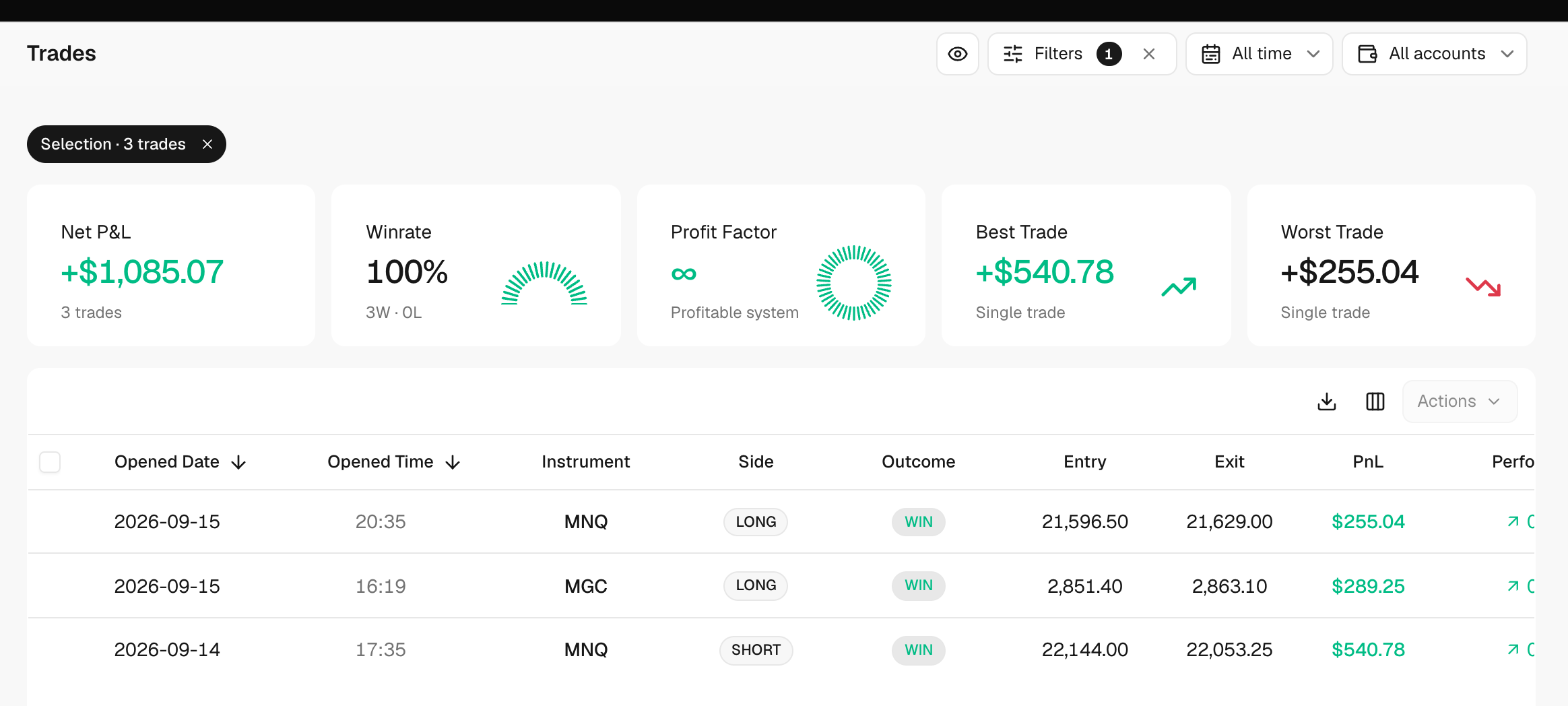
- The Trades screen opens with only those trades. A chip above the table says Selection · N trades.
- Click the × on the chip (Remove the selection) to go back to the full list.
What's on the screen
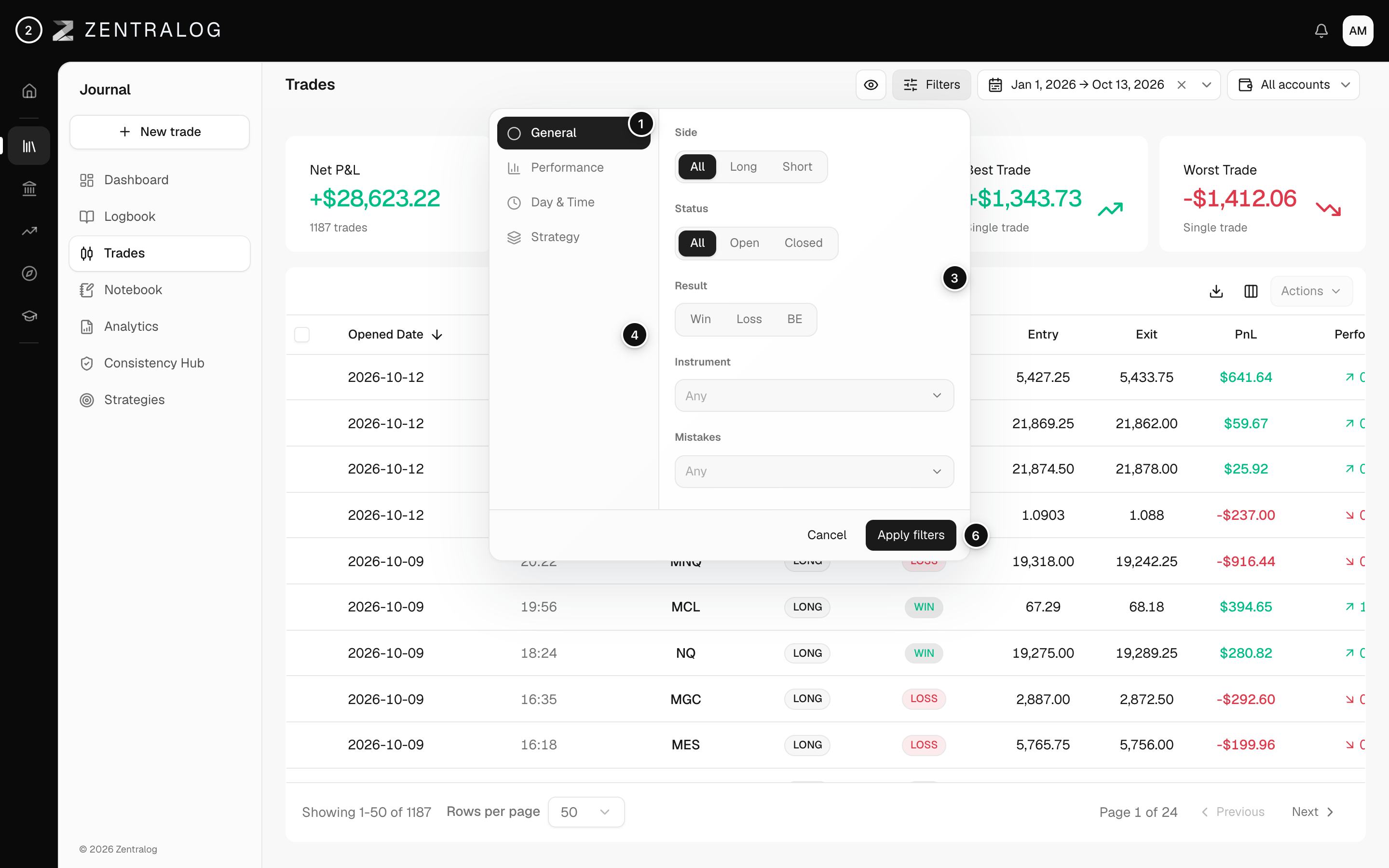
- Categories: General, Performance, Day & Time and Strategy.
- Side: long, short or both.
- Result: keep only wins, losses or break-even trades.
- Instrument: pick one or more instruments.
- Reset all: clear every field in the panel.
- Apply filters: apply them to the list and the KPIs.
The date range and the account selector are separate controls in the same top bar. See Dashboard filters.
FAQ
The table says No trades in scope. What now?
Your filters, dates or accounts leave nothing to show. Clear the filters or widen the date range.
Do filters change my exported CSV?
Yes. The export follows the active filters, dates and accounts. See Export trades to CSV.
Related
Did this answer your question?