
Links, outline and version history
Link notes to each other, jump between headings, and bring back an earlier version of a note.
Updated 1 min read
Where: Journal → Notebook → a note
Link one note to another
- In the note, type [[. The Link to note menu opens.
- Type part of a note's title.
- Pick the note. The link becomes clickable.
- If no note matches, the link still works: clicking it creates that note.
Jump to a heading
- Click the Toggle outline icon at the top of the page.
- The Outline panel lists the note's headings.
- Click a heading to jump to it.
Restore an earlier version
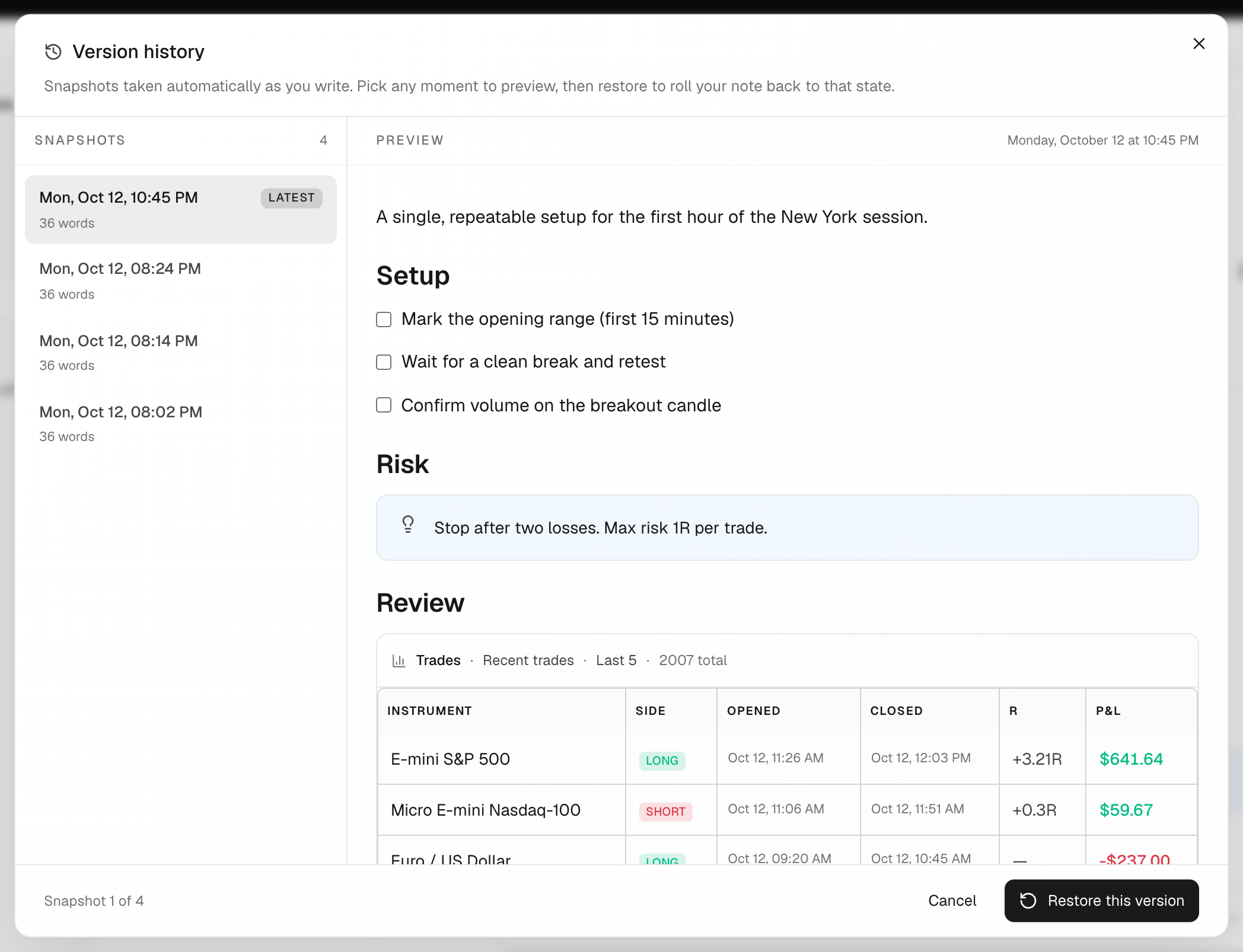
- Click the Open version history icon at the top of the page.
- Pick a version on the left and read its preview.
- Click Restore this version and confirm.
What's on the screen
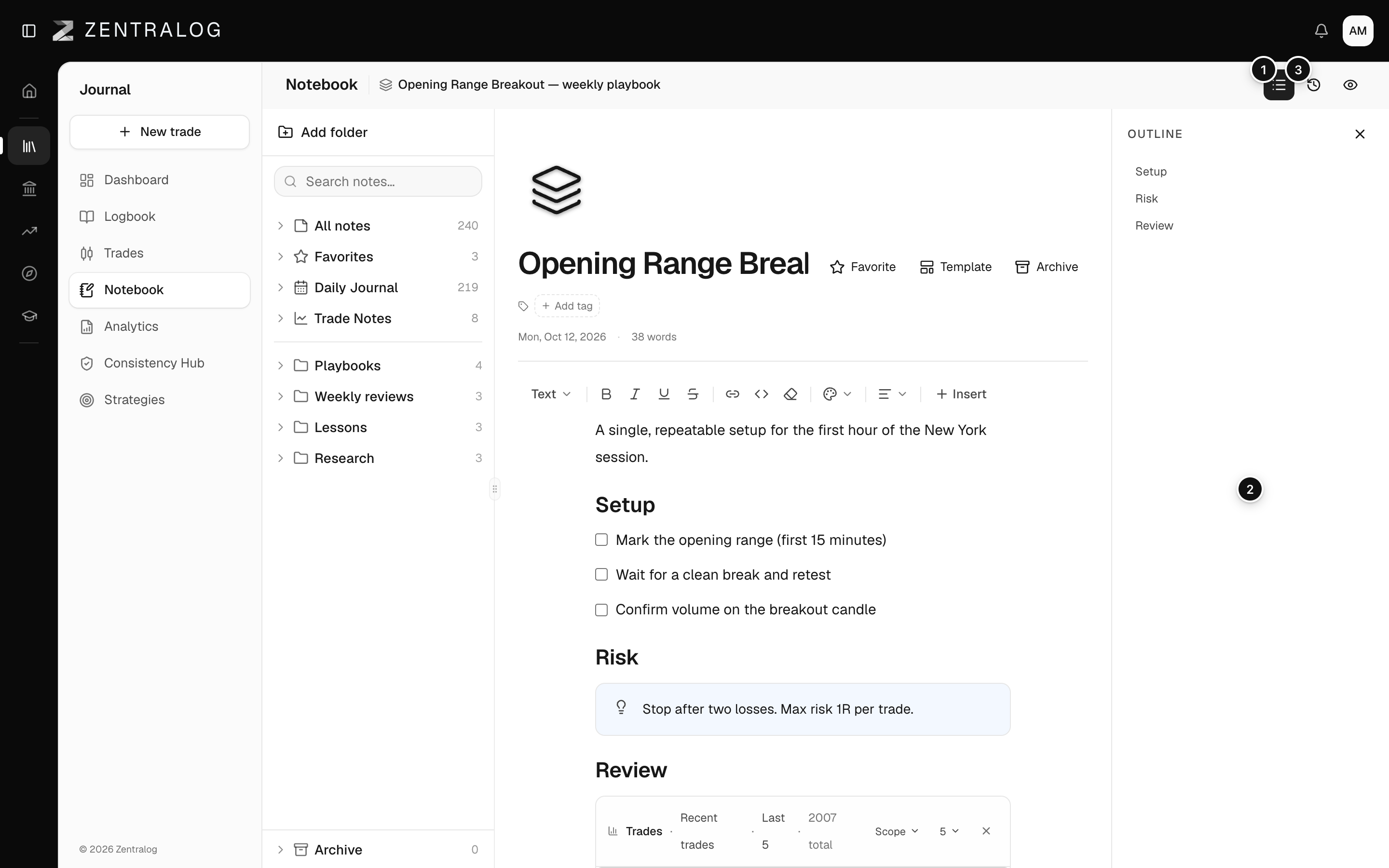
- Toggle outline: show or hide the note's outline.
- Outline: jump to any heading.
- Version history: browse and restore earlier versions.
- Backlinks: the notes that link to this one.
A version is saved every few minutes while you write. The last 30 are kept.
FAQ
Can I undo a restore?
Yes. Before restoring, the current content is saved as a version. Open the history again and restore it.
Why is the outline empty?
The outline lists headings only. Turn a line into a heading with Text style. See the note editor.
Related
Did this answer your question?