
The Notebook
Your notes in Zentralog — trading plans, reviews and checklists, organised in folders, next to your trades.
Updated 2 min read
Where: Journal → Notebook
Write a new note
- Click Notebook in the Journal group of the sidebar.
- Hover a folder on the left and click + (New note).
- Type a title.
- Click the body and write. Type / to insert headings, lists, tables or a block with your trades.
- Nothing to save: the line under the title shows All changes saved.
Dress up a note
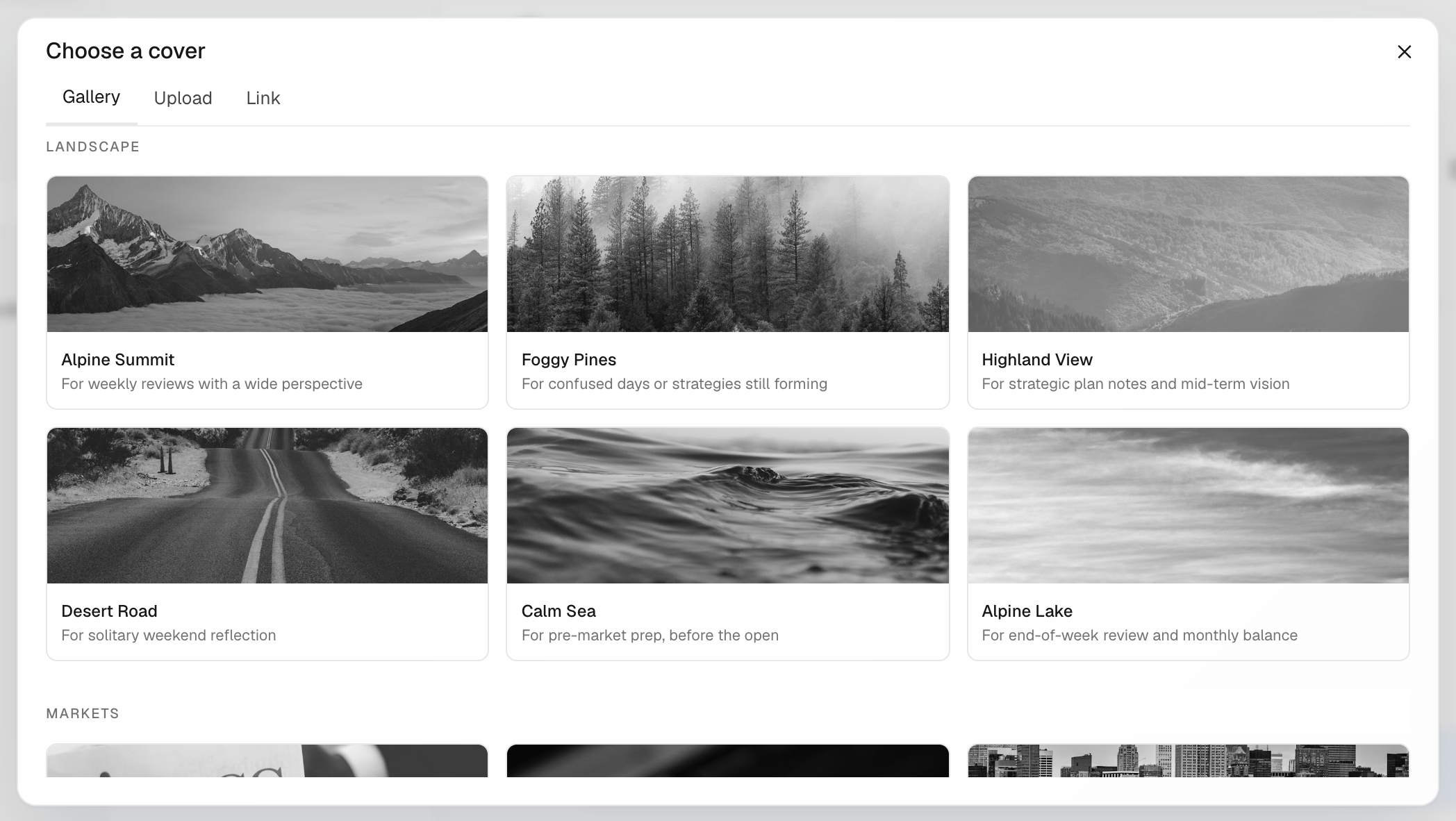
- Hover the top of the note and click Add cover. Pick an image from Gallery, Upload one or paste a Link.
- Click Add icon to give the note an icon.
- Click Add tag to label the note, for example «review» or «NQ».
- Click Favorite to find the note later in Favorites.
What's on the screen
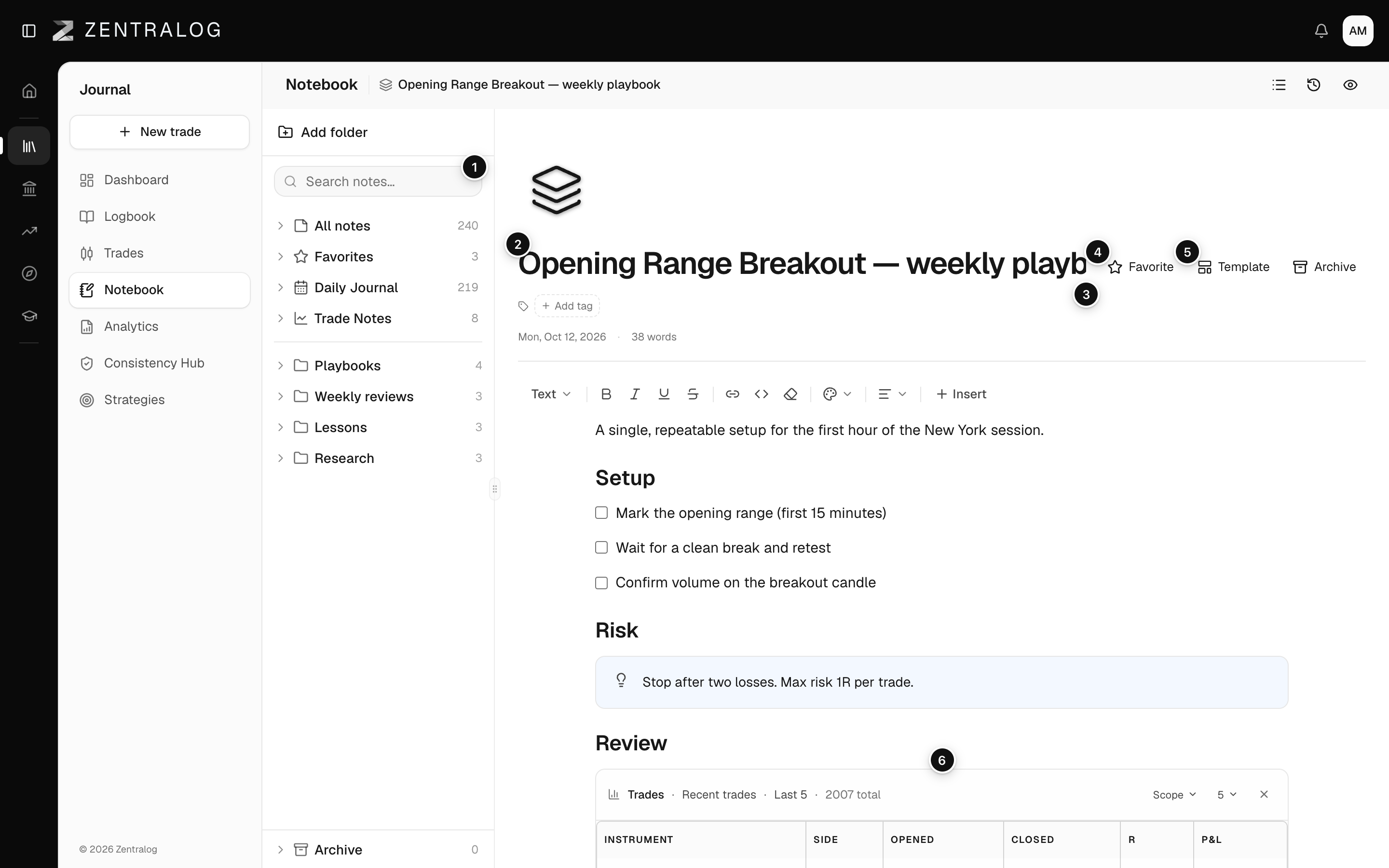
- Sidebar: folders, categories and search.
- Title: the note's name.
- Tags: labels to group related notes.
- Favorite: star the note to find it in Favorites.
- Template: apply a saved template or save this note as one. See note templates.
- Editor: write with blocks; type / for commands. See the note editor.
FAQ
Do I have to save my notes?
No. Title and body save as you type. If saving fails, the line under the title says so and retries.
Where are my day notes?
Under Daily Journal in the sidebar. They are the same notes you write in My Day.
Related
Did this answer your question?