
The note editor
The editor you use for every note — headings, lists, tables, images and live tables of your trades.
Updated 2 min read
Where: Journal → Notebook → any note (also the day note in My Day and the Logbook)
Format your text
- Click in the note and start typing. Each paragraph is a block.
- Click Text style in the toolbar to turn a block into a heading, a list, a Checklist, a quote or code.
- Use the toolbar buttons for bold, italic, links, colour and alignment.
- Click Insert to add an Image, Table, Divider, Callout or Toggle.
Insert blocks with /
- On an empty line, type /. The Insert block menu opens.
- Keep typing to filter, for example /table.
- Press Enter or click an item to insert it.
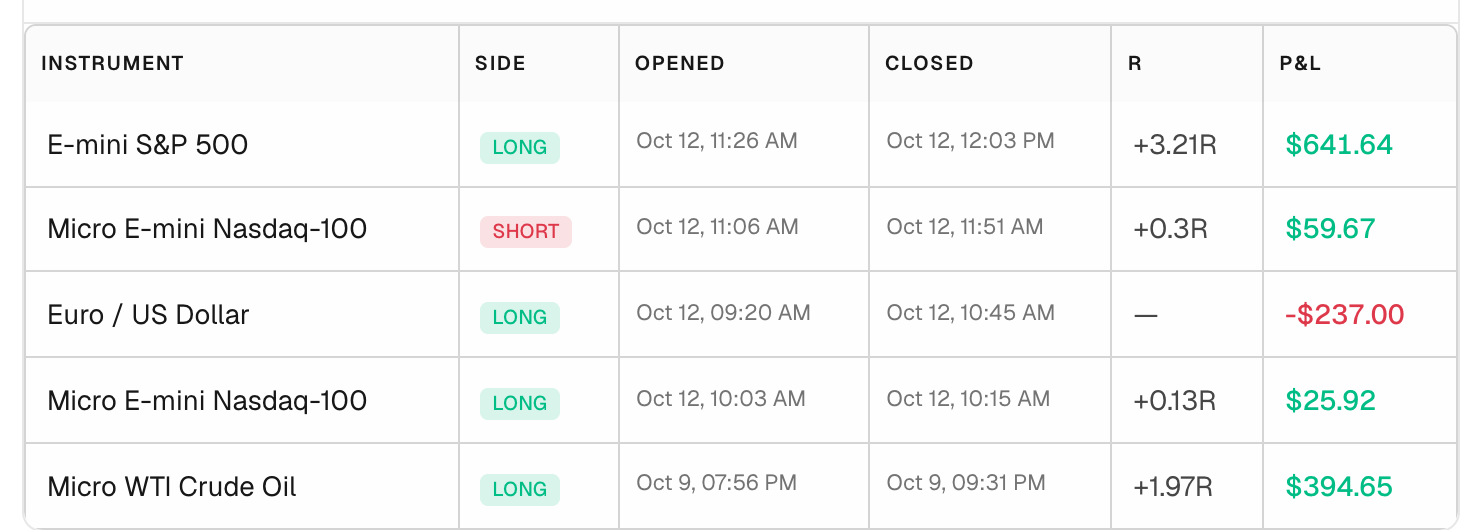
- Under Trades, pick Last trade, Recent 5 trades, Today's trades or another range to add a live table of your trades.
What's on the screen
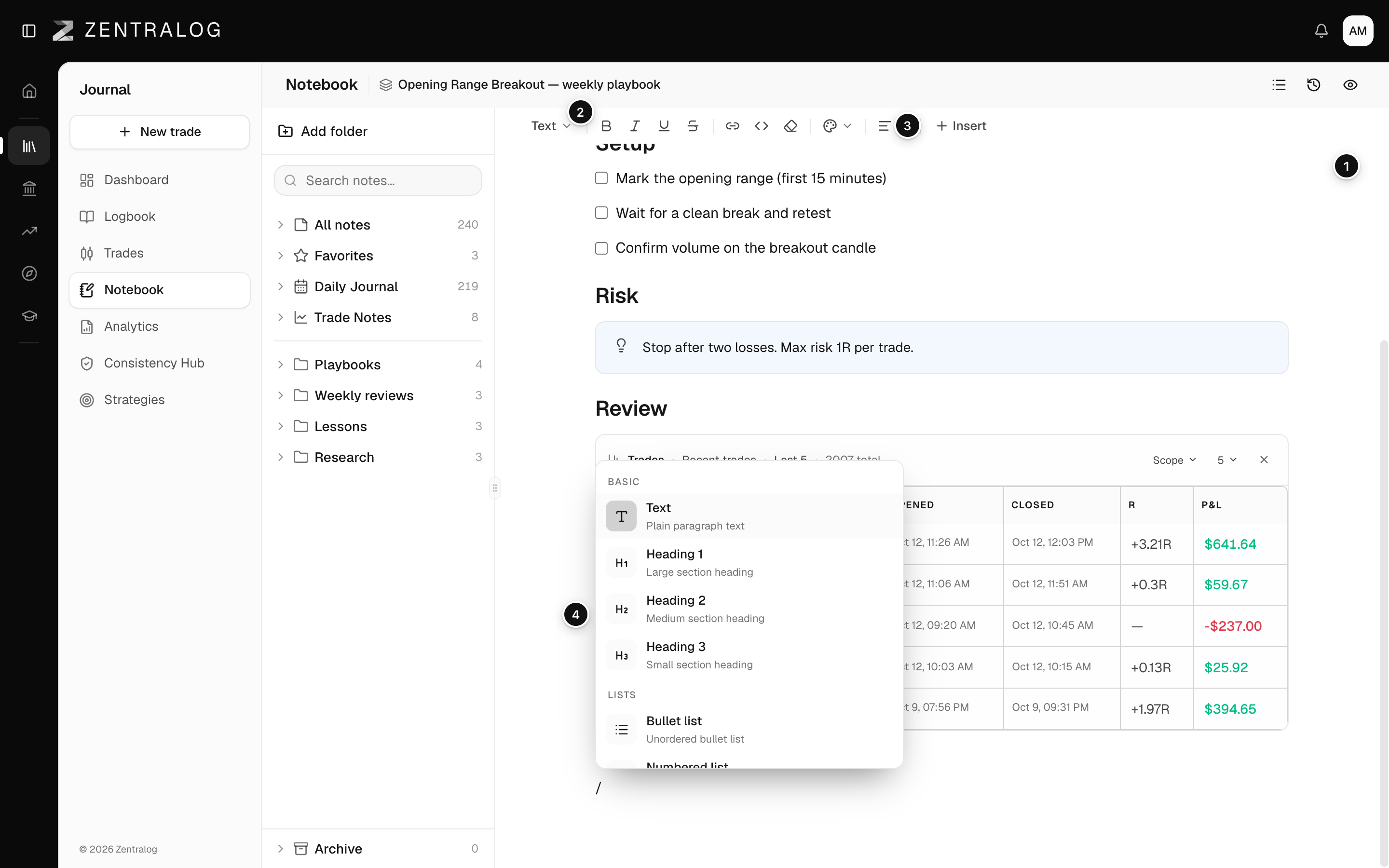
- Formatting toolbar: always visible above the note.
- Text style: headings, lists, quote and code.
- Insert: image, table, divider, callout and toggle.
- Insert block: the menu you open by typing /.
- Block handle: drag to reorder. Click it for Duplicate block or Delete block.
Trade blocks update on their own. Use Scope on the block to change the range, or Remove to take it out.
FAQ
How do I add an image?
Use Insert → Image, type /image, or paste or drag a PNG, JPEG, GIF or WebP file into the note.
Can I move a block with the keyboard?
Yes. Put the cursor in the block and press Alt+↑ or Alt+↓.
Related
Did this answer your question?