
The community board
Post notices that all your active students see on their board.
Updated 1 min read
Where: Mentorship → Board
Publish a notice
- Click Board under Mentorship. The top line says how many active students see it.
- Click Write a notice for your students…, or Image to start with a picture.
- Fill in Notice title and write the notice. You can paste or drop images.
- Tick Pin to top to keep it above the rest.
- Click Publish.
Manage a notice
- Open Notice actions on the notice.
- Pick Edit, Pin to top or Unpin.
- Pick Delete and confirm to remove it from all your students' board.
- Check who read it under each notice.
What's on the screen
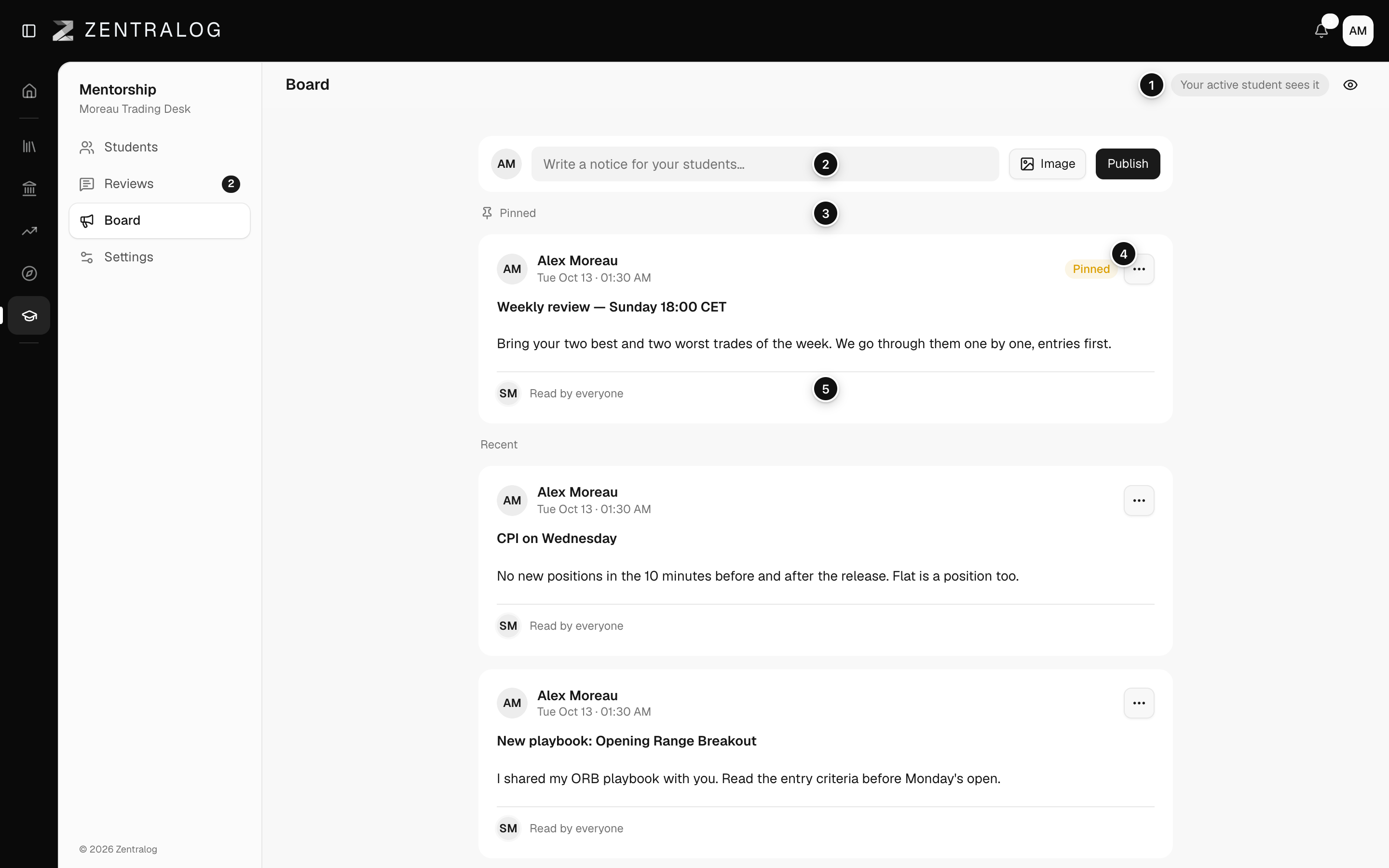
- Audience: how many active students see the board.
- Writing bar: start a new notice.
- Pinned: notices kept at the top.
- Notice actions: edit, pin, unpin or delete.
- Read by: who read the notice and who hasn't yet.
FAQ
Who sees my notices?
All your active students, on their own board.
I closed the notice by mistake.
If you had written something, Zentralog asks first. Click Keep writing to go back to it.
Related
Did this answer your question?