
Your students panel
All your students at a glance, with their numbers, their P&L curves and what needs you.
Updated 2 min read
Where: Mentorship → Students
Read the panel
- Click Students under Mentorship.
- Pick the period with the date range at the top. It applies to all your mentor pages.
- Read the four numbers at the top: Active students, Pending reviews, Median win rate and Median profit factor.
- In Cumulative P&L, click Choose (max. 5) and pick up to 5 students to compare.
- Check Waiting for you on the right. All good. means nothing is pending.
Work through the list
- In All students, pick Active, Invited or Former.
- Click a number column, such as Net P&L, to sort by it.
- Look at Pending: it shows the most urgent thing for each student.
- Click a student's name to open their account.
What's on the screen
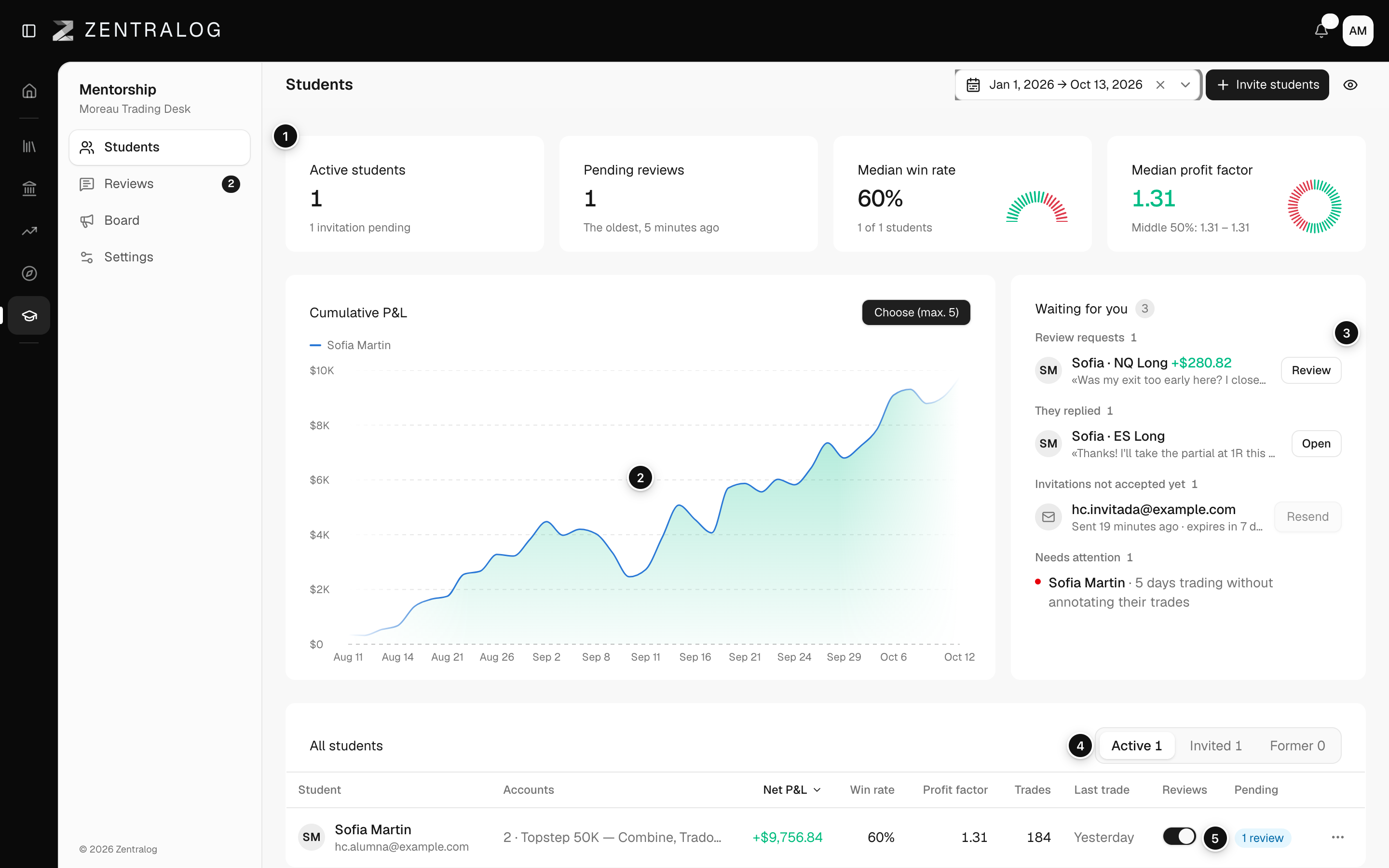
- Key numbers: active students, reviews to do, and the median win rate and profit factor (money won for each 1 lost).
- Cumulative P&L: the running result of up to 5 students.
- Waiting for you: Review requests, They replied, Invitations not accepted yet and Needs attention.
- All students: the table, split into Active, Invited and Former.
- Pending: badges such as Not annotated, Unread feedback or Inactive.
A median is the value of the student in the middle. It only counts students with at least 10 trades in the period. Below that, the row shows No data.
FAQ
When does a student show up in Needs attention?
When they trade for 3 days without annotating their trades, have no activity for 7 days, or leave your feedback unread.
Why are the curves in different currencies?
Each line uses its student's currency, so you can compare shapes, not amounts.
Related
Did this answer your question?