
Your mentor's Board
The Board is where your mentor posts notices for all their students.
Updated 1 min read
Where: Mentorship → Board
Read the notices
- Click Board in the Mentorship column. The number on it counts unread notices.
- Read the Pinned notices at the top. Your mentor keeps them there.
- Scroll to Recent for the rest.
- Notices marked New count as read once you see them.
My mentor also shows the latest notice. Click View all there to open the Board.
What's on the screen
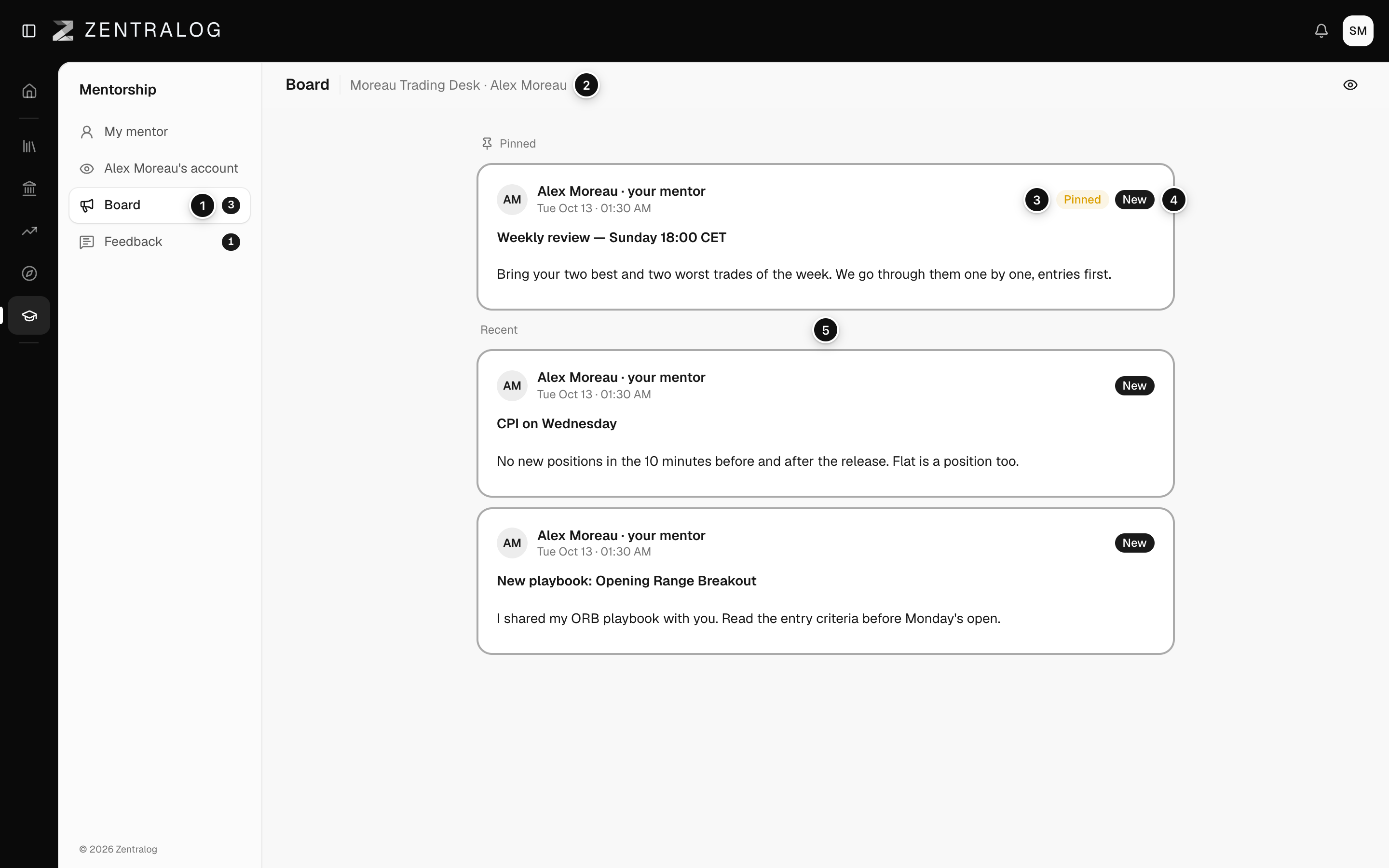
- Board: the badge counts unread notices.
- Header: the community and your mentor.
- Pinned: notices your mentor keeps at the top.
- New: a notice you hadn't read yet.
- Recent: every other notice. edited means your mentor changed it.
FAQ
Can I reply to a notice?
No. The Board is read-only. Your mentor writes to you one by one in Feedback.
Do the other students see the same notices?
Yes. Every active student of your mentor sees the same Board.
Related
Did this answer your question?