
Give feedback on a trade
Leave a private message on one of your student's trades and see when they read it.
Updated 1 min read
Where: Mentorship → Students → a student → Trades → a trade
Open a trade
- Open a student and click the Trades tab.
- Click a row to open the trade.
- Read the trade: its prices, executions and the student's note. No note. means they didn't write one.
- Use the arrows at the top to go to the previous or next trade in the period.
Write feedback
- In the conversation with your student, click Write feedback.
- Write in Write here…. You can add images.
- Click Publish.
- Under your message you see whether the student read it.
- To change or remove it, open Message actions and pick Edit or Delete.
What's on the screen
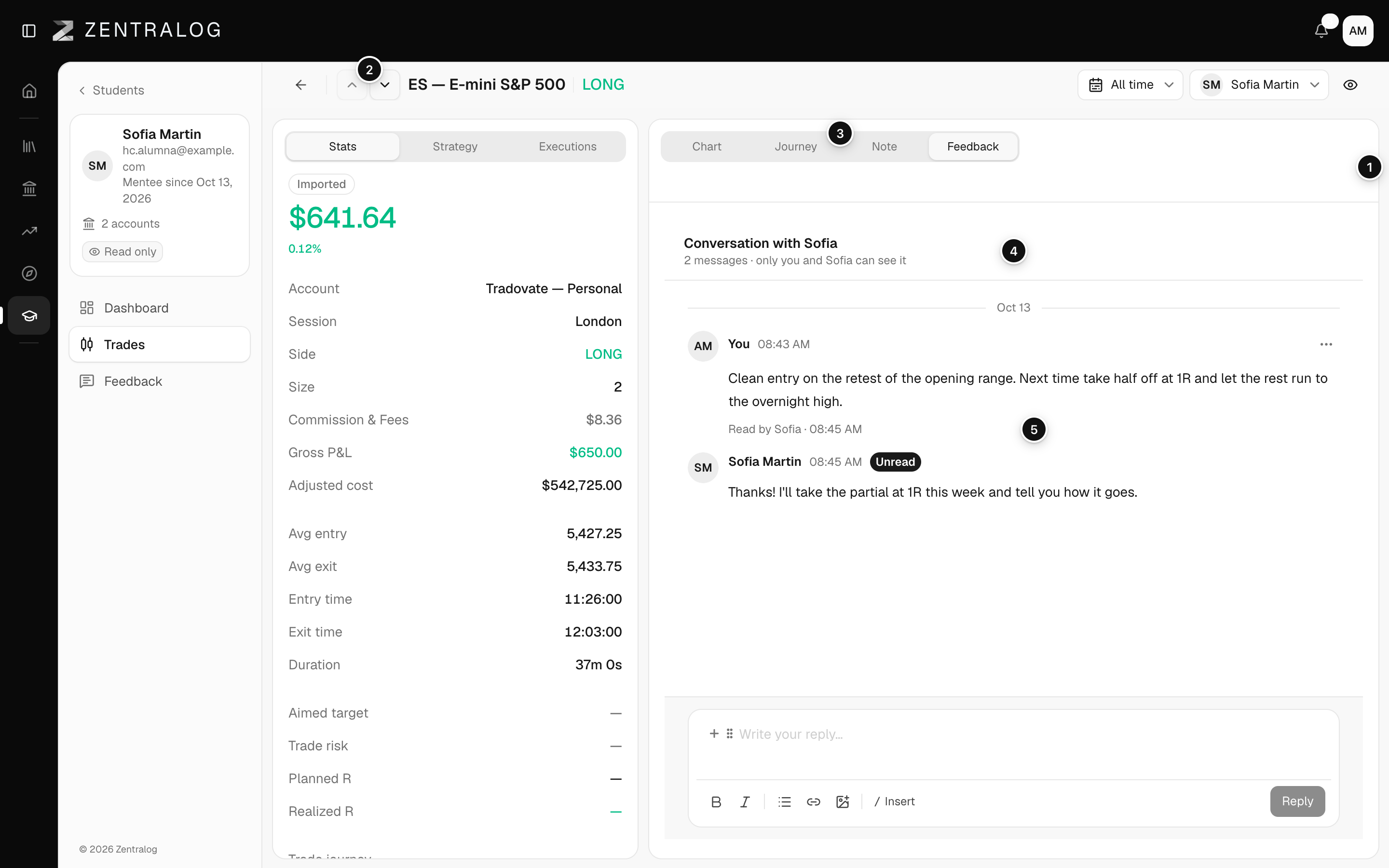
- Trade: the student's trade, read-only.
- Arrows: previous and next trade.
- Note: what the student wrote about the trade.
- Conversation: your thread with the student about this trade.
- Read status: whether the student has read your message.
Only you and your student can see the conversation.
FAQ
Can my student reply?
Yes, in the same conversation. Their replies show up in Waiting for you and in Reviews.
What happens when I delete a message?
Its text is removed and the message shows Deleted. The replies in the thread are kept.
Related
Did this answer your question?