
Review requests
Answer the trades your students ask you to review, from a single inbox.
Updated 1 min read
Where: Mentorship → Reviews
Open your reviews
- Click Reviews under Mentorship. The badge shows how many are to do.
- Pick a filter: To do, Reviewed or All.
- Read each row: student, instrument, long or short, P&L, their question and the status.
- Click Review to open the trade.
Answer a review
- On the trade, read the notice at the top: who asked, when, and their question.
- Click Mark as in review. Your student sees you are on it.
- Write your answer in the conversation below.
- Click Reply and mark reviewed. Your answer is sent and the review is closed.
- Nothing to add? Click Mark reviewed to close it without writing.
What's on the screen
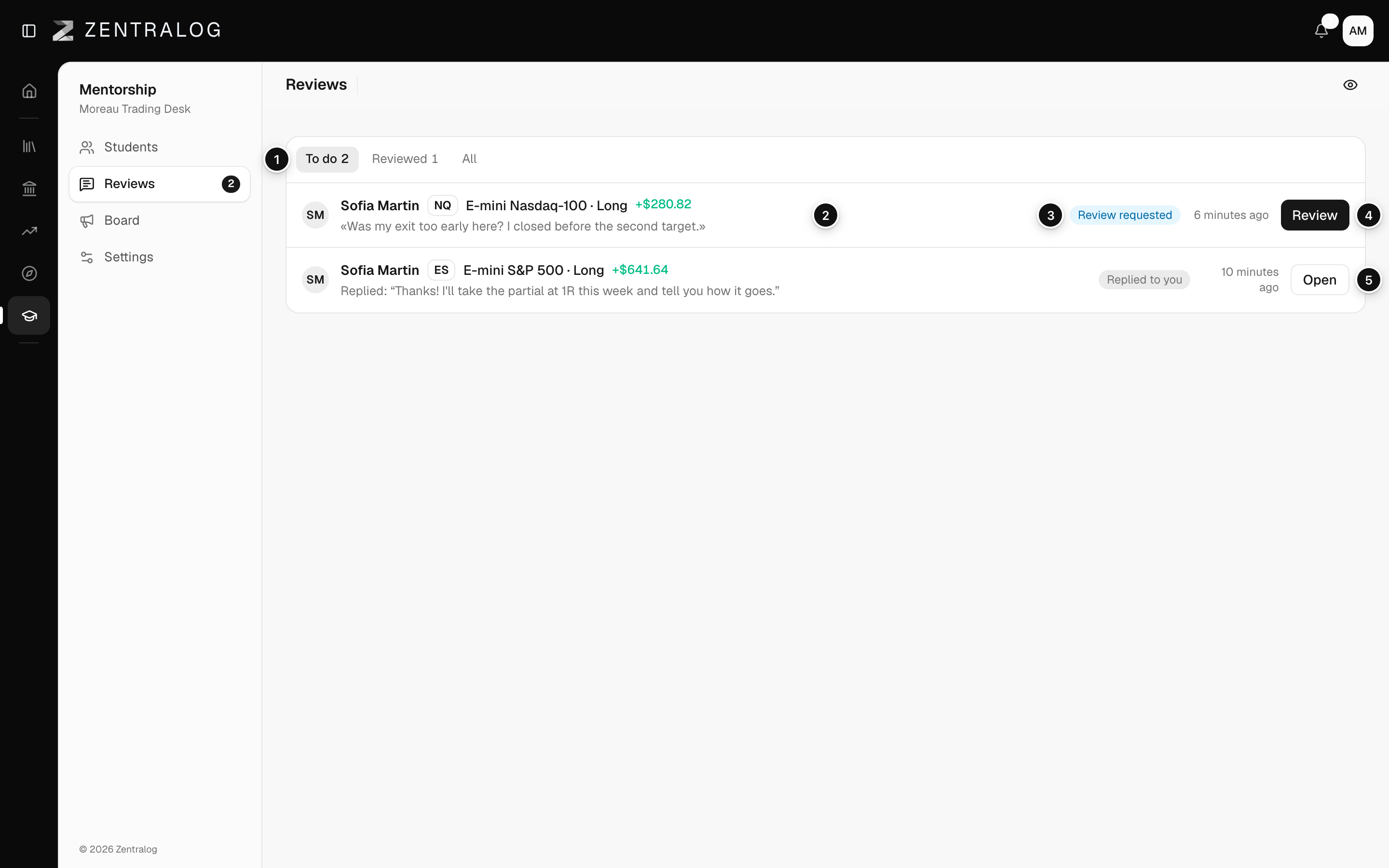
- Filters: To do, Reviewed and All, with their counts.
- Request: the trade and the student's question, or No message.
- Status: Review requested, In review or Reviewed.
- Review: opens the trade to answer.
- Reply: Replied to you means a student answered your feedback.
A student can only ask you for reviews if you turned Reviews on for them. See Manage a student.
FAQ
What counts as To do?
Requests not started yet, requests in review, and student replies you haven't answered.
Where else do I see new requests?
On Students, in Pending reviews and in Waiting for you under Review requests.
Related
Did this answer your question?