
Mentor settings
Rename your community, share one of your accounts with your students and reread your terms.
Updated 1 min read
Where: Mentorship → Settings
Rename your community
- Click Settings under Mentorship.
- In Community, click Edit.
- Type the new name. Use 2 to 60 characters.
- Click Save. Your students see the new name.
Share one of your accounts
- In Account you share, open the selector. It says None if you share nothing.
- Pick one of your accounts.
- Your active students now see it in their Mentorship: its dashboard, its trades and your notes, read-only.
- Click Stop sharing to hide it again.
What's on the screen
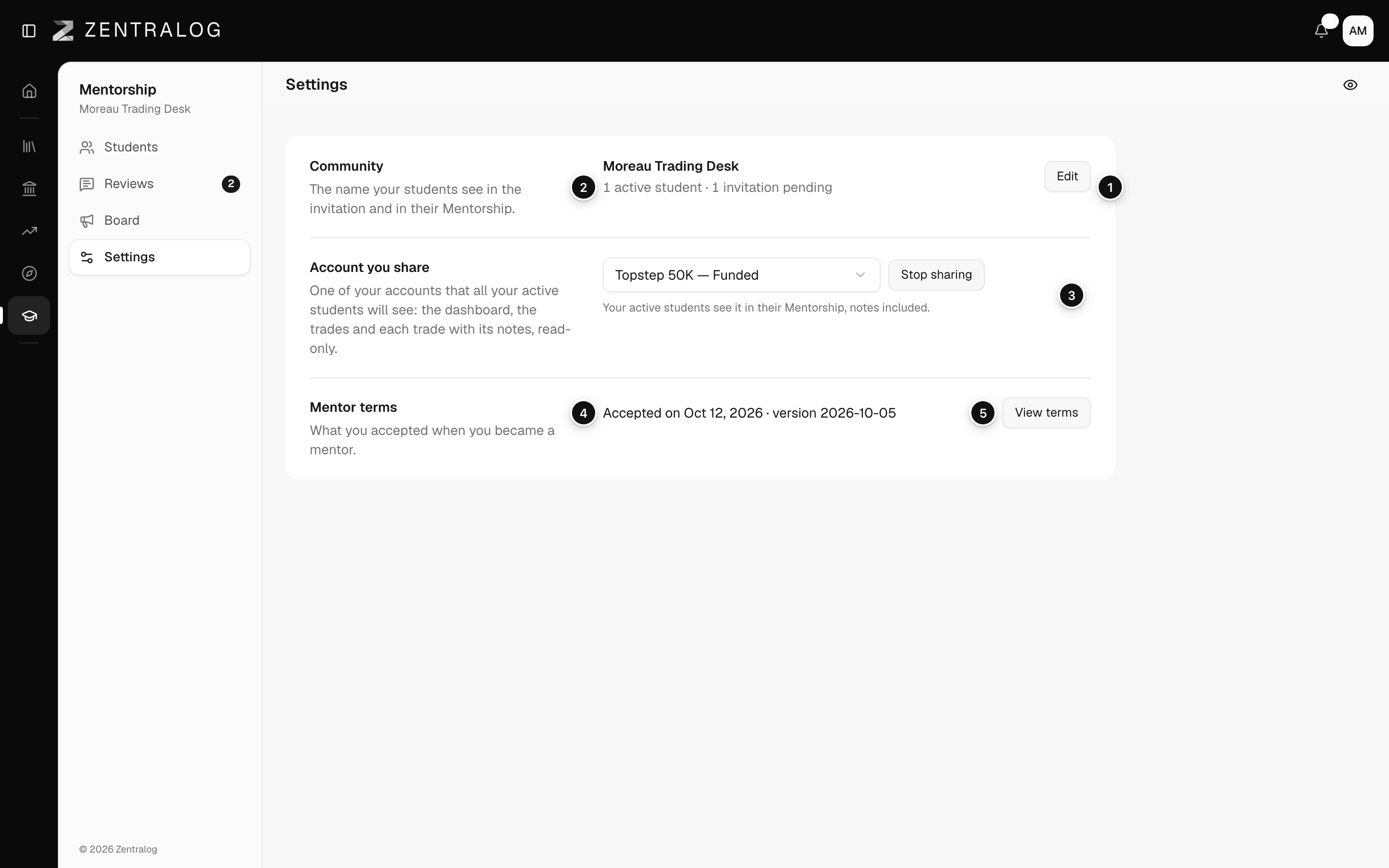
- Community: the name your students see, with Edit.
- Students: how many are active and how many invitations are pending.
- Account you share: the account your students can see.
- Mentor terms: when you accepted them and which version.
- View terms: reread the full text.
The shared account includes the notes on your trades. Share an account you are happy for every student to read.
FAQ
Can I share more than one account?
No. You share one account at a time. Pick another to switch.
Can my students change my shared account?
No. They only read it.
Related
Did this answer your question?