
Your mentor's shared account
If your mentor shares one of their trading accounts, you can see its dashboard, trades and notes, read-only.
Updated 1 min read
Where: Mentorship → your mentor's account (for example Alex Moreau's account)
See the dashboard
- Click your mentor's account in the Mentorship column. It only appears if they share one.
- The Dashboard tab shows the account with your mentor's layout.
- Change the period with the date range at the top.
Read their trades
- Click the Trades tab.
- Click a row to open that trade.
- Read your mentor's note on the trade.
- Use the arrows to go to the previous or next trade.
You can also open it from the card on My mentor, which shows the account's all-time net P&L (profit or loss after fees).
What's on the screen
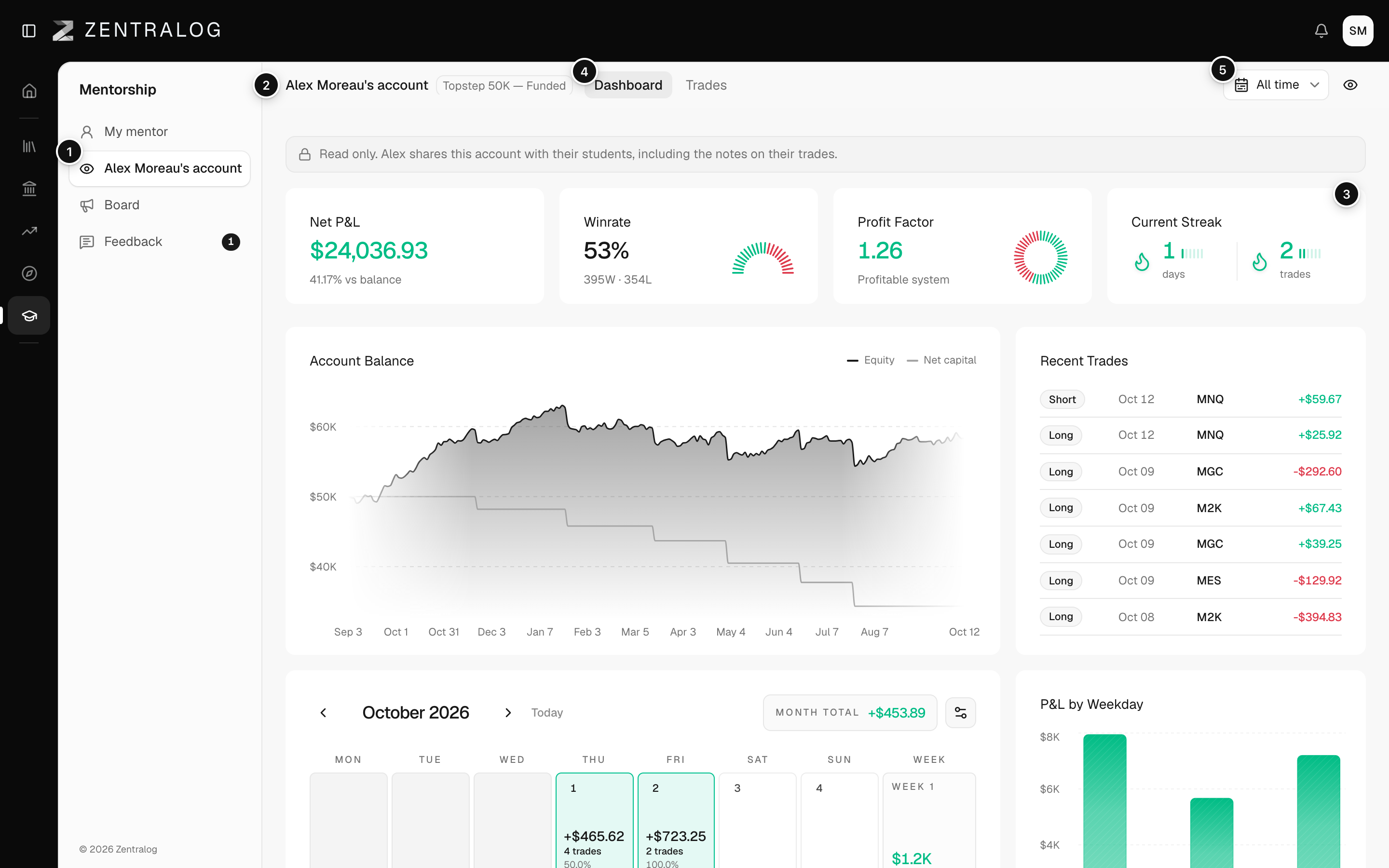
- Account row: opens the account your mentor shares.
- Heading: your mentor's name and the account name.
- Read only: you can look, but not change anything.
- Dashboard / Trades: the account's dashboard or its list of trades.
- Date range: the period you are looking at.
Your mentor shares one account with all their students. Your own trades and feedback stay in your journal.
FAQ
Why don't I see my mentor's account?
Your mentor doesn't share any account right now.
Can I comment on my mentor's trades?
No. Their account is read-only for you. Feedback works only on your own trades.
Related
Did this answer your question?