
Become a mentor
Create your own mentorship community in one step. No approval needed.
Updated 2 min read
Where: Mentorship → I'm a mentor
Create your community
- Click Mentorship in the sidebar.
- In the I'm a mentor card, type Your community's name. Your students see this name. Use 2 to 60 characters.
- Click mentor terms to read them.
- Tick I have read and accept the mentor terms.
- Click Create my mentorship. Your community is ready and you land on Students.
Find your mentor pages
- Look at the sidebar: Mentorship now shows your community's name.
- Students: your students, their numbers and your invitations.
- Reviews: trades your students ask you to review. A badge counts the ones to do.
- Board: notices for all your students.
- Settings: your community's name, the account you share and your terms.
What's on the screen
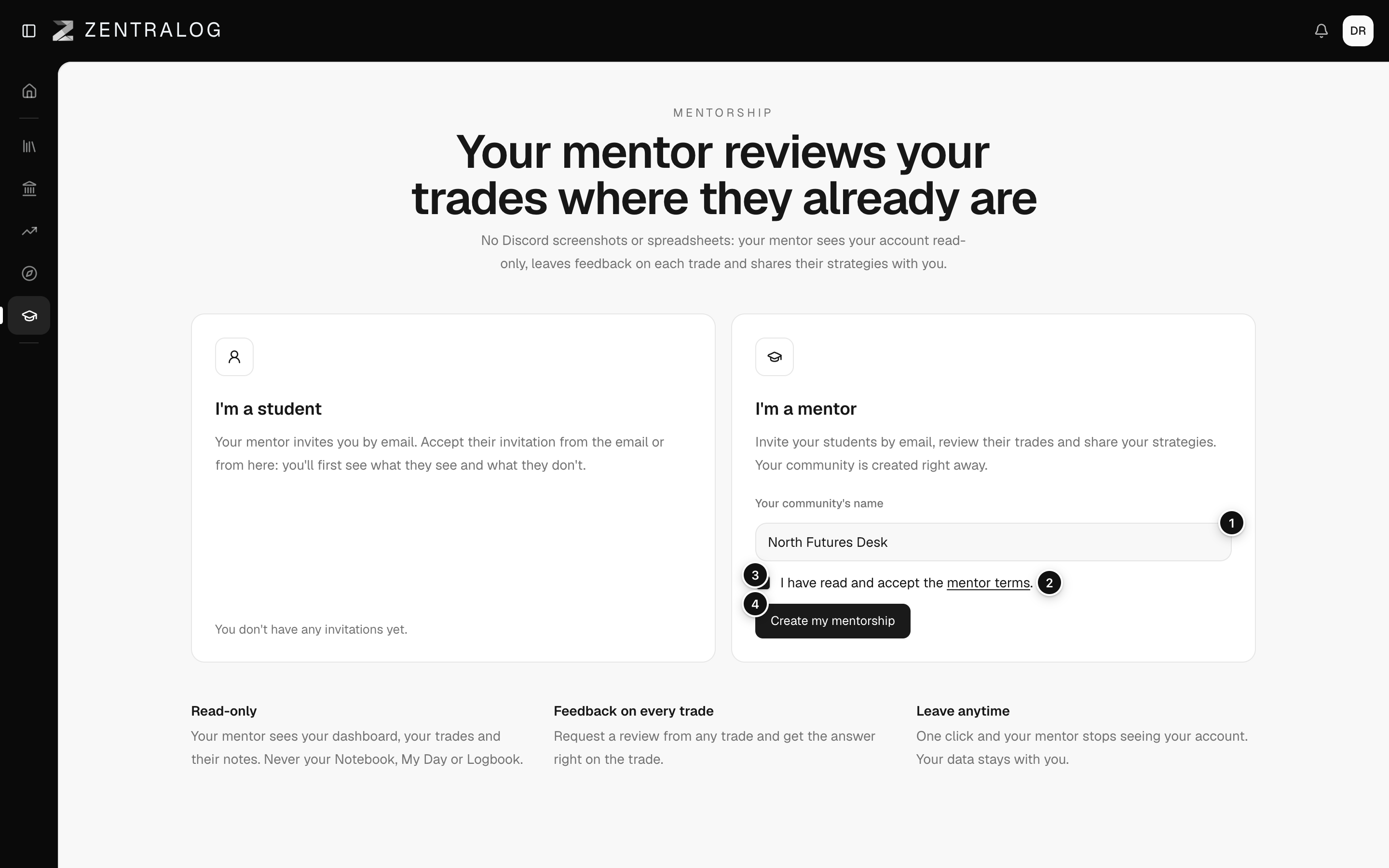
- Your community's name: the name your students see.
- Mentor terms: opens the text of the terms.
- Terms box: you must tick it to continue.
- Create my mentorship: creates your community.
The button stays off until the name has at least 2 characters and the box is ticked.
FAQ
Does someone have to approve me?
No. Your community is created right away.
Can I have more than one community?
No. Each person can be the mentor of one community.
I'm a student in a mentorship. Can I create mine?
Not while you are in it. Leave it first, then create yours. See Leave a mentorship.
Related
Did this answer your question?