
Your My mentor page
My mentor is your home in the mentorship, with your mentor, their latest notices, your feedback and your reviews.
Updated 1 min read
Where: Mentorship → My mentor
Open your mentorship
- Click Mentorship in the rail.
- The second column lists My mentor, your mentor's account (only if they share one), Board and Feedback.
- Click My mentor.
- On any card, click View all or Open to go to its page.
Read the badges
A number on Board counts the notices you haven't read. A number on Feedback counts unread feedback. Each one clears when you read them.
On your phone, the same rows and badges are in the ☰ menu.
What's on the screen
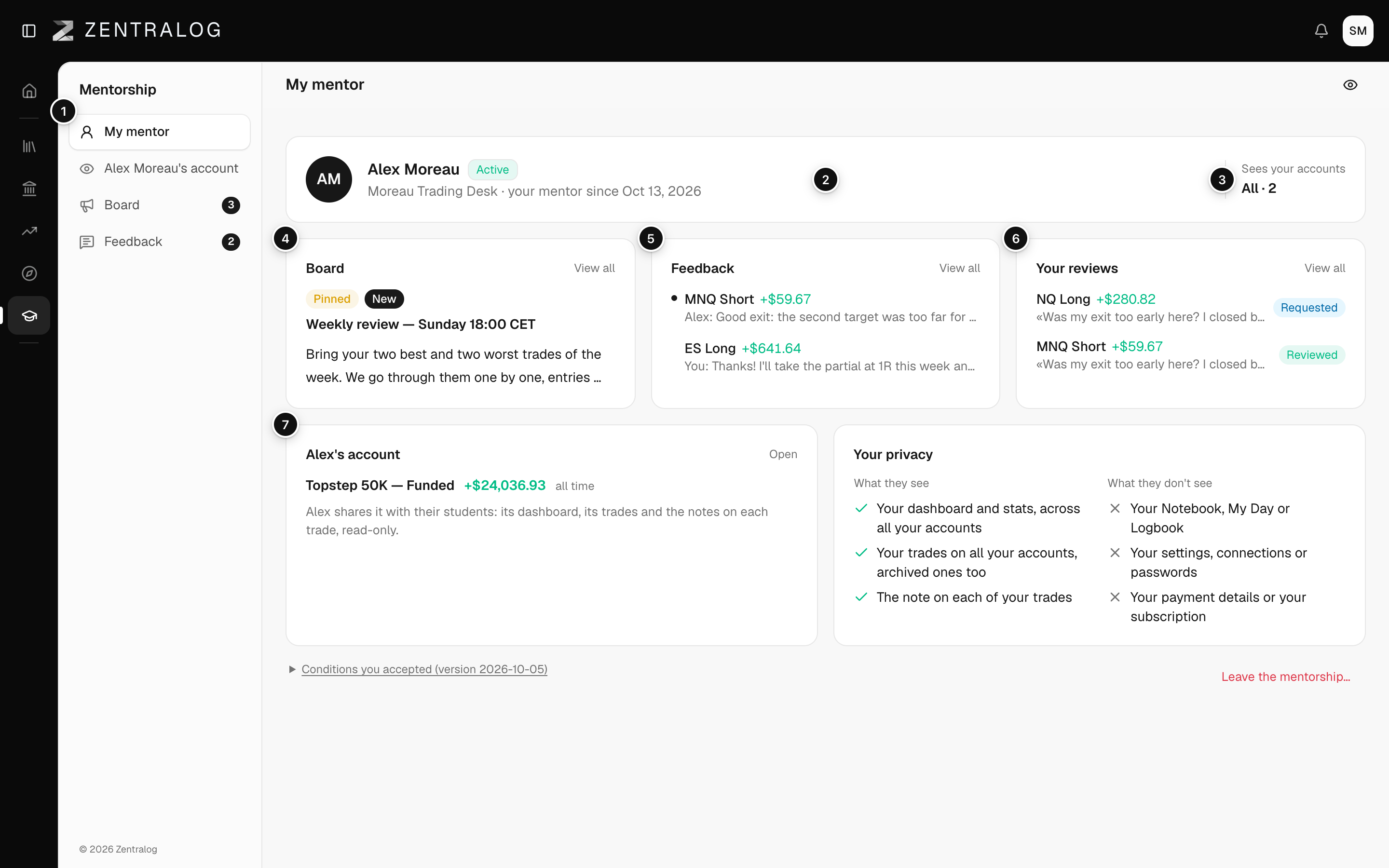
- Mentorship column: your mentor's pages, with unread badges.
- Header: your mentor, their community and since when.
- Sees your accounts: your mentor sees all your accounts. The number is how many.
- Board: your mentor's latest notice.
- Feedback: your two latest threads. A dot means unread.
- Your reviews: your review requests and their status.
- Your mentor's account: the account they share with students, with its all-time result.
At the bottom you find Your privacy, the conditions you accepted and Leave the mentorship…. See What your mentor sees.
FAQ
Your reviews says my mentor hasn't turned on reviews.
Reviews start off. Your mentor turns them on for each student. Until then you can't request one.
Why don't I see my mentor's account?
Your mentor doesn't share any account right now. The row and the card appear when they do.
Related
Did this answer your question?