
Theme and text size
The Appearance page, where you choose light or dark mode and how big the text looks.
Updated 1 min read
Where: your avatar → Settings → Appearance
Pick a theme
- Open Settings and click Appearance.
- Under Theme, click System, Light or Dark.
- The change applies at once. There is no save button.
You can also flip between light and dark from the switch in your avatar menu.
Change the text size
- Under UI Scale, click a size: XS, S, M or L.
- Smaller sizes fit more data on screen. Larger ones are easier to read.
- The size is saved to your account right away.
What's on the screen
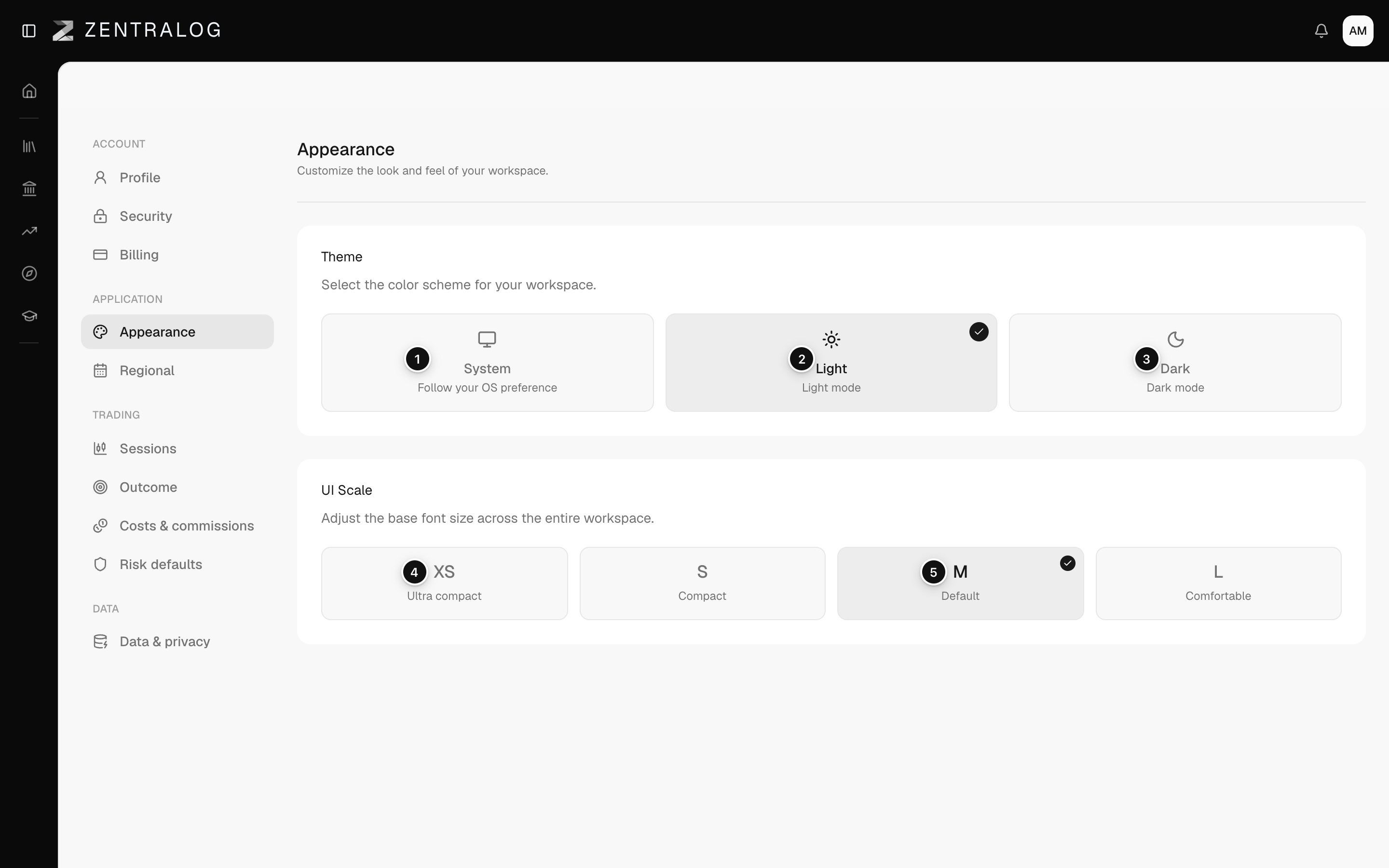
- System: follows your computer's light or dark mode.
- Light: forces light mode in this browser.
- Dark: forces dark mode in this browser.
- XS: the smallest text, fits the most data.
- M: the default size, saved to your account.
The theme is remembered per browser. The text size follows your account to every device.
FAQ
I chose Dark, but my other computer is still light.
The theme is stored in each browser. Pick it again on the other computer.
Everything looks too big or too small.
Go back to UI Scale and choose M, the default.
Related
Did this answer your question?