
Delete trades
Remove one trade or several at once from your journal. Deleting is permanent.
Updated 1 min read
Where: Journal → Trades → Actions
Delete from the table
- Hover a row and tick the checkbox that appears on its left. Tick more rows if you want.
- To select every trade on the page, tick the checkbox in the header.
- Click Actions above the table.
- Click Delete trade (or Delete plus the number of trades when you selected several).
- Read the warning and click Delete to confirm, or Cancel.
Delete from the trade detail
- Open the trade.
- Click the trash icon at the top (Delete trade).
- Click Delete trade in the dialog. You go back to the list.
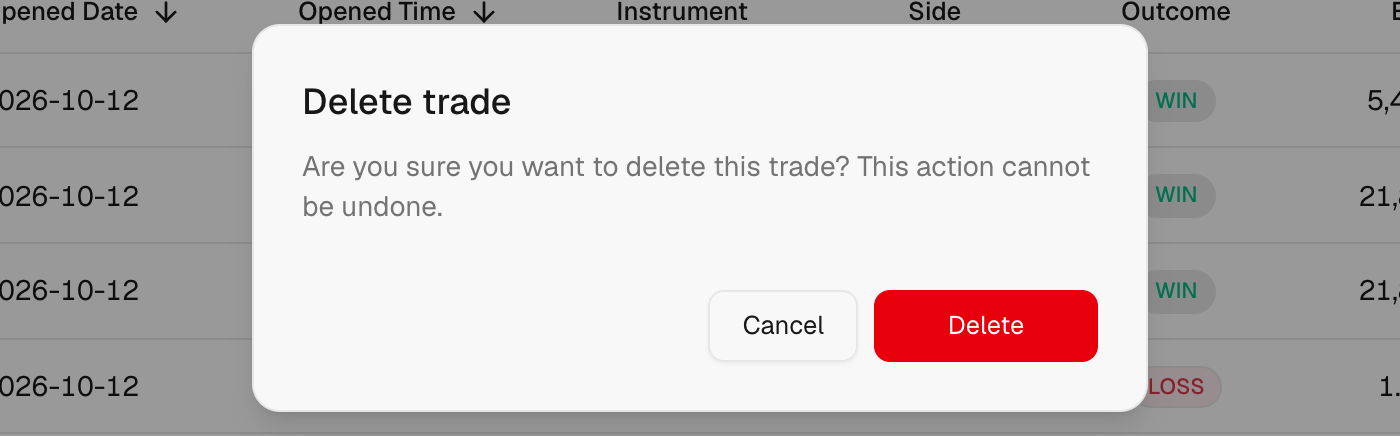
What's on the screen
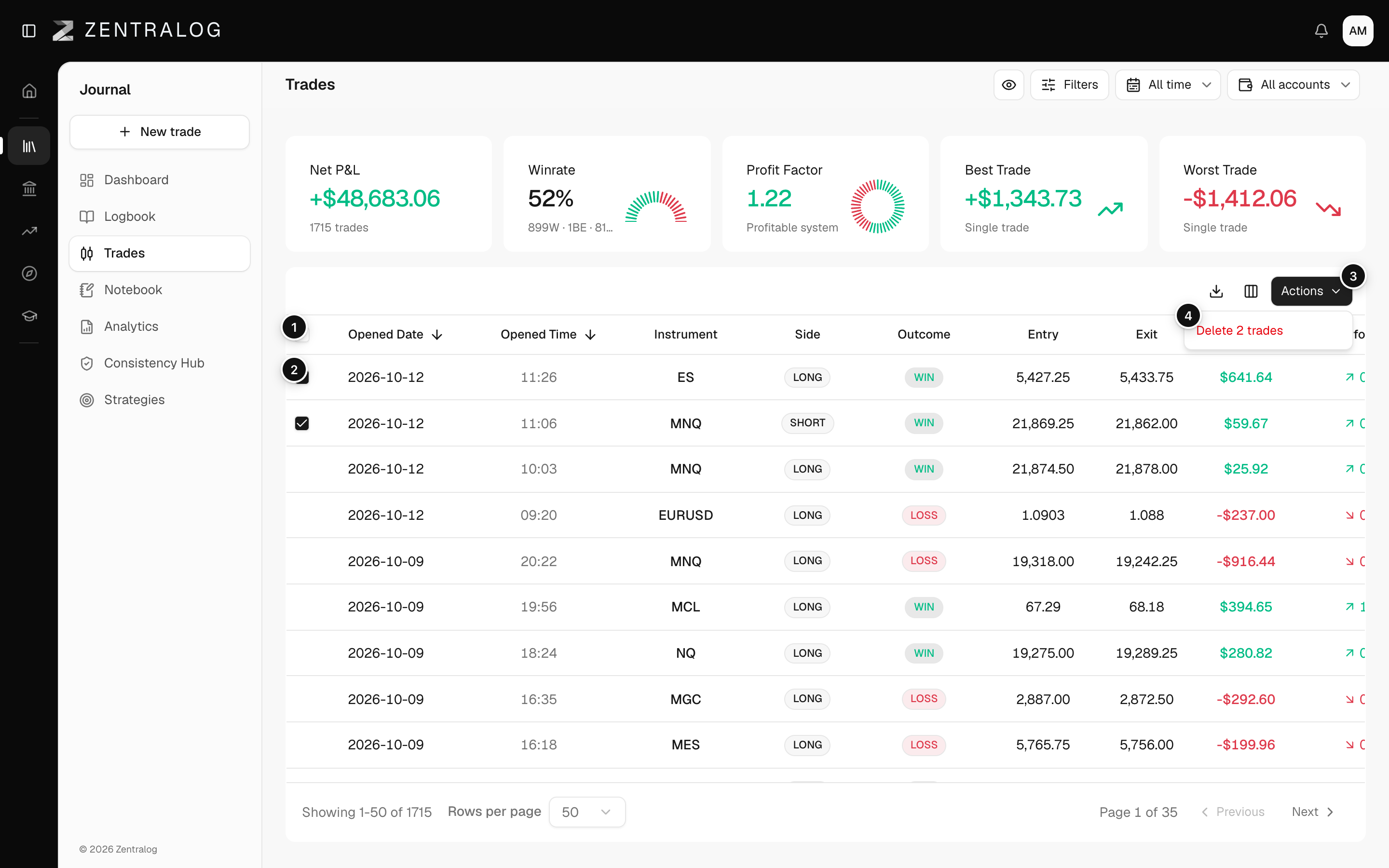
- Select all: select every trade on the page.
- Row checkbox: tick individual trades.
- Actions: bulk actions for the selection.
- Delete: delete the selected trades.
There is no undo. Deleting a trade also removes its note, screenshots, strategy and mistake tags. Your other trades and stats recalculate without it.
FAQ
The Actions button is greyed out. Why?
No trade is selected. Tick at least one row first.
I saw The trade could not be deleted. Is anything gone?
No. Nothing was removed. Check your connection and try again.
Related
Did this answer your question?