
The trade detail
The trade detail is the page of one trade, with its numbers, strategy, executions and your note.
Updated 2 min read
Where: Journal → Trades → click a row
Move around a trade
- Click any row in the Trades table to open the trade.
- Use the up and down arrows at the top (Previous trade, Next trade) to walk through the list without going back.
- Switch the left panel with its tabs: Stats, Strategy, Executions, Replicas.
- Click Note in the right panel to read or write your note.
- Click Go back to return to the list with your filters.
Everything is edited in place. There is no separate edit mode.
What each tab is for:
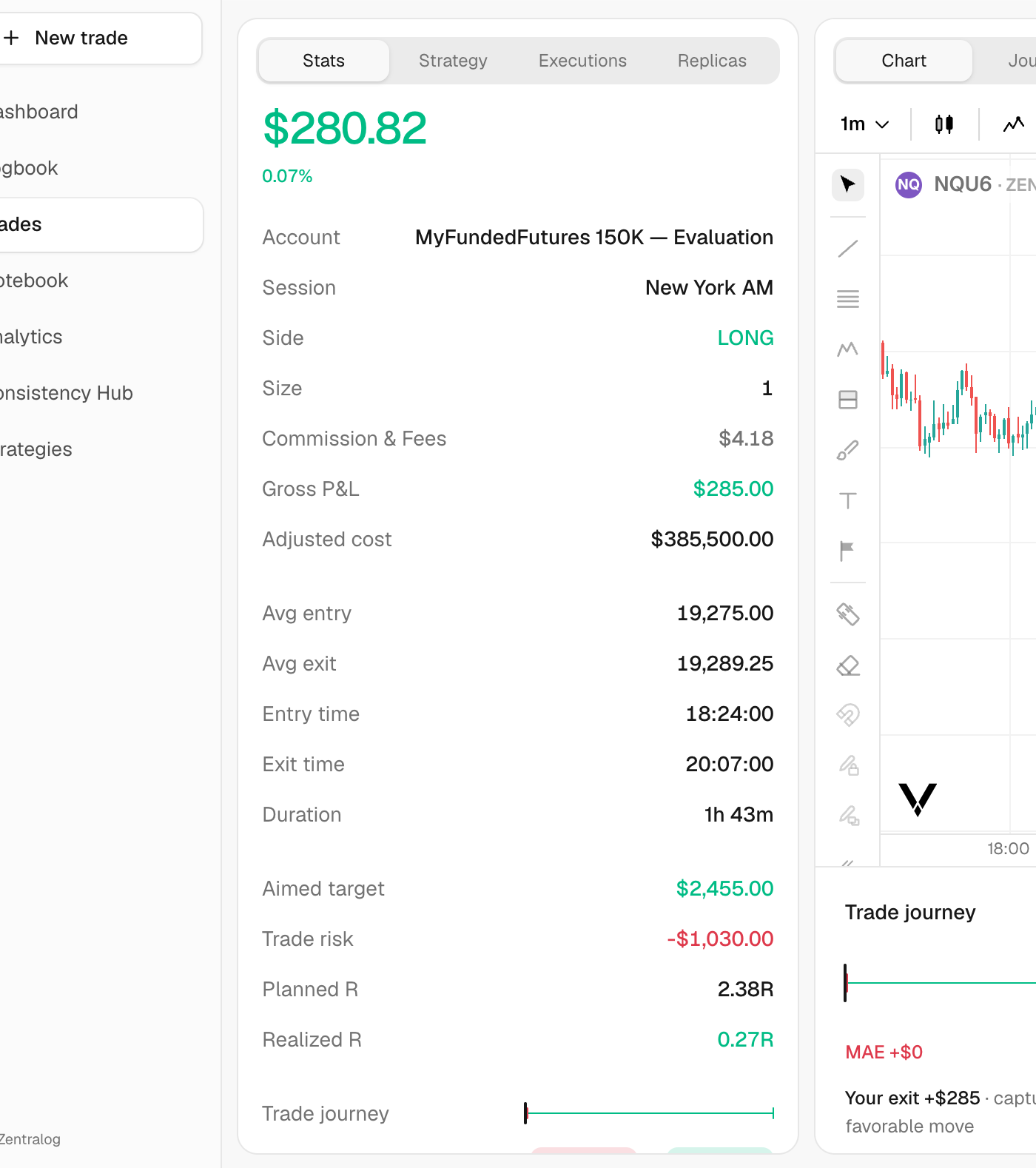
- Stats: account, session, side, size, fees, gross P&L, average entry and exit, times and duration. Also Trade risk and R.
- Strategy: the strategy and mistakes of the trade.
- Executions and Replicas: the fills and the copies on other accounts. See Executions and replicas.
- Note: your journal note for the trade.
- Feedback (only if you have a mentor): your conversation with your mentor about the trade. See Your feedback. If your mentor turned on reviews for you, Request review appears at the top. See Request a review.
What's on the screen
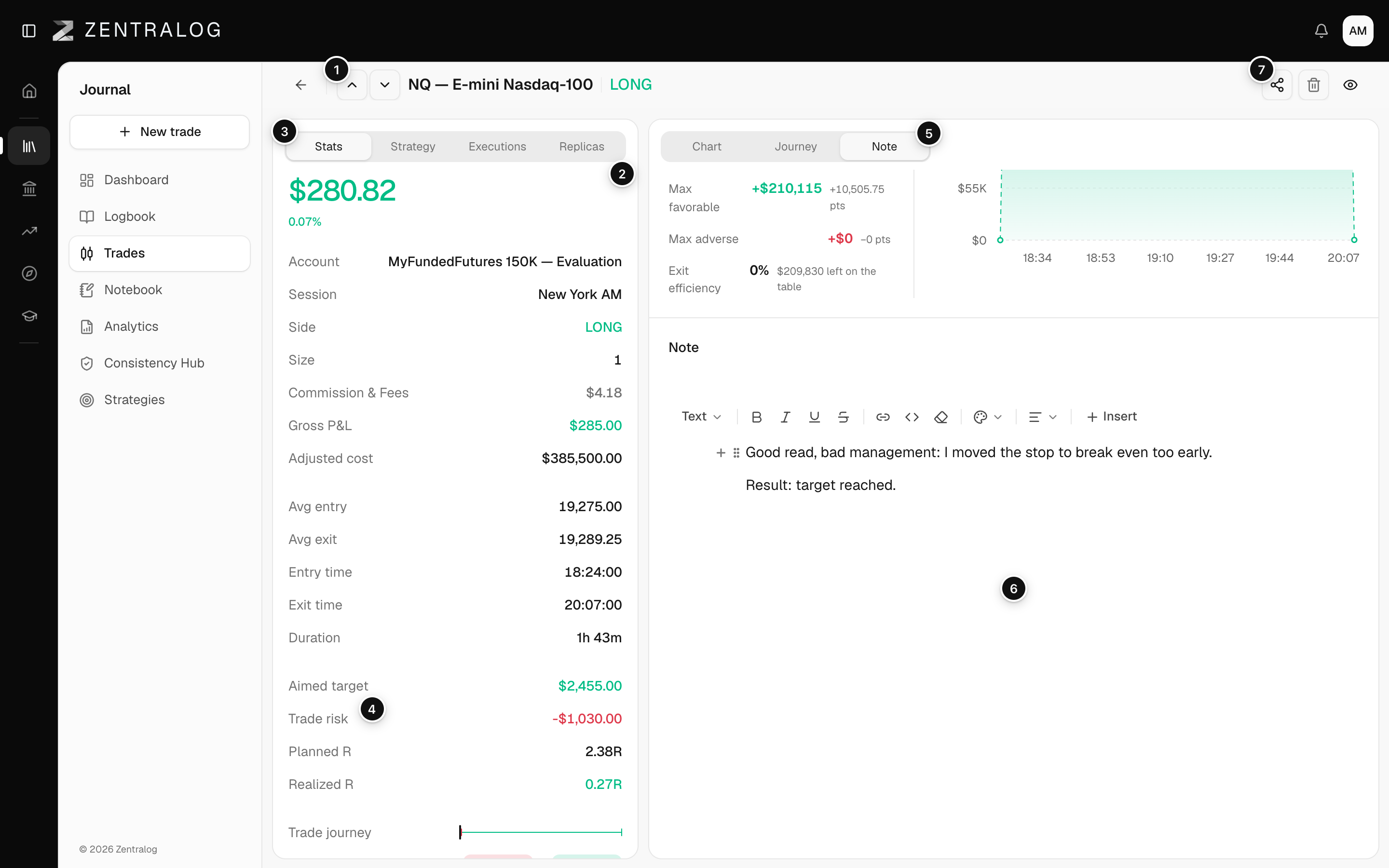
- Previous / Next trade: jump to the previous or next trade.
- Result: net P&L and return of the trade.
- Left tabs: Stats, Strategy, Executions and Replicas.
- Trade risk: set your stop to get R values.
- Note tab: opens the Note panel on the right.
- Note: your journal note for this trade.
- Share: share the trade as an image. See Sharing.
A small chip next to the result tells you more: Open if the position isn't closed, Imported if it came from a CSV, Override if you set the net P&L yourself.
FAQ
How do I delete this trade?
Click the trash icon at the top and confirm. It is permanent. See Delete trades.
Why is there no Executions tab?
Some older trades were saved without their individual executions, so there is nothing to list. Stats still shows their entry, exit and size.
Related
Did this answer your question?