
Use the trades table
The Trades screen lists every trade with summary numbers on top and columns you can choose and sort.
Updated 2 min read
Where: Journal → Trades
Choose your columns
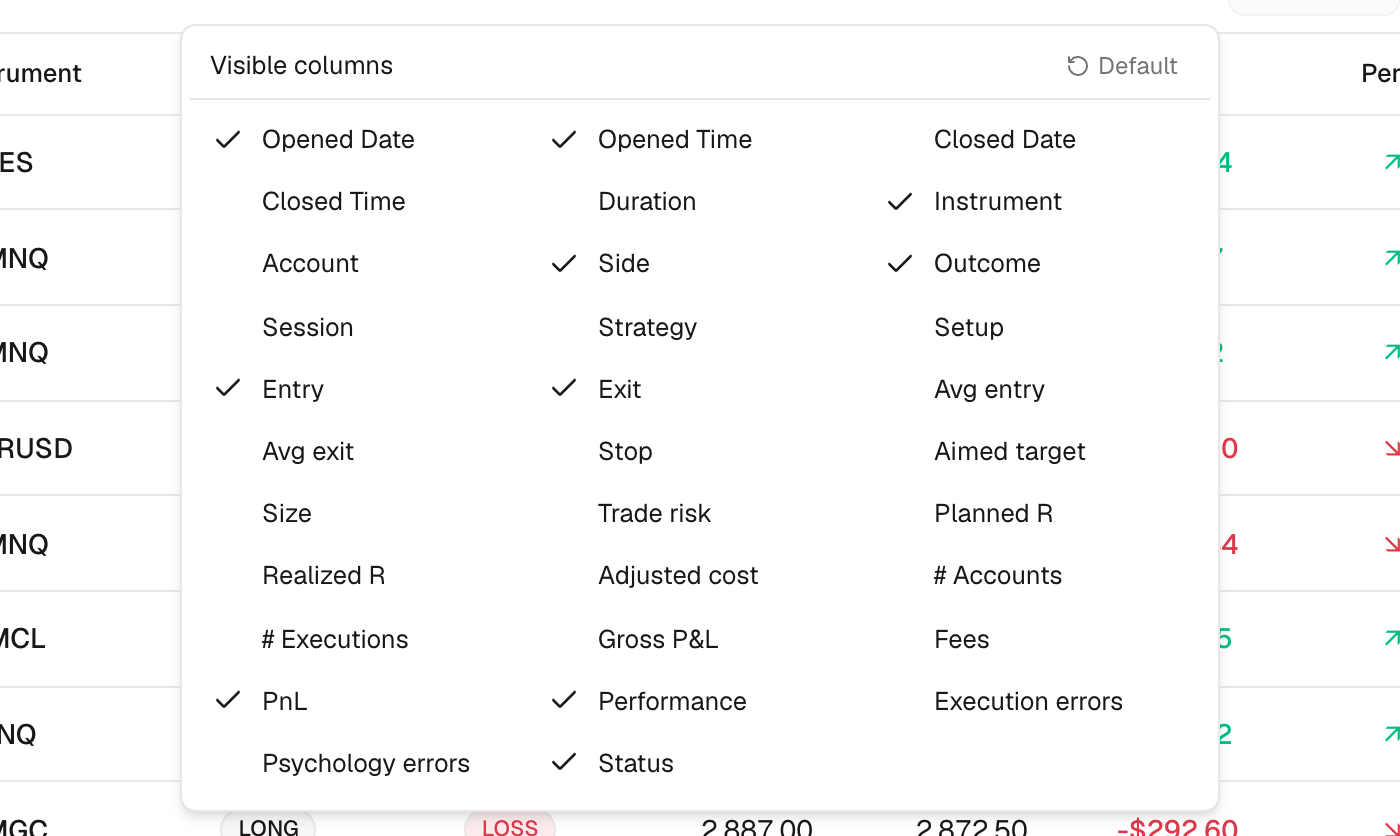
- Click the columns icon (Toggle visible columns) above the table.
- Tick a column to show it, untick it to hide it. Examples: Fees, Gross P&L, Realized R, Strategy.
- Click Default to go back to the original set.
Sort and reorder
- Click a column header to sort by it. Click again to flip the order.
- Drag a header left or right to move the column.
- Click any row to open that trade.
Your column choice and order are saved in this browser.
Move between pages
- Pick 10, 25, 50 or 100 in Rows per page at the bottom.
- Use Previous and Next to change page.
What's on the screen
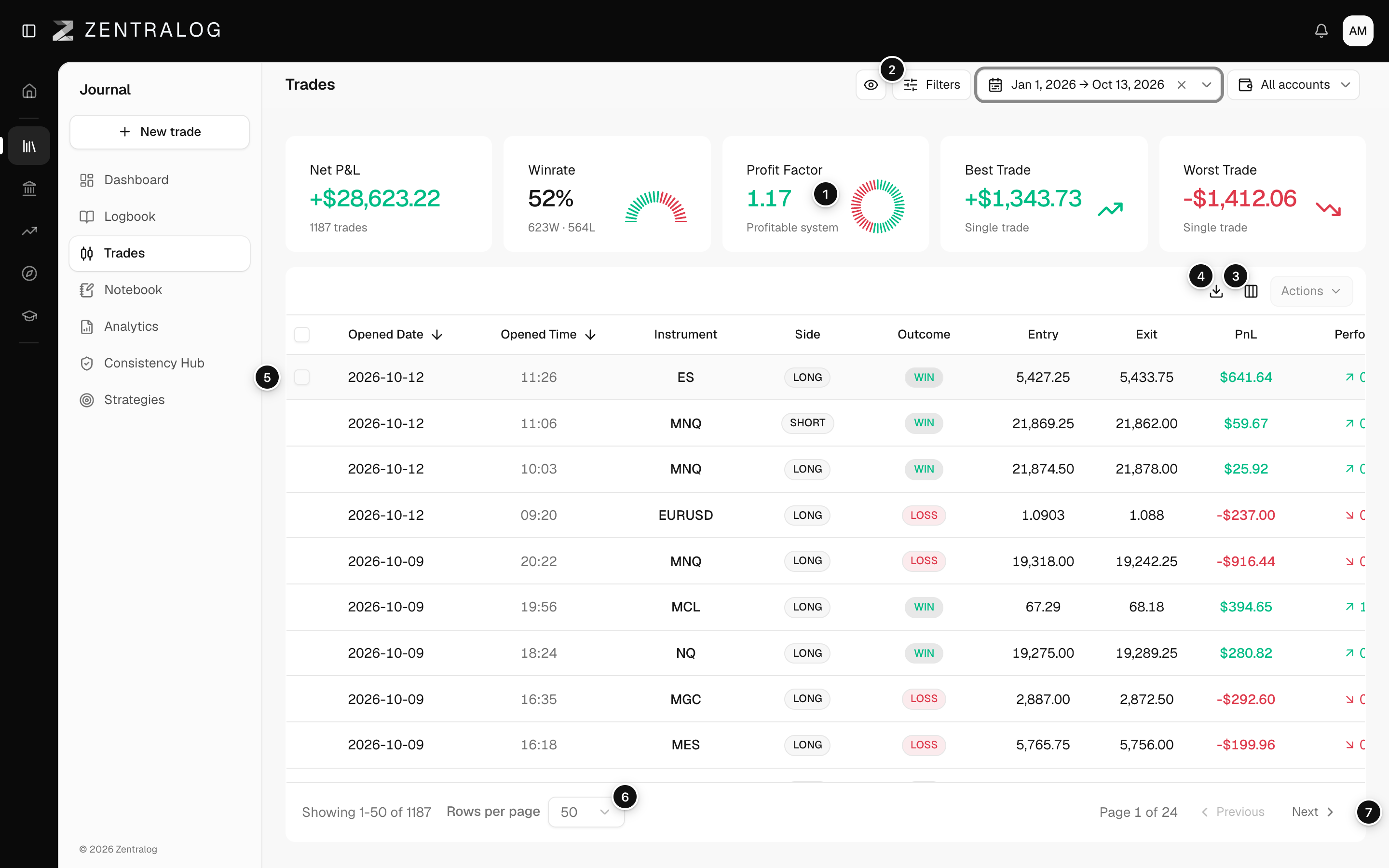
- KPI row: net P&L, win rate (break-even trades not counted), profit factor (money won divided by money lost), best and worst trade.
- Filters: narrow the list by side, result, instrument and more.
- Toggle visible columns: show, hide or reset the table columns.
- Export CSV: export the current list as a file.
- Trade row: click any row to open the trade.
- Rows per page: choose 10, 25, 50 or 100.
- Next page: move between pages.
The Performance column is the return on the position: net P&L as a percentage of the position's value.
FAQ
Can I search the table?
There is no search box. Use Filters, the date range and the account selector instead. See Dashboard filters for the last two.
Why did my columns reset on another computer?
Column choices are stored in the browser, so each browser keeps its own layout.
Related
Did this answer your question?