
Risk levels and R
Record your stop and target on a trade so Zentralog can measure your risk and your result in R.
Updated 2 min read
Where: Journal → Trades → a trade → Stats
Set your stop
- Open a trade and stay on the Stats tab.
- Click the pencil next to Trade risk.
- Pick a unit: Price, Points, Ticks (Pips in forex) or $.
- Type your stop loss level.
- Click Save.
Trade risk now shows the money you stood to lose. That amount is your trade risk, also called 1R.
Set your target
- Click the pencil next to Aimed target.
- Pick a unit and type your take profit level.
- Click Save.
Scaled out at several prices? Click Add level and give each level its Qty. The quantities can't add up to more than the trade's size.
What's on the screen
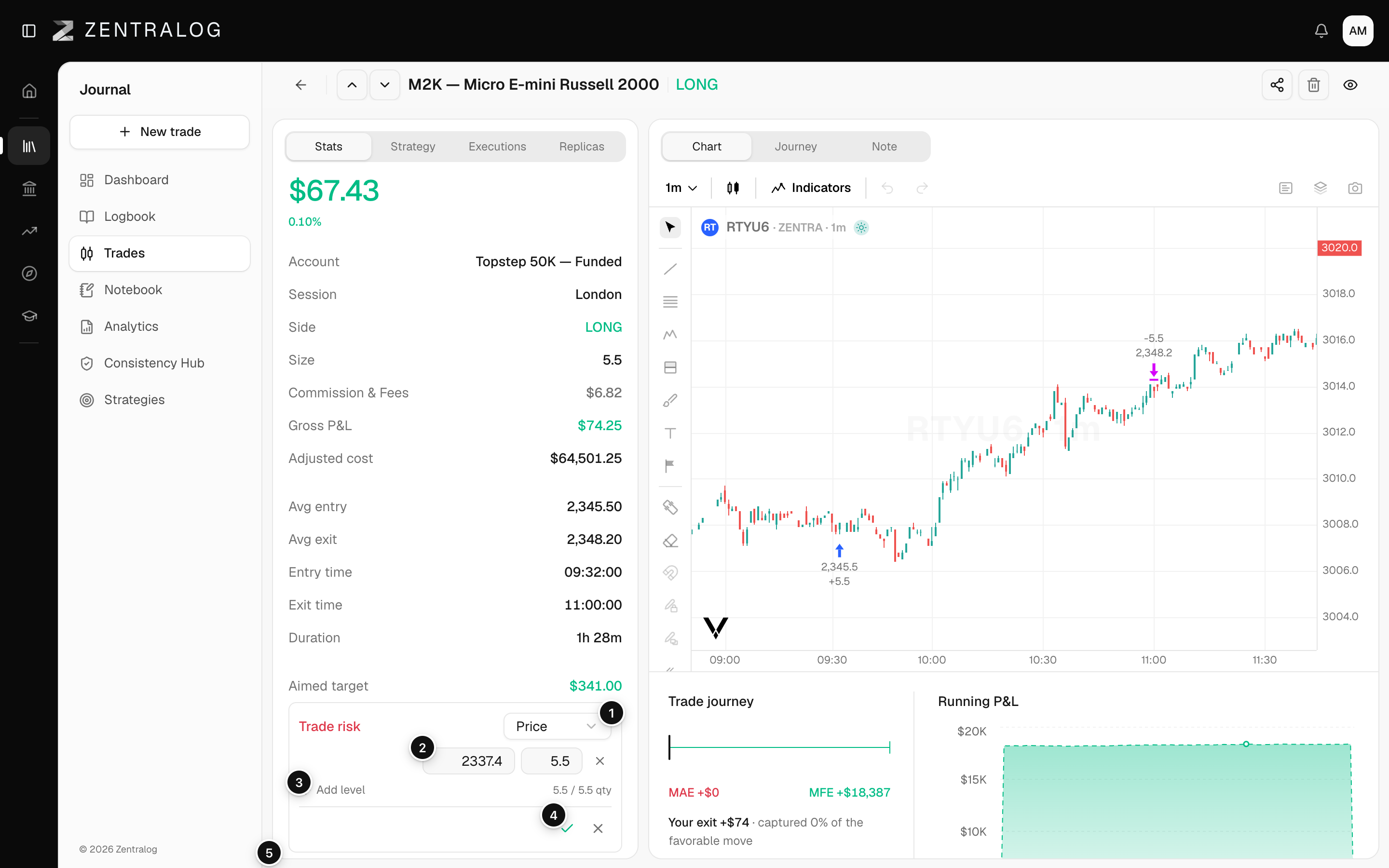
- Unit: enter levels as price, points, ticks or dollars.
- Level: the stop level for this trade.
- Add level: split the stop across several levels.
- Save: recalculate risk and R.
- Planned R: target distance divided by risk. See planned R.
- Realized R: actual net result divided by risk. See R multiple.
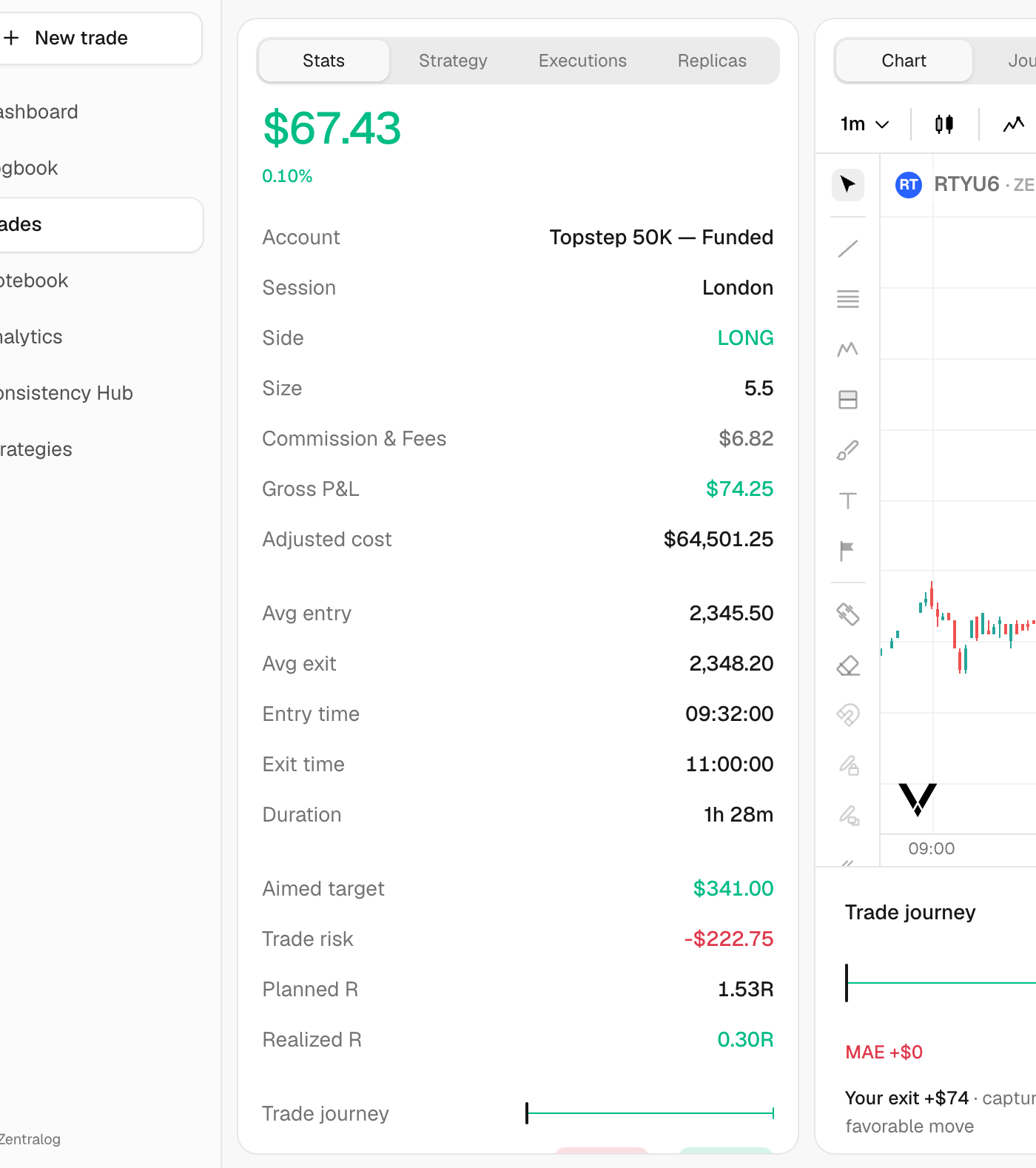
Example: you risk $100 and make $250. Realized R is 2.50R. A full stop-out is about −1R.
FAQ
Why are Planned R and Realized R empty?
Both need a stop. Without Trade risk, Zentralog doesn't know what 1R is.
Does setting a stop change my P&L?
No. Stop and target only measure risk and R. Your P&L comes from your executions.
Points or Ticks say the unit needs configuring. Why?
That instrument has no tick size or multiplier set. Use Price instead.
Related
Did this answer your question?