
Write a trade note
The Note is your free-text journal for one trade, with room for screenshots, and it saves by itself.
Updated 1 min read
Where: Journal → Trades → a trade → Note
Write the note
- Open a trade and click Note in the right panel.
- Click the text area and write: why you entered, how you managed it, what you'd repeat.
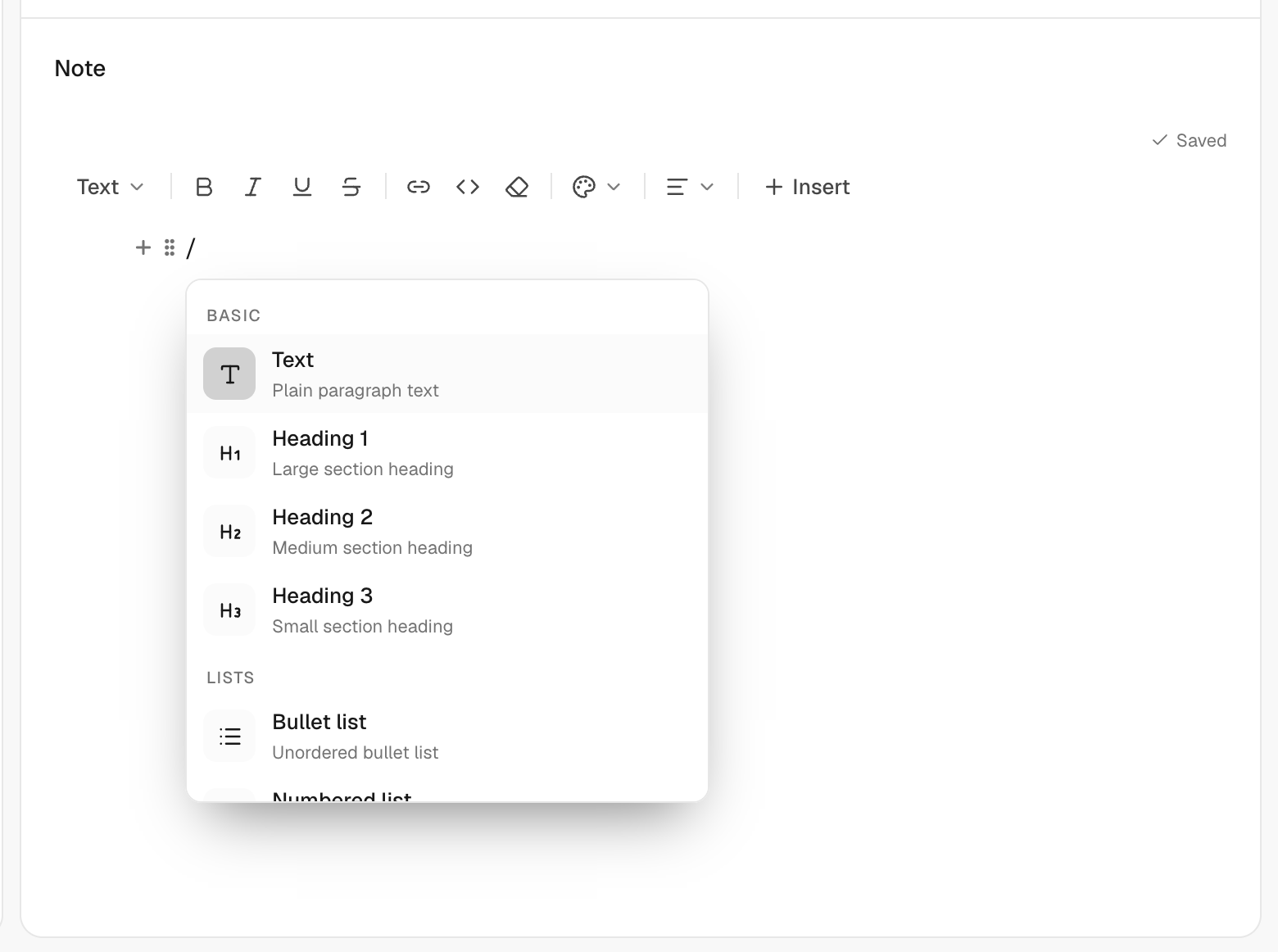
- Type / to insert headings, lists and more.
- Stop typing. The status changes from Saving… to Saved.
Add a screenshot
- Copy a chart screenshot and paste it into the note, or drag the image file in.
- Or type / and choose Image to upload a file.
This is the place for chart captures of the trade.
What's on the screen
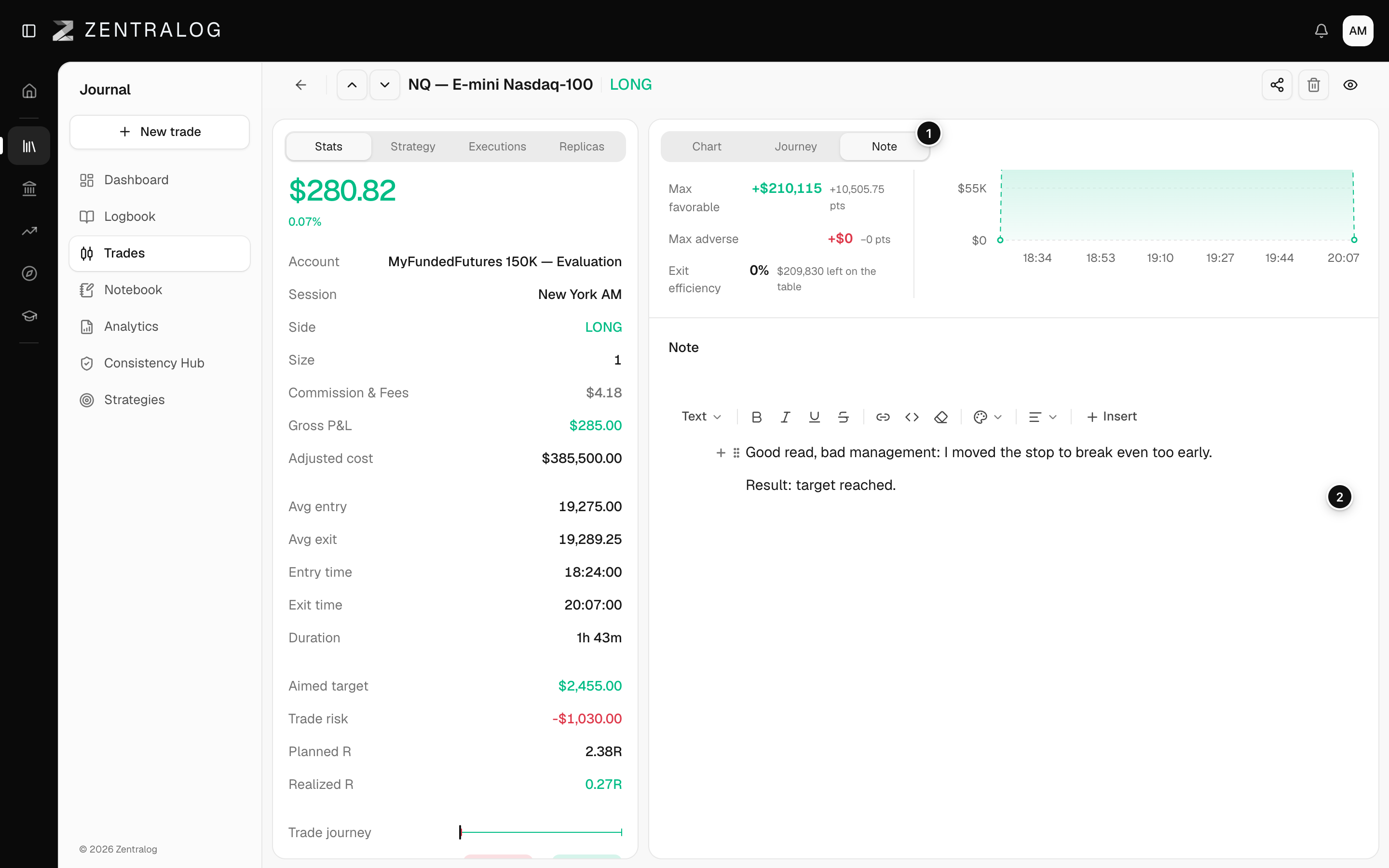
- Note tab: open the trade's journal note.
- Text area: write freely; it saves automatically.
- Image: paste, drop or insert images with /.
- Saved: save status of the note.
If you see Save failed, check your connection before leaving the page. Copy your text first so you don't lose it.
FAQ
What does Hold on, we couldn't load your latest changes mean?
Your note is saved, but the screen can't confirm it is showing the latest copy. Click Try again.
How do I format text?
The note uses the same editor as the rest of the journal. See The editor.
Related
Did this answer your question?