
Auto-sync with Tradovate and NinjaTrader
Sign in to Tradovate from Zentralog so your trades, NinjaTrader ones included, import automatically.
Updated 2 min read
Where: Accounts → Connect account → Tradovate
Connect Tradovate
- Click Accounts in the left rail, then Connect account.
- Click Tradovate (or NinjaTrader) under Main brokers, then Auto-sync.
- In Environment, choose Live or Demo.
- Optional: pick a date in Import history from. Leave it empty to import everything Tradovate still holds.
- Click Connect with Tradovate and sign in on Tradovate's page.
Pick the accounts
- Back in Zentralog, wait while it shows Detecting your accounts….
- Tick the accounts you want. Accounts you linked before show Already connected.
- Click Link (the button shows how many, for example Link 2 accounts).
NinjaTrader accounts run on Tradovate, so they connect the same way.
Prop firms on Tradovate (Apex, Tradeify, Lucid, Earn2Trade, My Funded Futures and others) appear in the search as «Firm - Tradovate».
What's on the screen
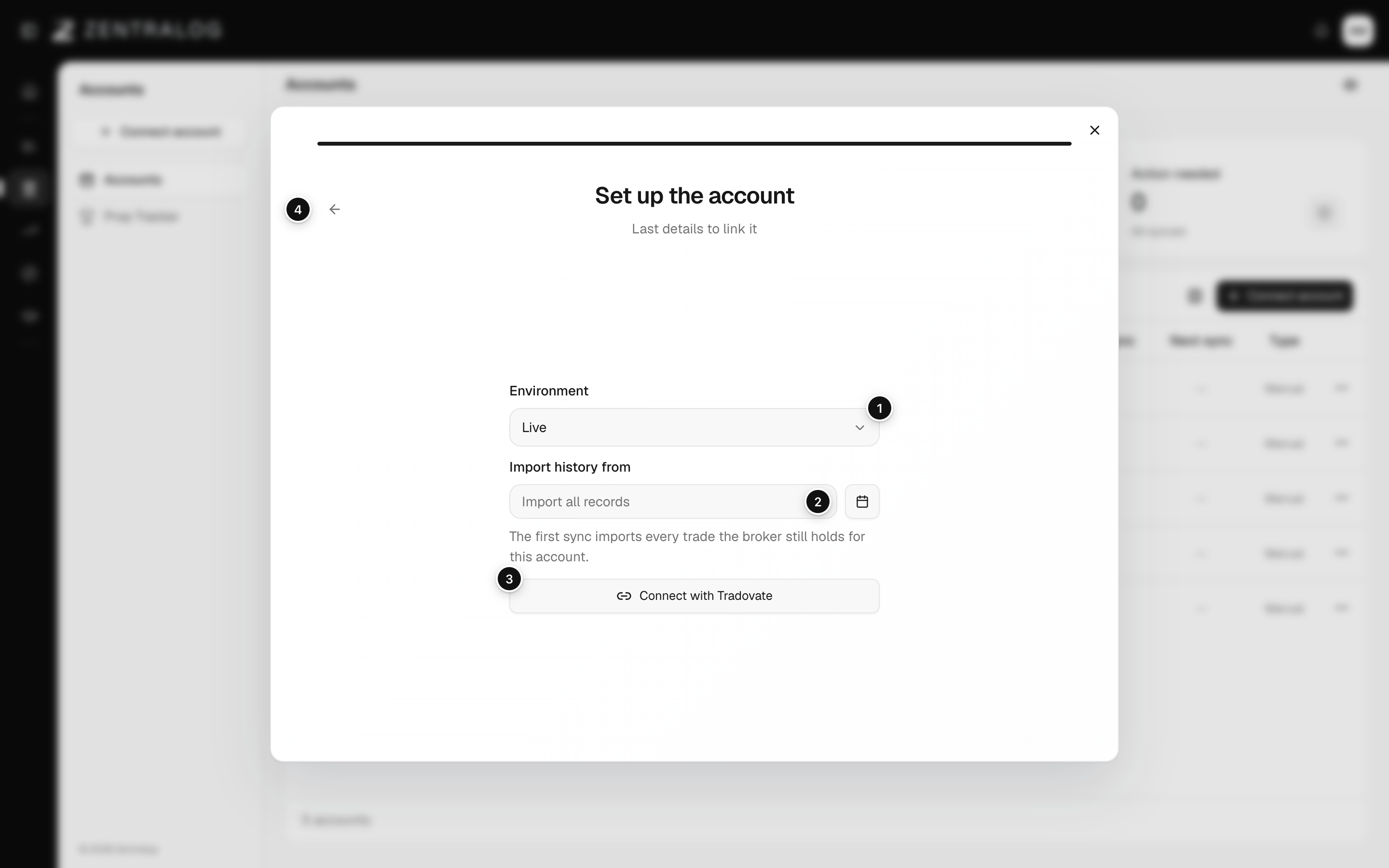
- Environment: Live or Demo, where your account lives.
- Import history from: optional start date for your history.
- Connect with Tradovate: opens Tradovate's own sign-in page.
- Back: go back one step.
You never type your Tradovate password in Zentralog. You sign in on Tradovate's page and come back.
FAQ
It says no accounts were found. Why?
You probably picked the wrong environment. Your accounts are in Live or in Demo, not both. Go back, switch Environment and try again.
Will reconnecting duplicate my trades?
No. Reconnecting keeps the trades you already have, and days you already imported are never duplicated. See Sync and reconnect.
Related
Did this answer your question?