
Connect an account
A short wizard that adds a trading account to Zentralog, synced with your broker or filled in by you.
Where: Accounts → Connect account
Pick your broker or prop firm
- Click Accounts in the left rail.
- Click Connect account.
- Type your broker or prop firm in the search box, or click one of the Main brokers.
- If your firm works with several platforms, pick the one you trade on, for example Apex Trader Funding - Rithmic.
Choose how your trades come in
- On Select the method, click Auto-sync to import your trades automatically.
- Or click Manual / CSV to create an account you fill in yourself.
- Complete the last step, Set up the account, and confirm.
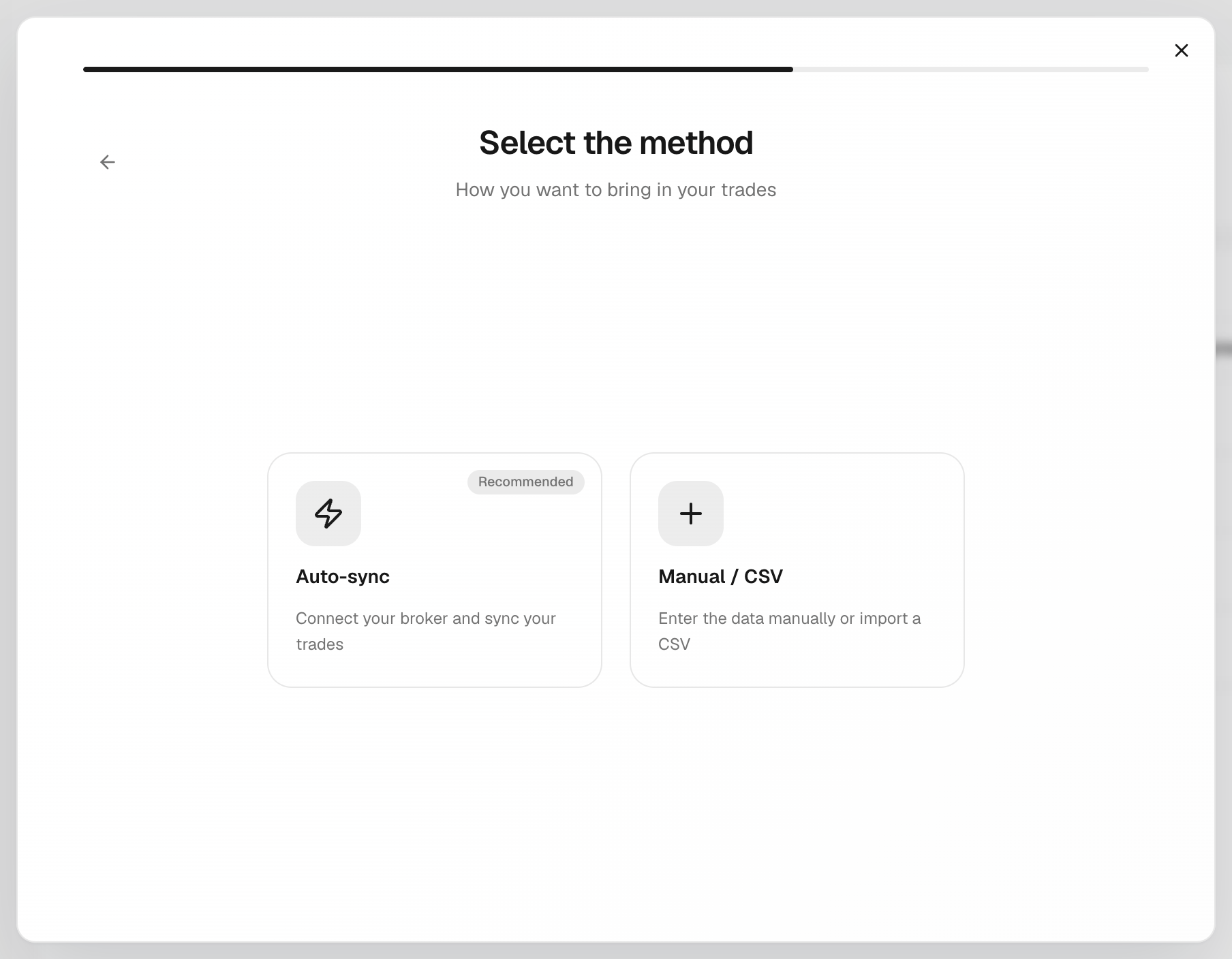
Auto-sync means Zentralog reads your trades from the broker for you. It works with TopstepX, Tradovate (NinjaTrader included) and Rithmic, and with the prop firms that run on them. Any other broker is added as a manual account.
Step-by-step guides: TopstepX, Tradovate, Rithmic.
What's on the screen
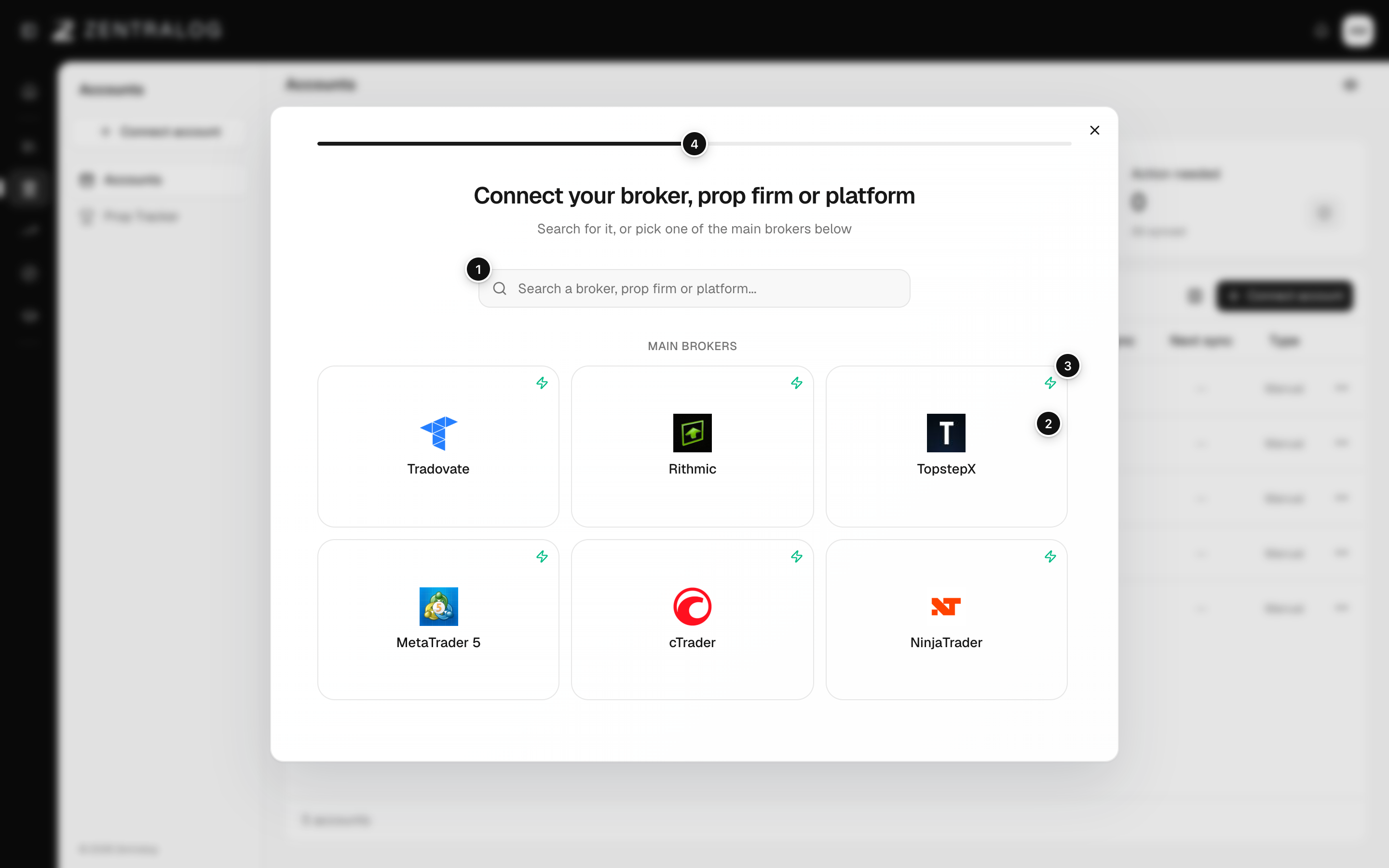
- Search: find your broker, prop firm or platform.
- Main brokers: the most common ones, one click to start.
- ⚡ icon: this broker supports auto-sync.
- Progress bar: the step of the wizard you are on.
A synced account starts at a balance of 0. Set your real balance afterwards in Edit balance.
FAQ
My broker is not in the list. What do I do?
Type its name and click Can't find your broker or prop firm?. You get a manual account with that name.
Is there a limit on how many accounts I can have?
During the public beta there is a limit on accounts in use, synced or manual. If you reach it, the wizard tells you the number. Archived accounts don't count toward it.
Where do I import a CSV file?
Manual / CSV only creates the account. To import a file, go to Journal → New trade → CSV import. See Import a CSV.
Related
Did this answer your question?