
Templates and edit mode
Save several dashboard layouts and change the widgets in each one.
Updated 2 min read
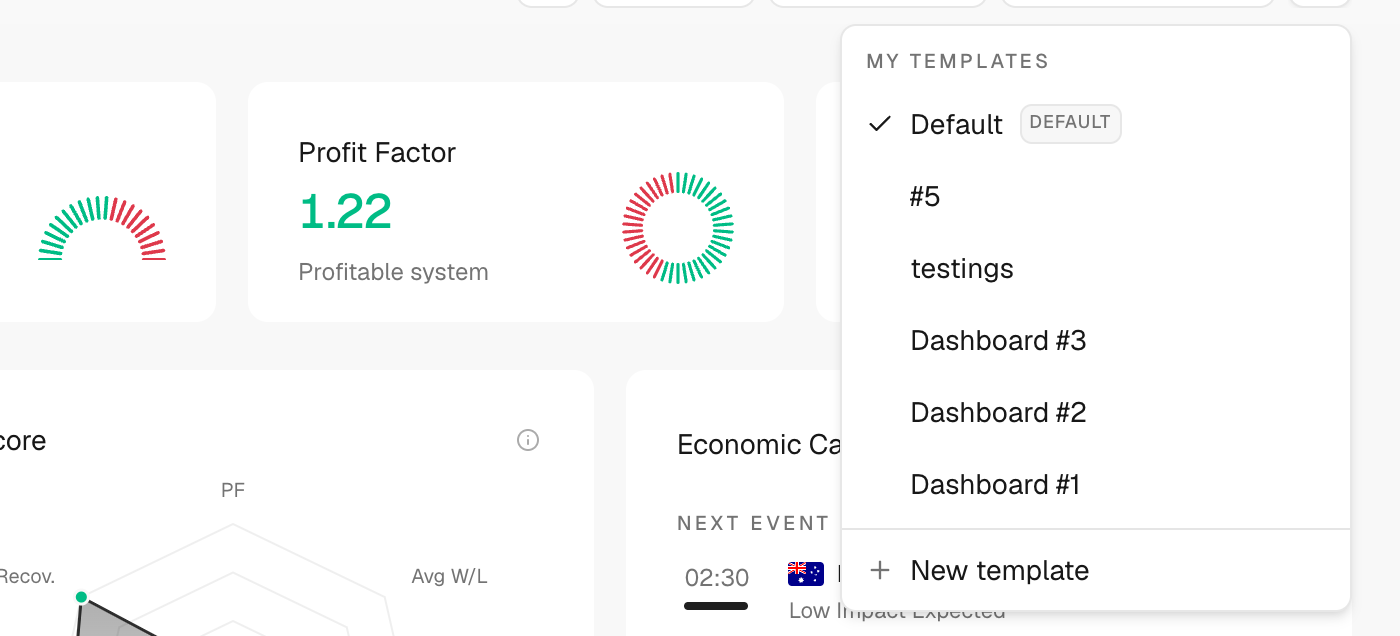
Where: Journal → Dashboard → templates icon (far right of the top bar)
Edit a template
- Click the templates icon and then the pencil next to a template.
- Drag a widget by its header to move it.
- Click the ✕ on a widget to remove it.
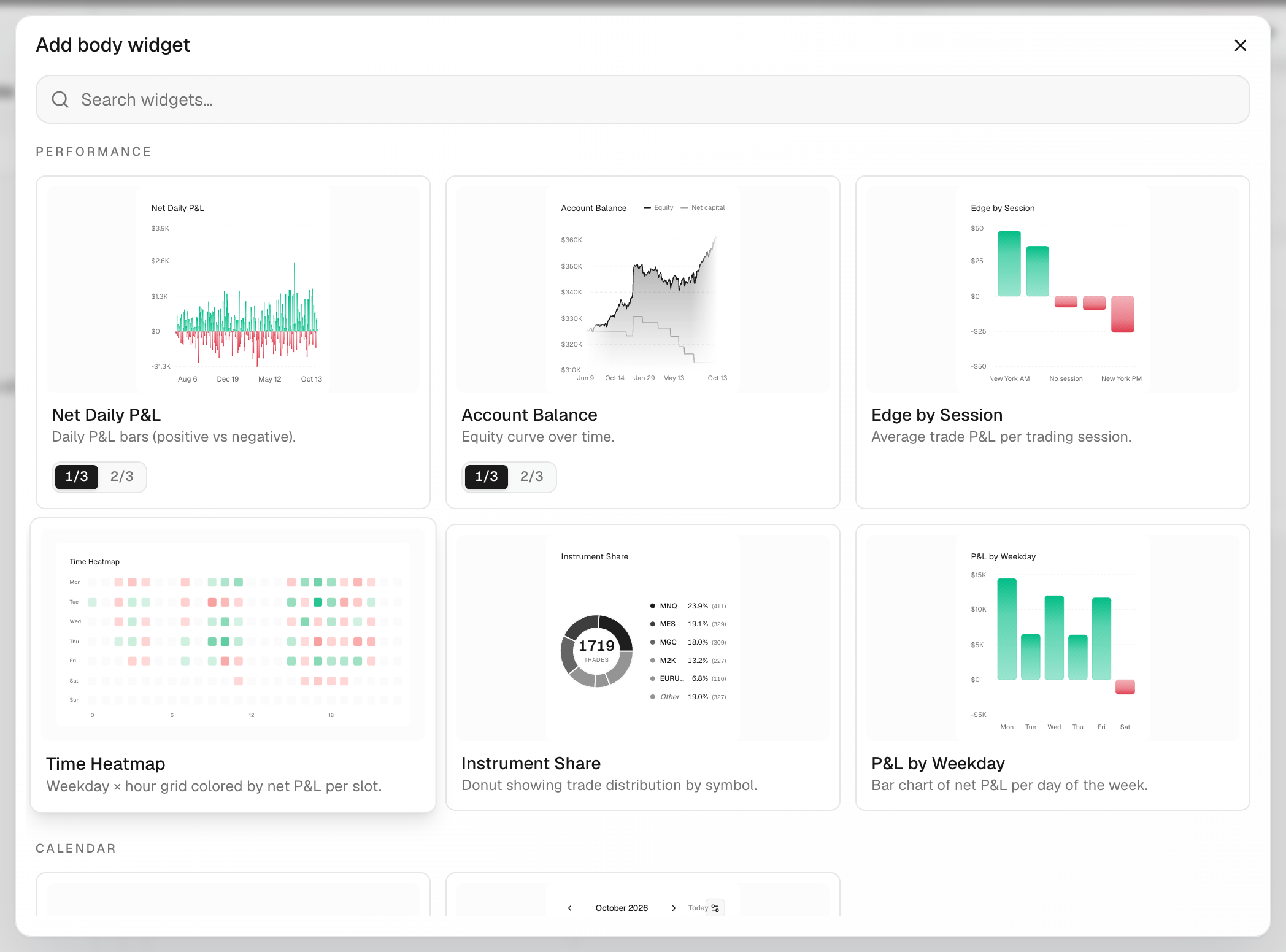
- Click Add KPI (+) or Click to add widget, search and pick one.
- Click Done to save. Nothing is saved until you do.
Create a new template
- Click the templates icon, then New template.
- Add 3 to 5 KPI cards and the widgets you want.
- Click Save as template, type a Name and click Save template.
Rename, duplicate or delete
- Enter edit mode on the template.
- Click More actions.
- Choose Rename, Duplicate or Delete.
What's on the screen
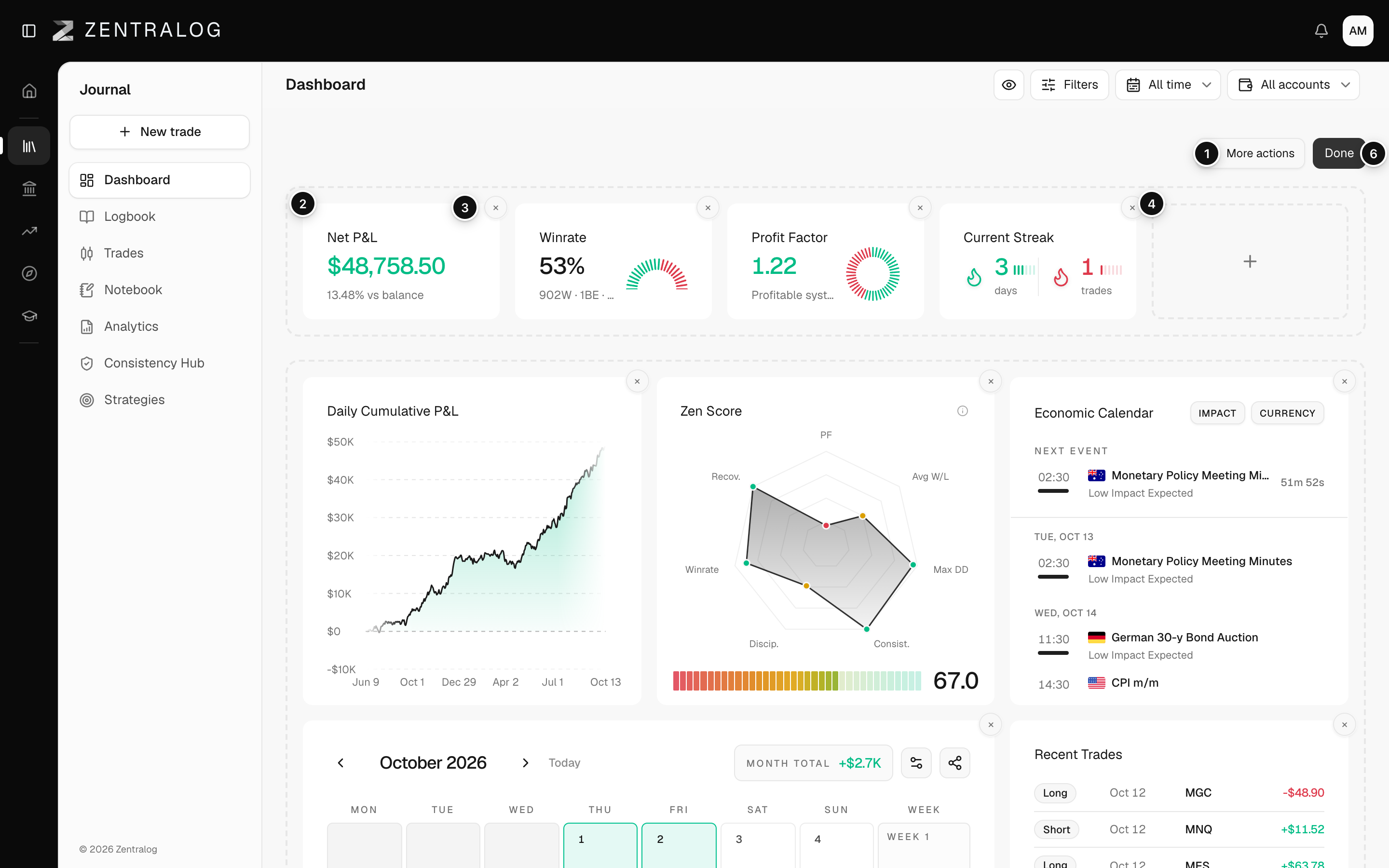
- More actions: rename, duplicate or delete the template.
- Drag handle: drag widgets to reorder them.
- ✕: remove a widget from the layout.
- Add KPI: add a card to the top row.
- Click to add widget: add a chart, calendar or list.
- Done: save the layout and leave edit mode.
Edit mode only works on a desktop screen. On a phone you can switch templates but not edit them.
FAQ
Why does edit mode show a warning about the KPI row?
The KPI row needs between 3 and 5 cards. Add or remove cards until the warning goes away, then click Done.
Why can't I delete my template?
You need at least one template, so the only one can't be deleted. Create or duplicate another first.
Can I go back to the original layout?
There is no reset button. Duplicate a template before big changes to keep a copy.
Related
Did this answer your question?