
My import shows 0 trades
What to check when a CSV import finds no trades, or finds them but has none ready to import.
Updated 2 min read
Where: Journal → New trade → CSV import
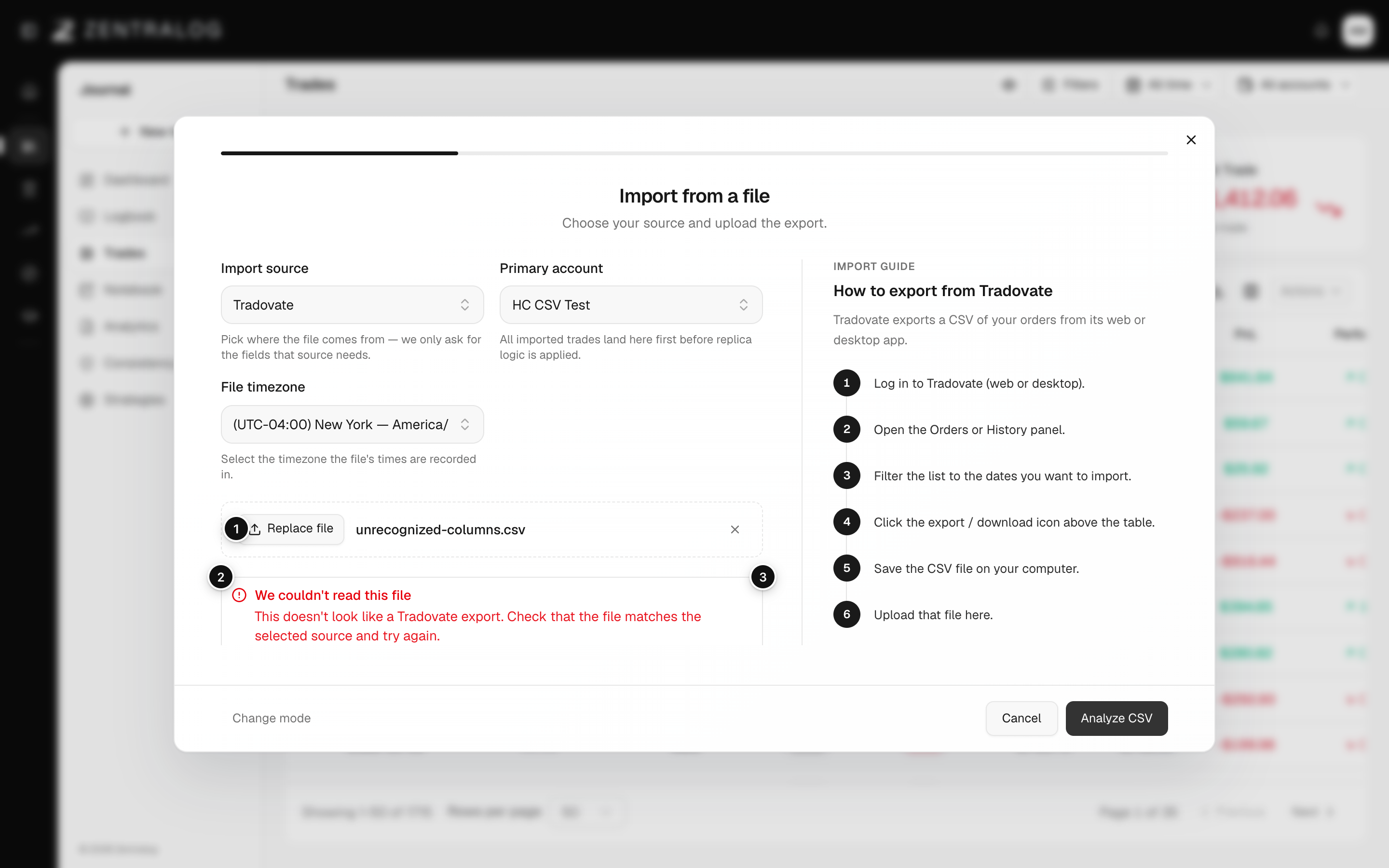
Check the file settings
- Make sure Import source matches the platform the file came from. A wrong source is the most common cause.
- If a Date format field is shown, match it to your file, for example DD/MM/YYYY.
- Check File timezone. A wrong zone can move trades to another day.
- Open the file and confirm it has filled trades in it. Then click Analyze CSV again.
Check the review step
- If Ready to import is 0, look at Duplicates. Trades you already imported are skipped.
- Rows marked DUP are duplicates. Rows marked invalid, unsupported or Needs review need a fix.
- Assign an instrument to unrecognised rows, or leave them out.
What's on the screen
- File: the CSV you uploaded.
- Alert: explains why rows could not be read.
- Rows need attention: rows to fix before importing.
Imported but can't find the trades? Check the Primary account you picked, and widen the date range at the top of the page.
FAQ
It says it couldn't read this file.
The file doesn't match the source you picked, or the date format is wrong. Follow the Import guide on the right to export the right file.
My platform isn't in the source list.
Its file can't be imported yet. Add those trades with manual entry.
Will importing the same file twice double my trades?
No. Zentralog recognises fills it already has and skips them.
Related
Did this answer your question?