
Import trades from a CSV
Upload the file your broker or platform exports and Zentralog turns its rows into trades.
Updated 2 min read
Where: Journal → New trade → CSV import
Upload and analyze the file
- Click New trade in the Journal panel, then CSV import.
- In Import source, pick where the file comes from: ATAS, Interactive Brokers, MetaTrader 5, NinjaTrader, Rithmic, TopstepX, TradingView or Tradovate.
- In Primary account, choose the account the trades go into.
- Check File timezone. If asked, also set Date format or Contract multiplier.
- Drop the file or click Choose file, then click Analyze CSV.
Not sure which file to export? The Import guide next to the form explains it for your platform.
Review and import
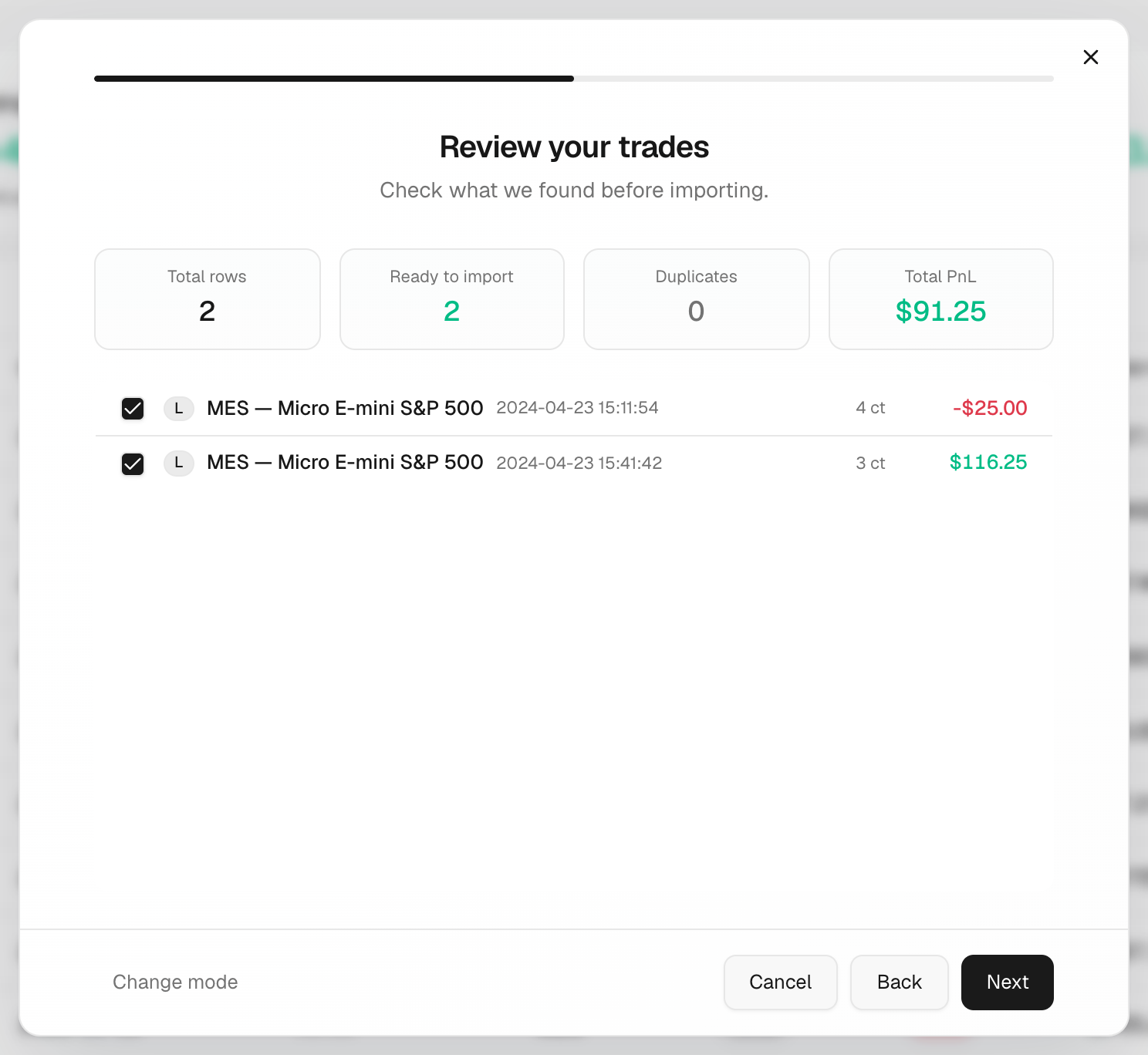
- Step 2, Review your trades: check the totals and untick any row you don't want.
- Click Next. Step 3, Replicate: turn it on only if a trade copier placed the same trades on other accounts.
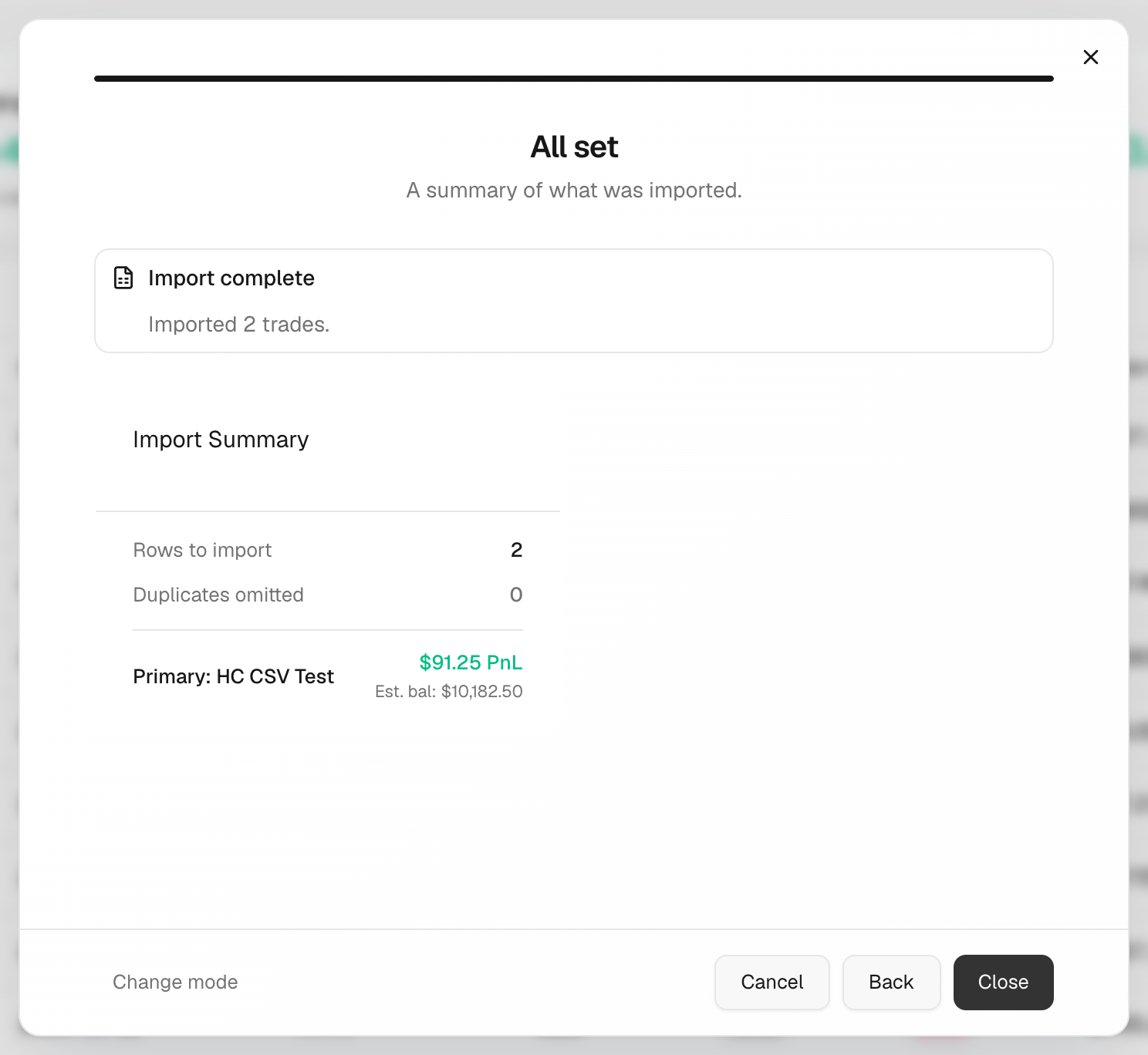
- Click Next. Step 4, All set: read the Import Summary.
- Click Import, then Close when you see Import complete.
What's on the screen
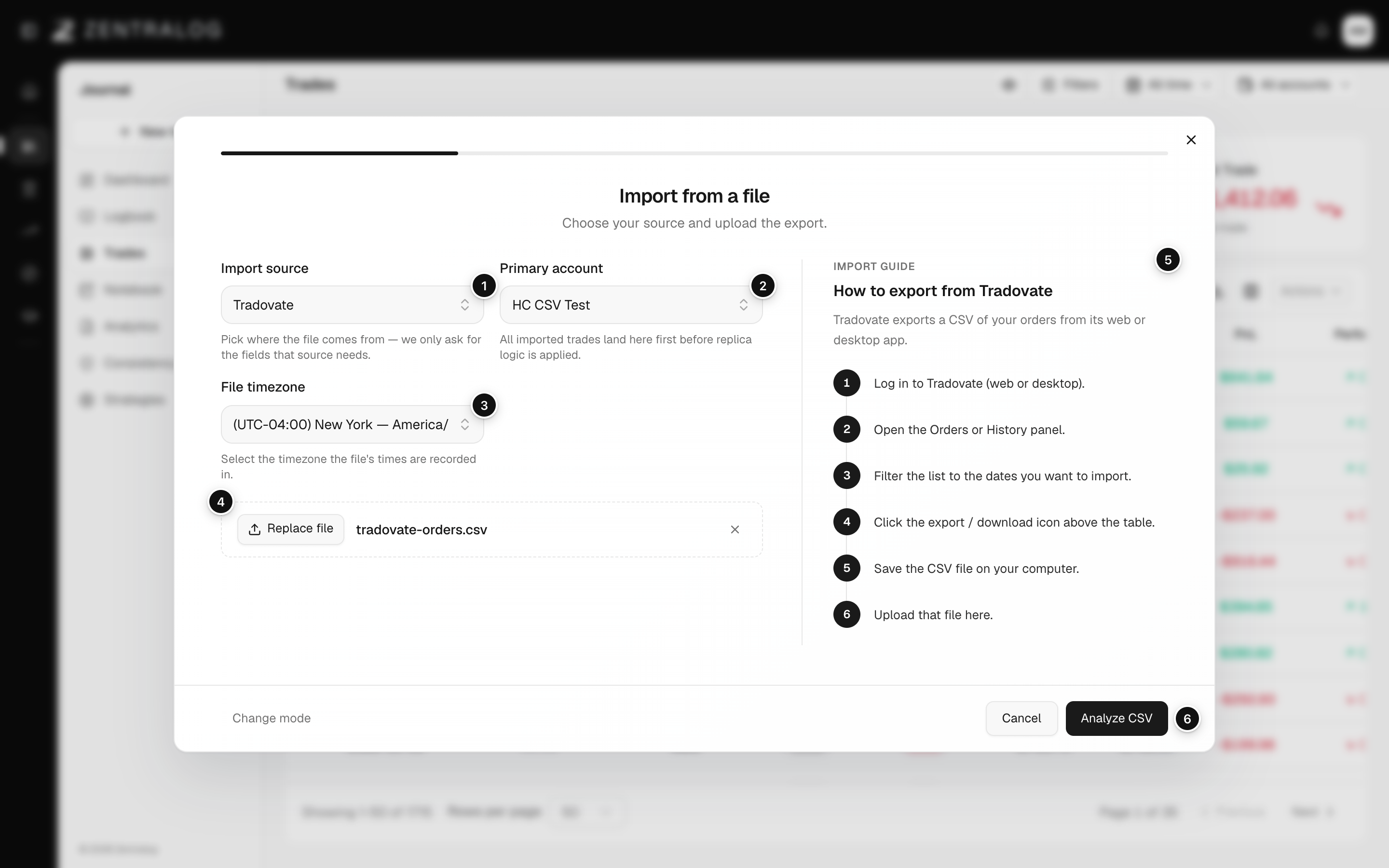
- Import source: the platform the file comes from.
- Primary account: imported trades land in this account.
- File timezone: the timezone the file was exported in.
- File: drop or choose a CSV, TXT, HTML or Excel file.
- Import guide: how to export the file from your platform.
- Analyze CSV: read the file before importing.
Importing the same file twice is safe. Trades already in the account are marked DUP and skipped.
FAQ
It says it couldn't read the file. Why?
The file usually doesn't match the chosen source, or the date format is wrong. Check both and analyze again. See Import shows zero trades.
My file has no commissions. Is that a problem?
The trades still import. Add costs with a rule in Costs and commissions.
Some rows need attention. What do I do?
Zentralog couldn't match their instrument or read them. Pick an instrument for them in step 4, or exclude them.
Related
Did this answer your question?