
The Logbook
Your journal by date. Pick a day in the calendar and read its result, trades, note and rules.
Updated 2 min read
Where: Journal → Logbook
Open a day
- Click Logbook in the Journal group of the sidebar.
- Make sure Days is selected at the top.
- In the calendar on the left, click a day. Green days ended up, red days ended down.
- Use Previous month and Next month to move the calendar. The ↑ and ↓ keys step day by day.
- Read the day on the right: the result, the chip and the tabs.
Read the day tabs
- Summary: the day's curve and key numbers, such as win rate and profit factor (money won divided by money lost).
- Trades: the day's trades. Click a row to open the trade.
- Note: the day note. Write here; it saves on its own.
- Rules: each rule marked Followed, Broken or N/A.
What's on the screen
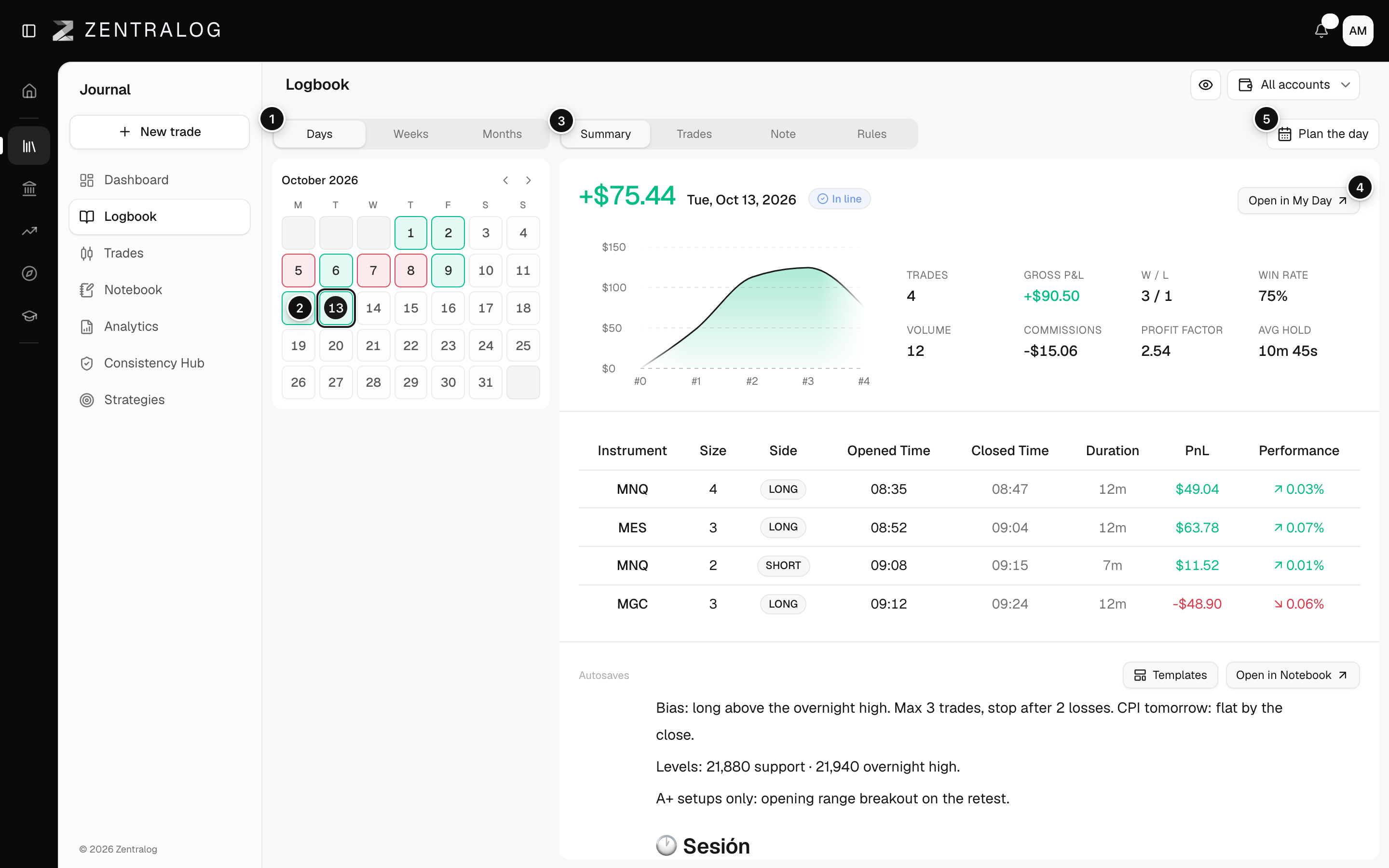
- Zoom: switch between Days, Weeks and Months.
- Calendar: pick a day. Its colour follows the day's P&L.
- Tabs: Summary, Trades, Note and Rules of the day.
- Open in My Day: open this day in My Day.
- Plan the day: pick a date and plan it in My Day.
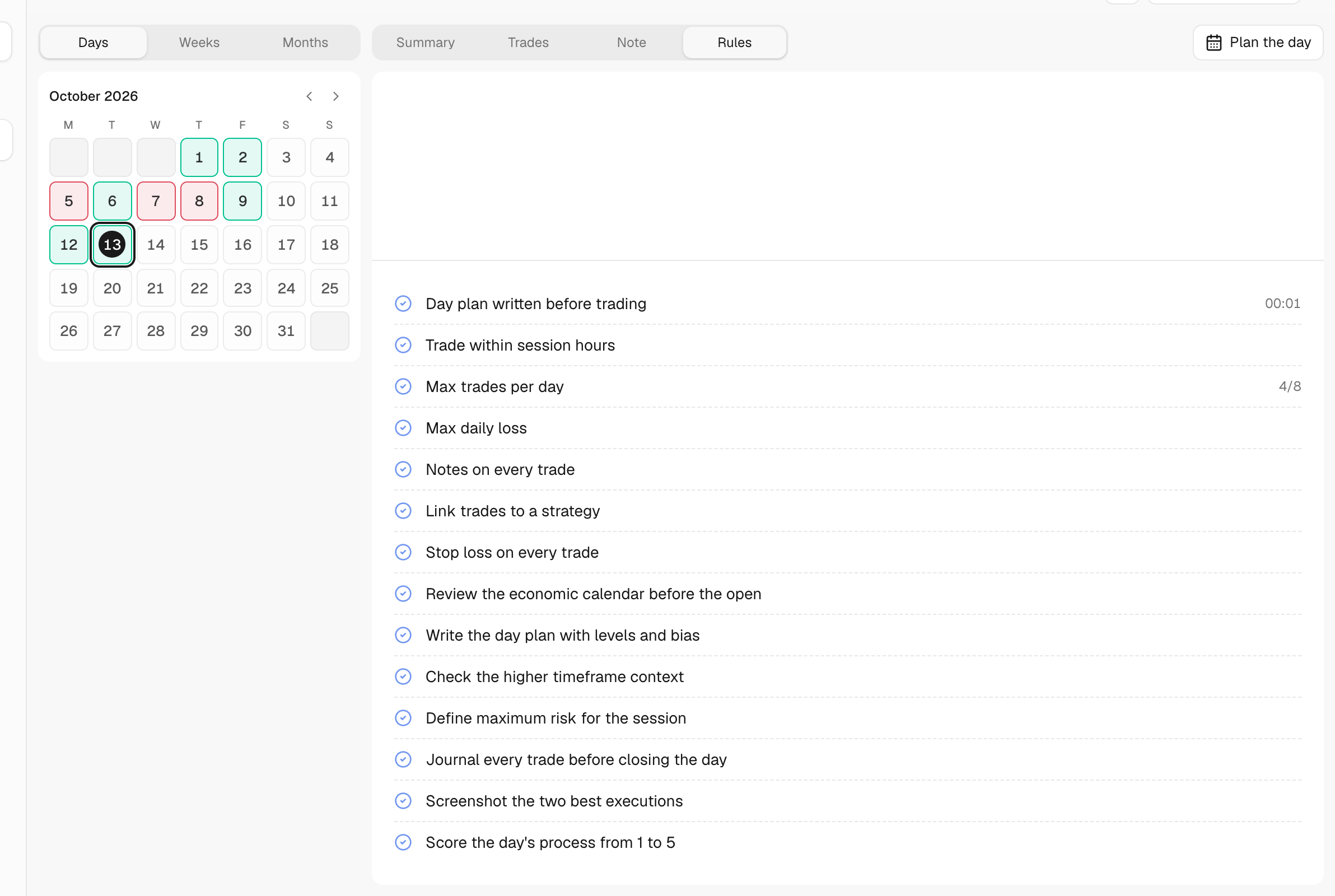
The chip next to the result says In line (all rules kept), Broke rules (at least one broken) or Excluded (a day off your trading calendar with no trades).
FAQ
Why is the Logbook empty?
It fills up as you trade and journal. Connect or import an account first, then come back.
Can I filter by account?
Yes. Use the account selector at the top of the page. The Logbook has no date-range filter; you move by day, week or month instead.
Related
Did this answer your question?