
Invite students
Send email invitations to your students. They join when they accept.
Updated 2 min read
Where: Mentorship → Students → Invite students
Send invitations
- Click Students under Mentorship in the sidebar.
- Click Invite students at the top.
- In Emails, type or paste the addresses. Separate them with commas or put one per line. Up to 20 at a time.
- Each address turns into a chip. Wrong ones are marked: remove them with the cross.
- Click Send invitations. The button shows how many you are sending.
- Read the result under each address, for example Invitation sent.
Follow up your invitations
- On Students, open the Invited tab of All students.
- Check each status: Not accepted, Expired, Declined or Not sent.
- Resend sends it again. You can do it once every 24 hours, up to 3 times.
- Cancel makes the link stop working.
- Invite again sends a new invitation when one expired or was declined.
What's on the screen
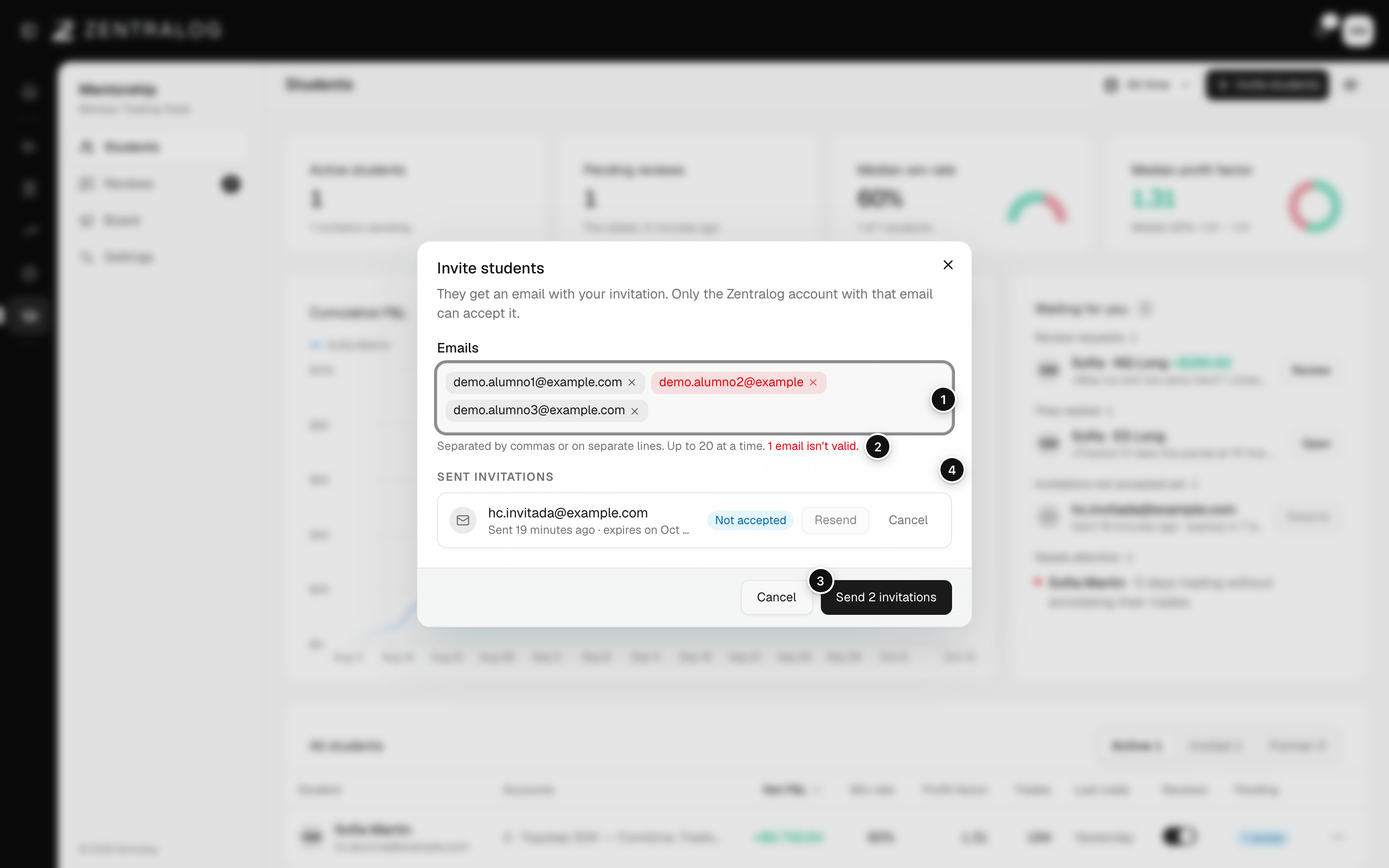
- Emails: type or paste addresses; each one becomes a chip.
- Not valid: wrong addresses are marked and counted.
- Send invitations: sends one email per valid address.
- Sent invitations: every invitation you sent and its status.
Invitations last 7 days. Only the Zentralog account with that email can accept it.
FAQ
My student doesn't have a Zentralog account. What now?
They open the link in the email and create an account with that same email. They see the invitation when they finish.
What does 'They already have an invitation pending' mean?
That address already has an invitation that wasn't accepted. Use Resend instead of sending a new one.
My student can't find the email.
Check the address in the Invited tab and use Resend. If they already have an account with that email, the invitation also shows up on their Mentorship page.
Related
Did this answer your question?