
Manage a student
Turn reviews on or off for a student, open their pages or remove them from your mentorship.
Updated 2 min read
Where: Mentorship → Students → All students
Turn reviews on or off
- Click Students under Mentorship.
- In the Active tab, find the student.
- Use the switch in the Reviews column. On: the student can ask you to review their trades. Off: they can't.
Use the student menu
- Click the three dots at the end of the student's row.
- Open dashboard opens their account, read-only.
- View their feedback opens your conversations with them.
- Remove from the mentorship… ends the mentorship with that student.
Remove a student
- Click the three dots, then Remove from the mentorship….
- Read the message: you stop seeing their data right away, and they keep everything.
- Click Remove to confirm, or Keep to go back.
- The student moves to the Former tab.
What's on the screen
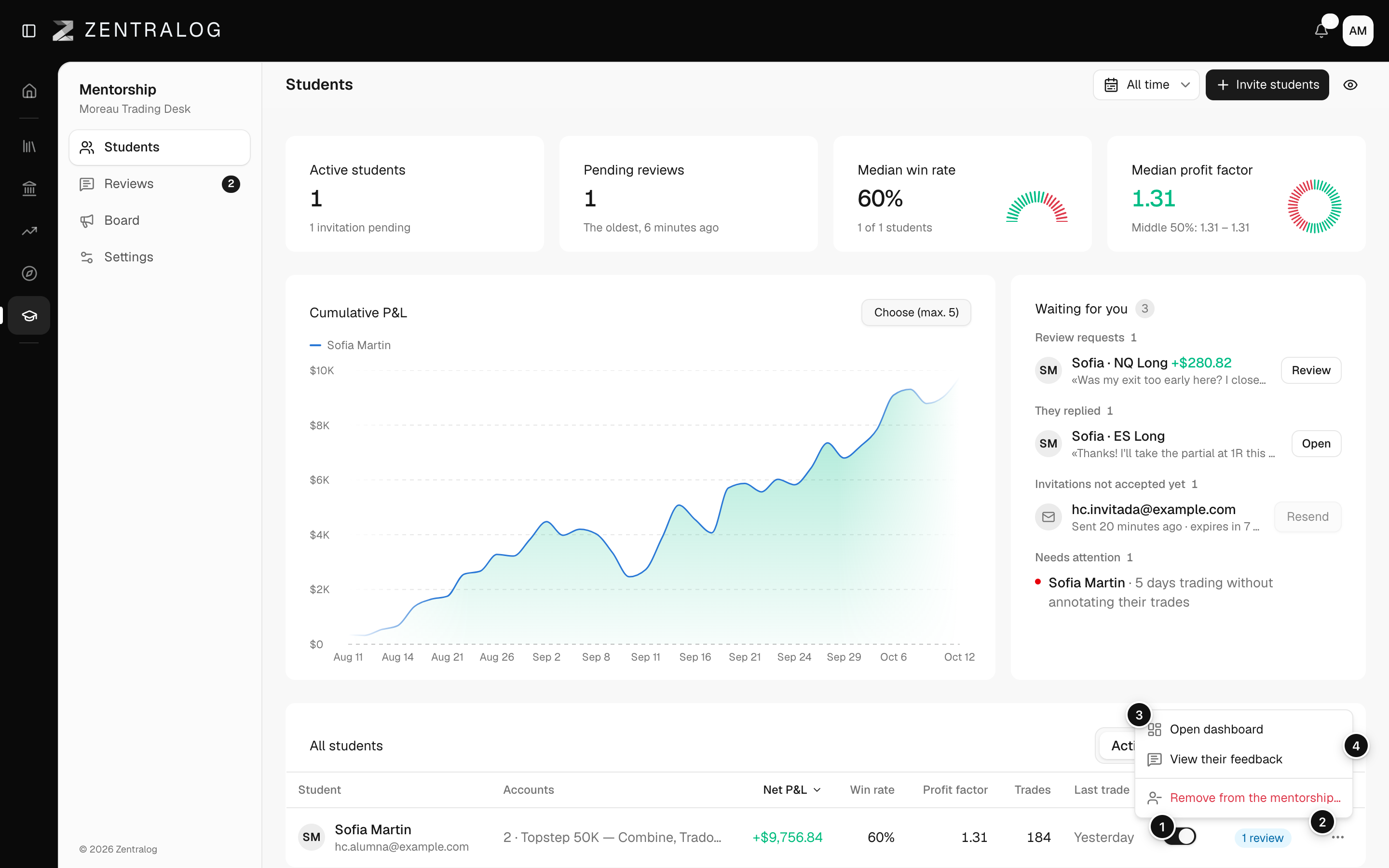
- Reviews: lets this student ask you for reviews.
- Student menu: the three dots at the end of the row.
- Menu options: Open dashboard, View their feedback and Remove from the mentorship….
- Former: students who left or were removed.
Removing takes effect at once. To work with that student again, send them a new invitation.
FAQ
What does the student see after I remove them?
A message that their mentor ended the mentorship. They keep all their data and the feedback you left them.
What do the statuses in Former mean?
Left: they left. Removed: you removed them. Left for another mentor: they joined another community.
Related
Did this answer your question?