
Strategies from your mentor
Strategies your mentor shares appear in your Strategies with a 🎓 icon. You can use them, but not edit them.
Updated 1 min read
Where: Journal → Strategies
Use your mentor's strategies
- Open Strategies.
- Cards with 🎓 before the name come from your mentor. Hover the icon to see whose.
- Link your trades to them like any other strategy. See Assign and analyze.
- Open one and click Notes to read your mentor's playbook.
Your mentor keeps these strategies up to date. You can't edit, archive or delete them, and their notes are read-only.
When it becomes your copy
If your mentor stops sharing a strategy, or you leave the mentorship, its card shows Copy from your mentor. It is yours now: you can use it, archive it or delete it, but not edit it.

What's on the screen
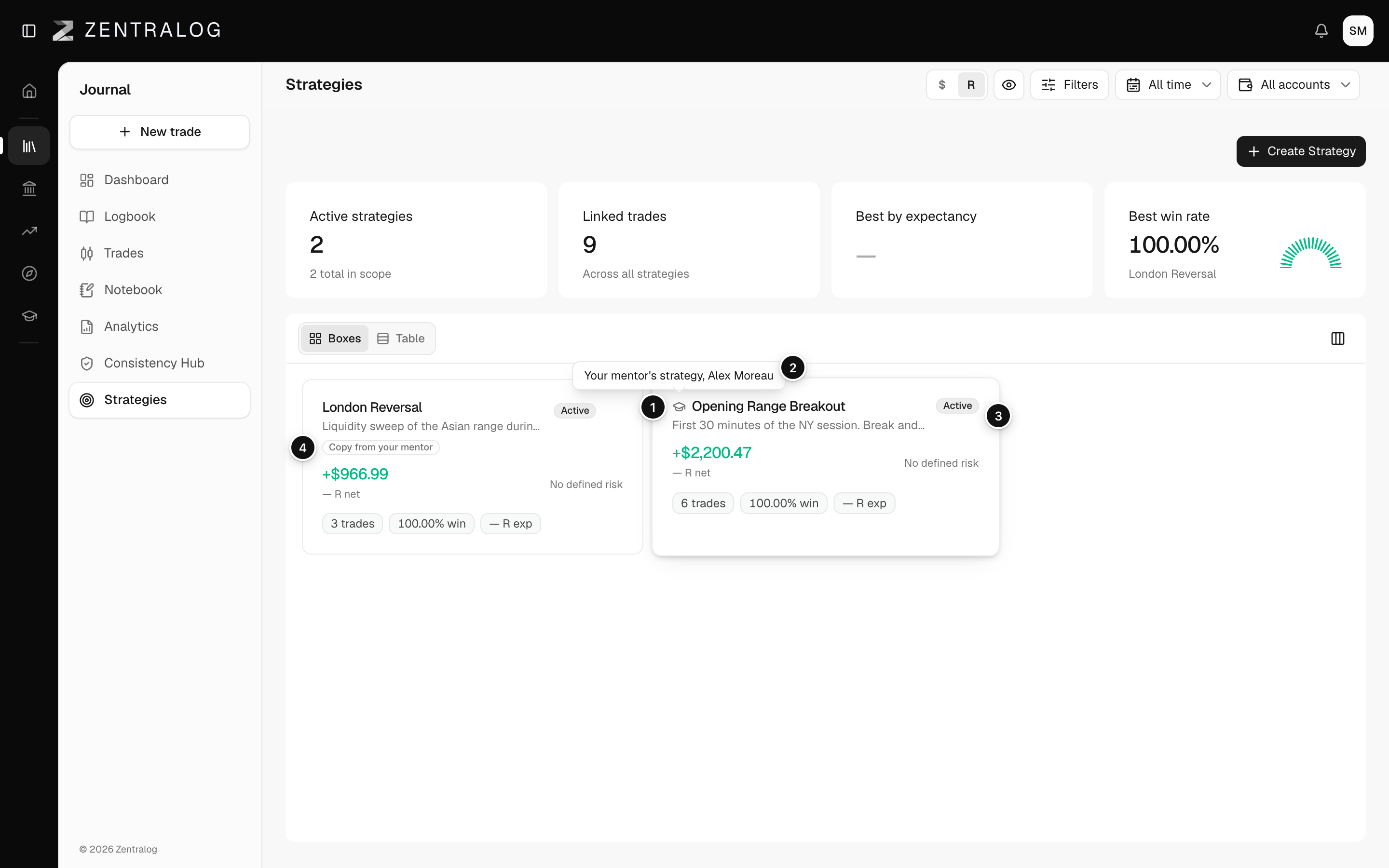
- 🎓 icon: this strategy comes from your mentor.
- Tooltip: whose strategy it is.
- No ⋯ menu: your mentor manages it, so there is nothing to edit.
- Copy from your mentor: a strategy your mentor no longer manages.
FAQ
Do I get new strategies when my mentor shares them?
Yes. Each strategy your mentor shares shows up in your Strategies. If you already have one with the same name, the copy ends in "· Mentor".
Do my trades stay linked if it becomes a copy?
Yes. The copy keeps your linked trades and its stats. Your mentor's notes are no longer shown on it.
Related
Did this answer your question?