
View a student's account
Open a student's dashboard and trades read-only, in their currency and time zone.
Updated 2 min read
Where: Mentorship → Students → a student's name
Open a student
- Click Students, then a student's name.
- The column on the left becomes their card: name, email, when they joined and Read only.
- Use the tabs Dashboard, Trades and Feedback.
- In Trades, the Feedback column marks trades with Review requested, In review or messages.
- Click Students at the top of the column to go back to the list.
Change student, account or period
- Use the student picker at the top to jump to another student. You can search by name.
- If the student has more than one account, pick which ones you see in the account selector.
- Change the date range. It stays the same on all your mentor pages.
What's on the screen
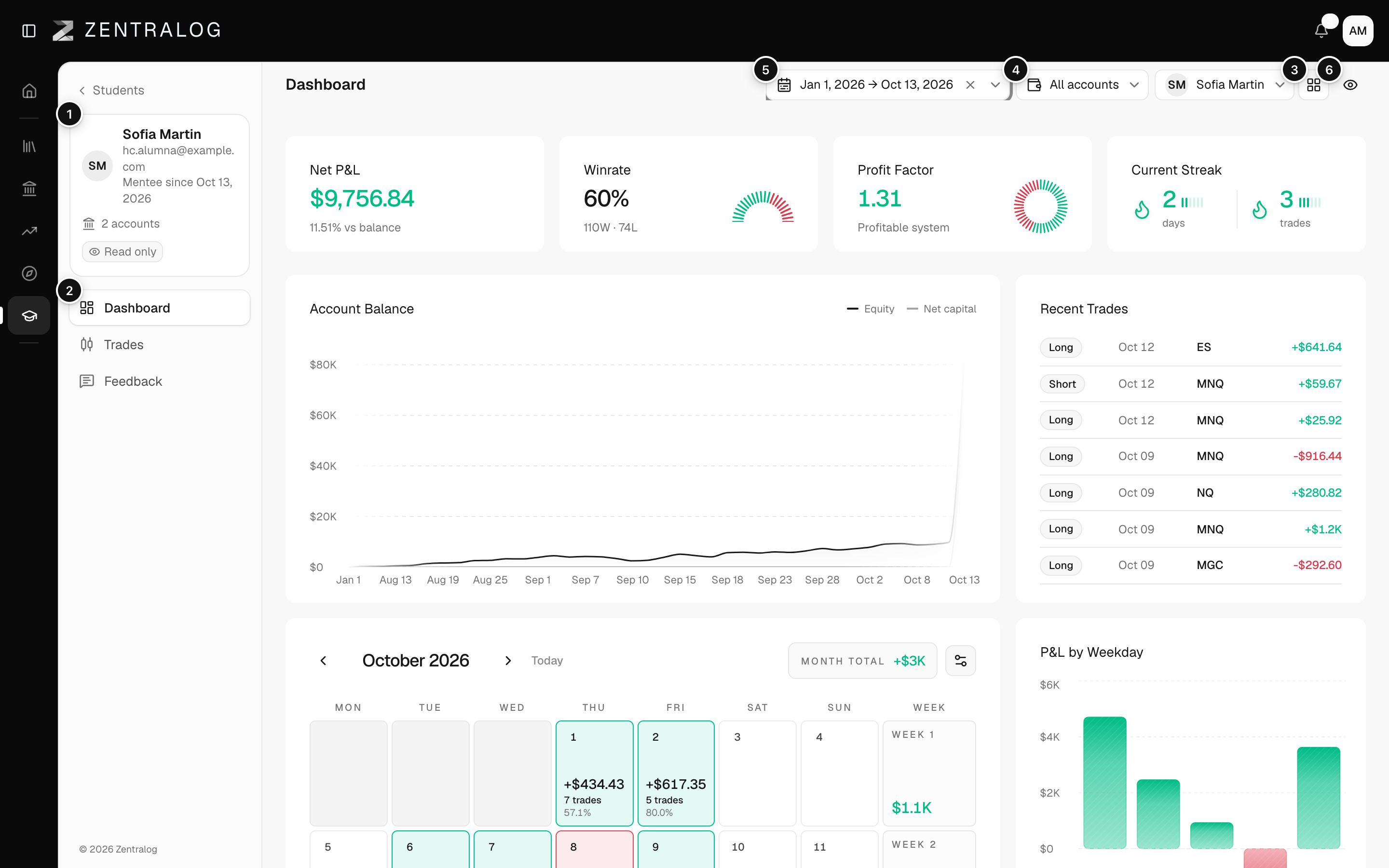
- Student card: who they are and the Read only label.
- Tabs: Dashboard, Trades and Feedback.
- Student picker: jump to another student.
- Accounts: the student's accounts you are looking at.
- Date range: the period, shared by all your mentor pages.
- Your view: your widget layout, the same for all your students.
FAQ
Can I change anything in my student's account?
No. You only read. You can leave feedback on their trades.
Can I choose which widgets I see?
Yes, from Your view at the top. That layout is yours and looks the same with all your students. Some widgets aren't available in the mentor view.
It says No accounts yet.
The student hasn't connected any account. You'll see it as soon as they do.
Related
Did this answer your question?