
What is Mentorship
A mentor sees your trading account read-only and leaves feedback on your trades.
Updated 1 min read
Where: Mentorship in the sidebar
Open Mentorship
- Click Mentorship in the sidebar.
- Read the top of the page. It sums up what a mentor does.
- If you learn from someone, read the I'm a student card. You join when your mentor invites you by email.
- If you teach, read the I'm a mentor card. You can create your community right there.
- Scroll down to the three key points.
Pick your side
- Student: accept your mentor's invitation. See Accept a mentor invitation.
- Mentor: create your community and invite your students. See Become a mentor.
What's on the screen
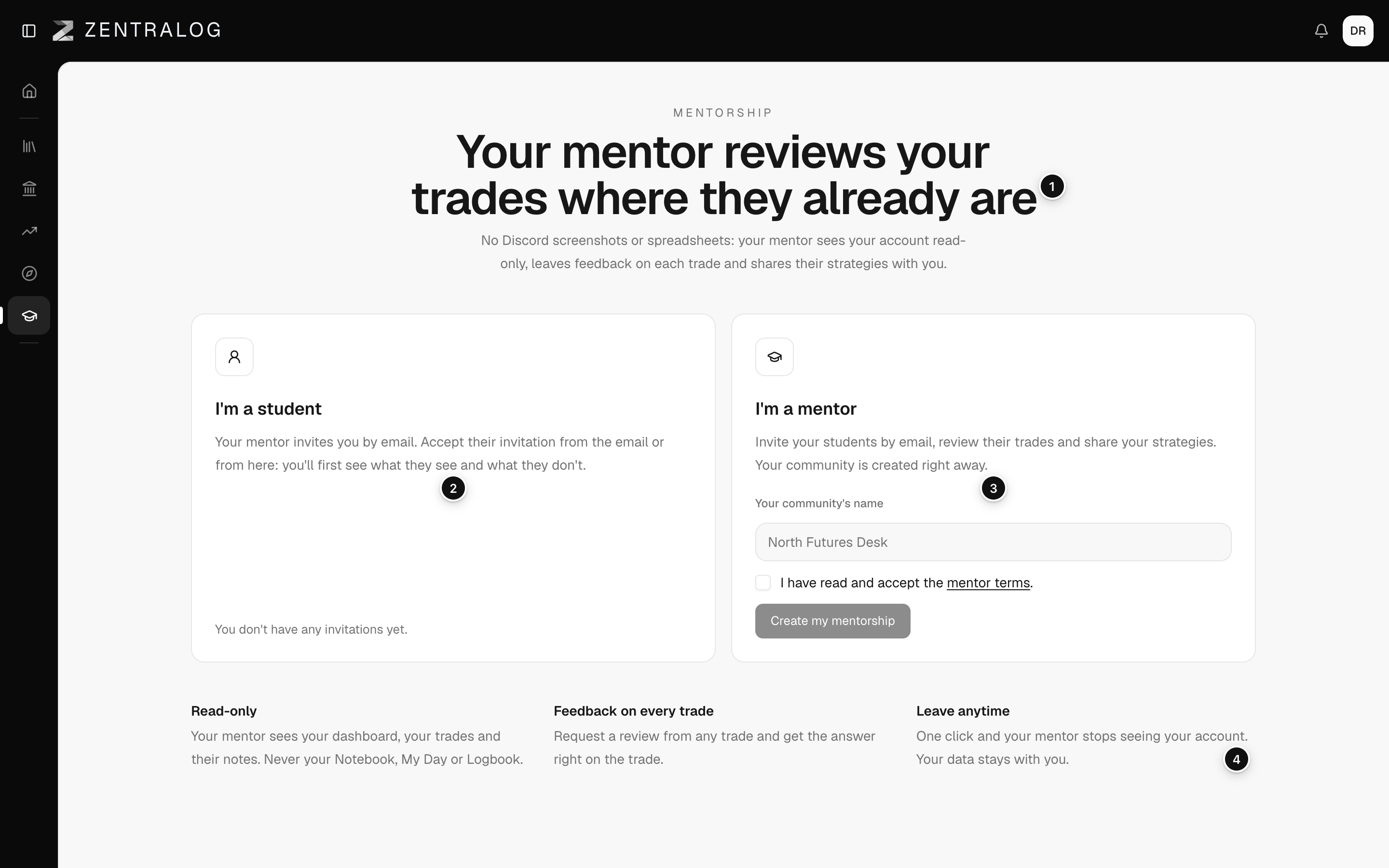
- Headline: what Mentorship is, in one line.
- I'm a student: you join by accepting your mentor's email invitation.
- I'm a mentor: create your own community.
- Key points: Read-only, Feedback on every trade and Leave anytime.
Your mentor never sees your Notebook, My Day or Logbook. They also never see your settings, connections, passwords or payment details.
FAQ
What does my mentor see?
Your dashboard, your trades and the note on each trade, across all your accounts, archived ones included.
Can my mentor change my data?
No. Everything is read-only. Your mentor can only leave feedback on your trades.
Can I leave?
Yes, whenever you want. Your mentor stops seeing your account right away and you keep all your data. See Leave a mentorship.
Related
Did this answer your question?