
Executions and replicas
See and correct the fills that make up a trade, and manage the copies of that trade on other accounts.
Updated 2 min read
Where: Journal → Trades → a trade → Executions or Replicas
Check and fix executions
- Open a trade and click the Executions tab on the left.
- Read the list: one row per execution, with time, price, side, size and gross P&L.
- Click Edit to fix a fill. Change Date & Time, Side, Qty, Price, Comm or Fee.
- Use Add execution or the remove icon on a row to add or drop fills.
- Click Save. The trade's P&L and R update.
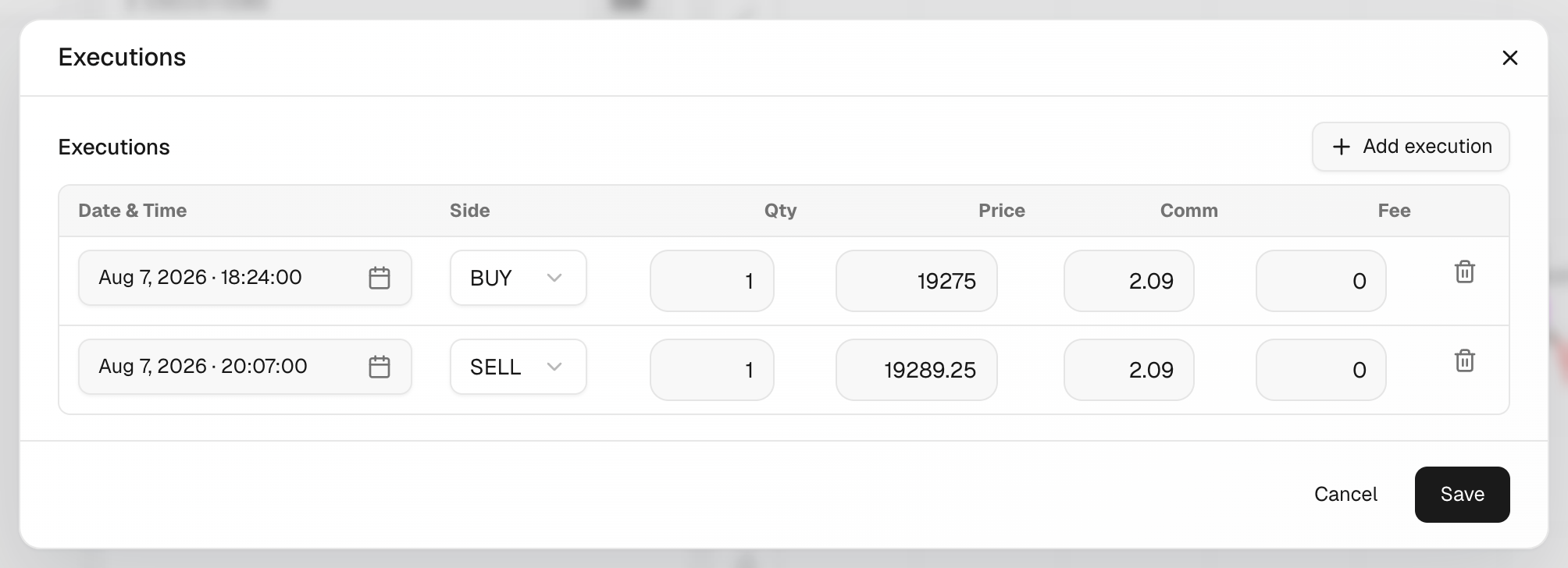
If your edit splits the fills into two positions, you'll see These executions form more than one trade. Fix the fills so they open and close one position.
Manage replicas
A replica is a copy of the trade on another account, for example when a trade copier mirrors your orders.
- Click the Replicas tab.
- Click Add account and pick the account that got the copy.
- Set the size with Global multiplier (for example x2) or a multiplier per account.
- Click the X on an account to remove that replica.
What's on the screen
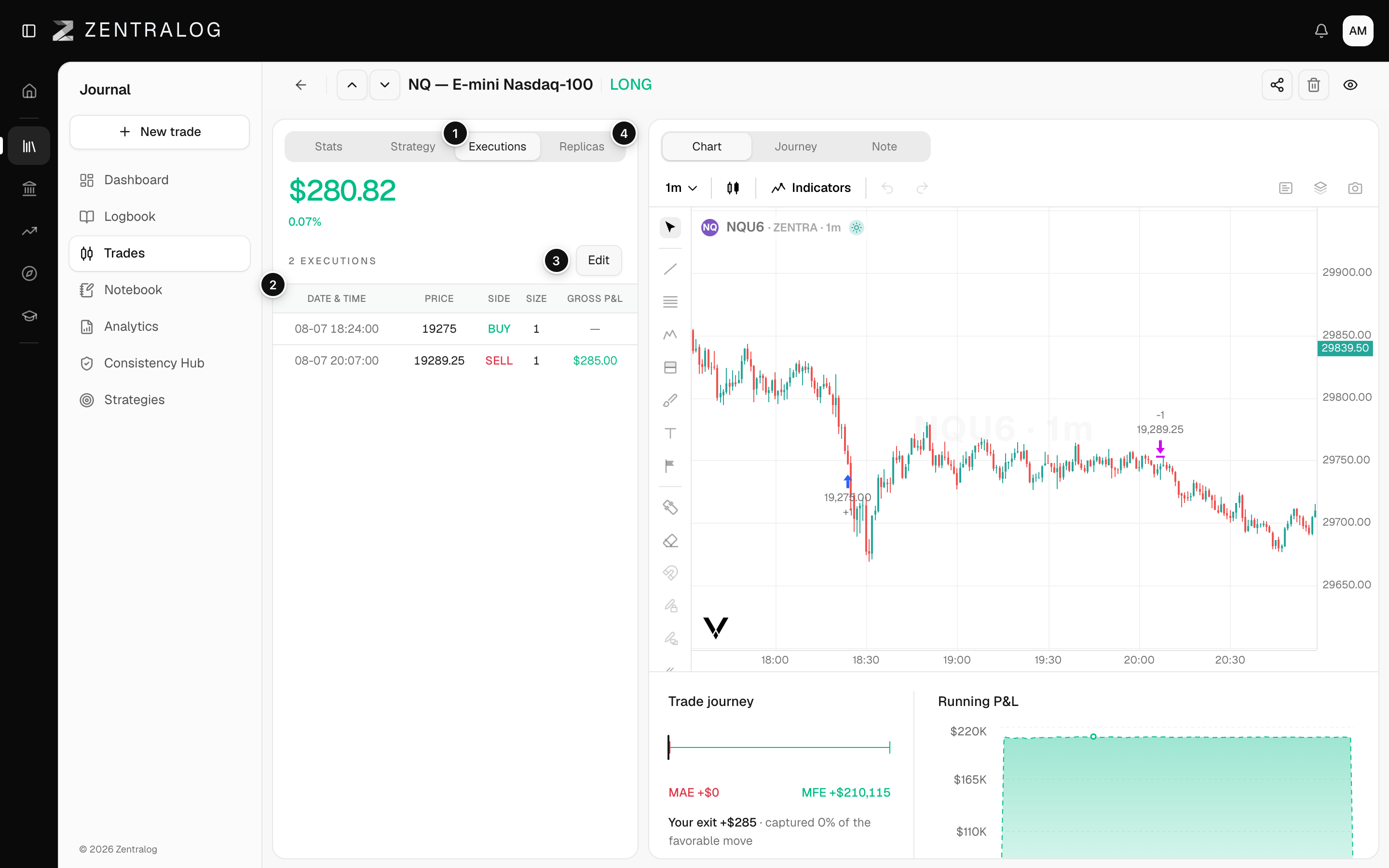
- Executions tab: every fill that makes up the trade.
- Columns: time, price, side, size and gross P&L per fill.
- Edit: correct fills, commissions or fees.
- Replicas tab: copy the trade to other accounts.
In the Trades table, a trade with replicas shows an arrow in Instrument. Click it to see one row per account.
FAQ
Do replicas count in my numbers?
Yes, when the replica's account is selected in the account selector. The KPI row then adds the P&L of the original trade and of its replicas.
Related
Did this answer your question?