
Weekly and monthly reports
The Reports tab collects an automatic report on each week and each month of your trading.
Updated 2 min read
Where: Journal → Analytics → Reports
Reports arrive on their own: the weekly every Monday at 00:00 and the monthly on the 1st, in your time zone. You do not have to do anything. The bell at the top tells you when one is ready: see Notifications.
Find your latest report
- Click Analytics in the Journal panel.
- Click the Reports tab.
- Pick Weekly or Monthly.
- Read the big card: your latest report.
- Click Open report to read it in full. See Read a report.
Before your first report
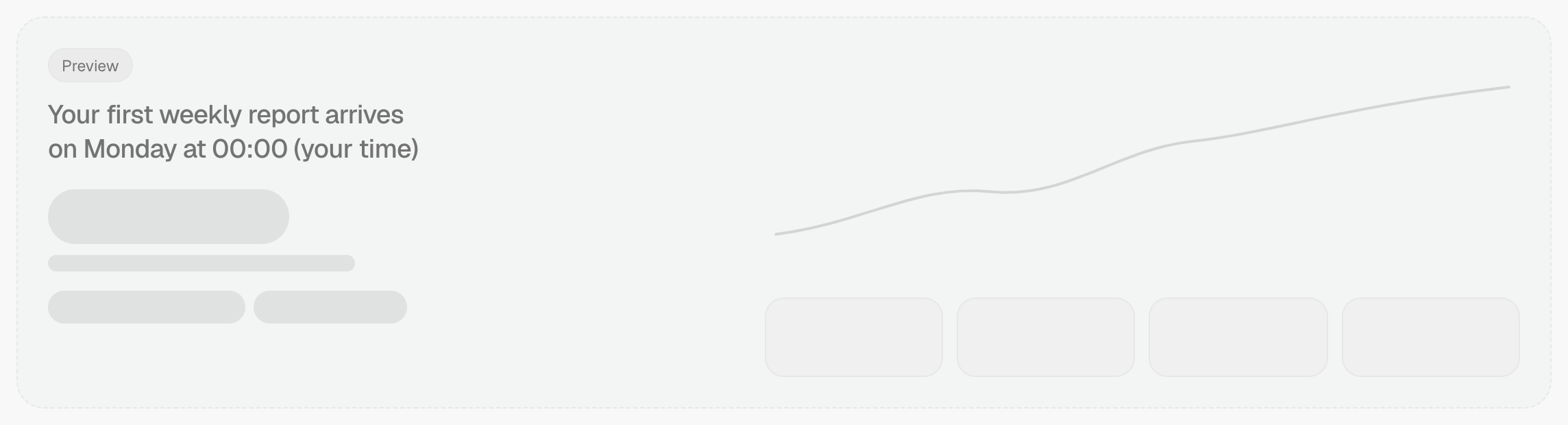
Until a report exists, you see a grey card marked Preview: «Your weekly report will appear here». The Weekly / Monthly selector appears once you have a report.
Browse older reports
- Scroll to Previous. A dot marks the ones you have not read yet (Unread).
- Click See the full archive to show the rest. Reports are never deleted.
- Switch between Weekly and Monthly to browse the other kind.
What's on the screen
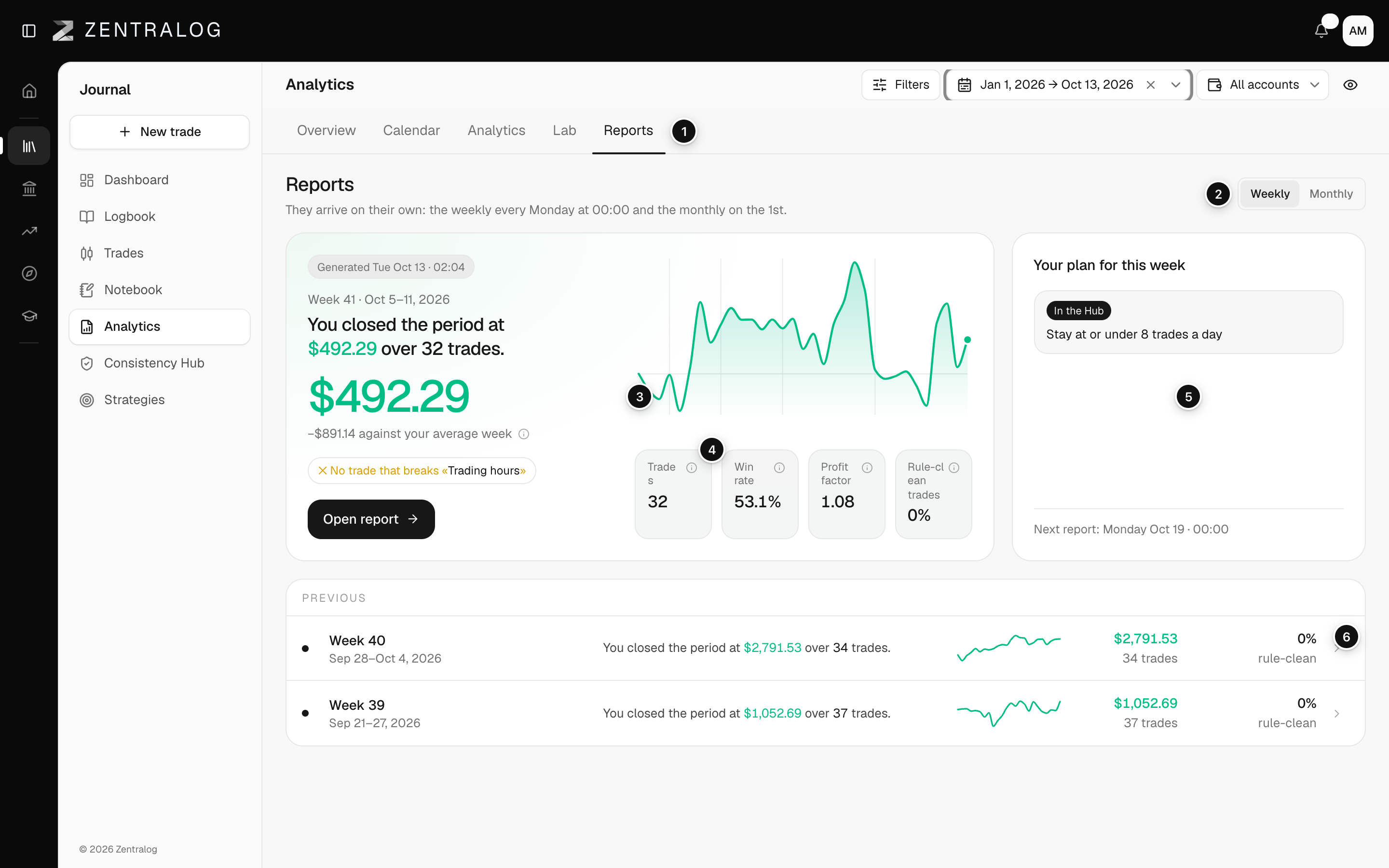
- Reports tab: your automatic reports inside Analytics.
- Weekly / Monthly: which kind of report you see.
- Latest report: its net result against your average week or month, the curve and the period's objectives (Met or Missed).
- Key figures: Win rate, Profit factor, Trades and Rule‑clean trades. See win rate and profit factor.
- Your plan: what you committed to in the last report, as a Commitment or a rule In the Hub.
- Previous: older reports, newest first.
Rule‑clean trades is the share of the period's trades that broke none of your Consistency Hub rules. See Consistency rules.
FAQ
Which trades go into a report?
The trades you closed in that week or month, across the accounts in the report.
Related
Did this answer your question?