
Dashboard overview
One screen with your headline numbers, charts and calendars for the dates and accounts you choose.
Updated 2 min read
Where: Journal → Dashboard
Open your dashboard
- Click Dashboard in the Journal group of the sidebar.
- Click the date button and pick a period, for example Year to date.
- Open the account selector and check which accounts are ticked.
- Read the KPI row at the top: one headline number per card.
- Scroll down to the larger charts, calendars and lists.
Switch to another layout
- Click the templates icon at the far right of the top bar.
- Pick a layout under My templates. The check marks the active one.
- To change a layout, see Templates and edit mode.
What's on the screen
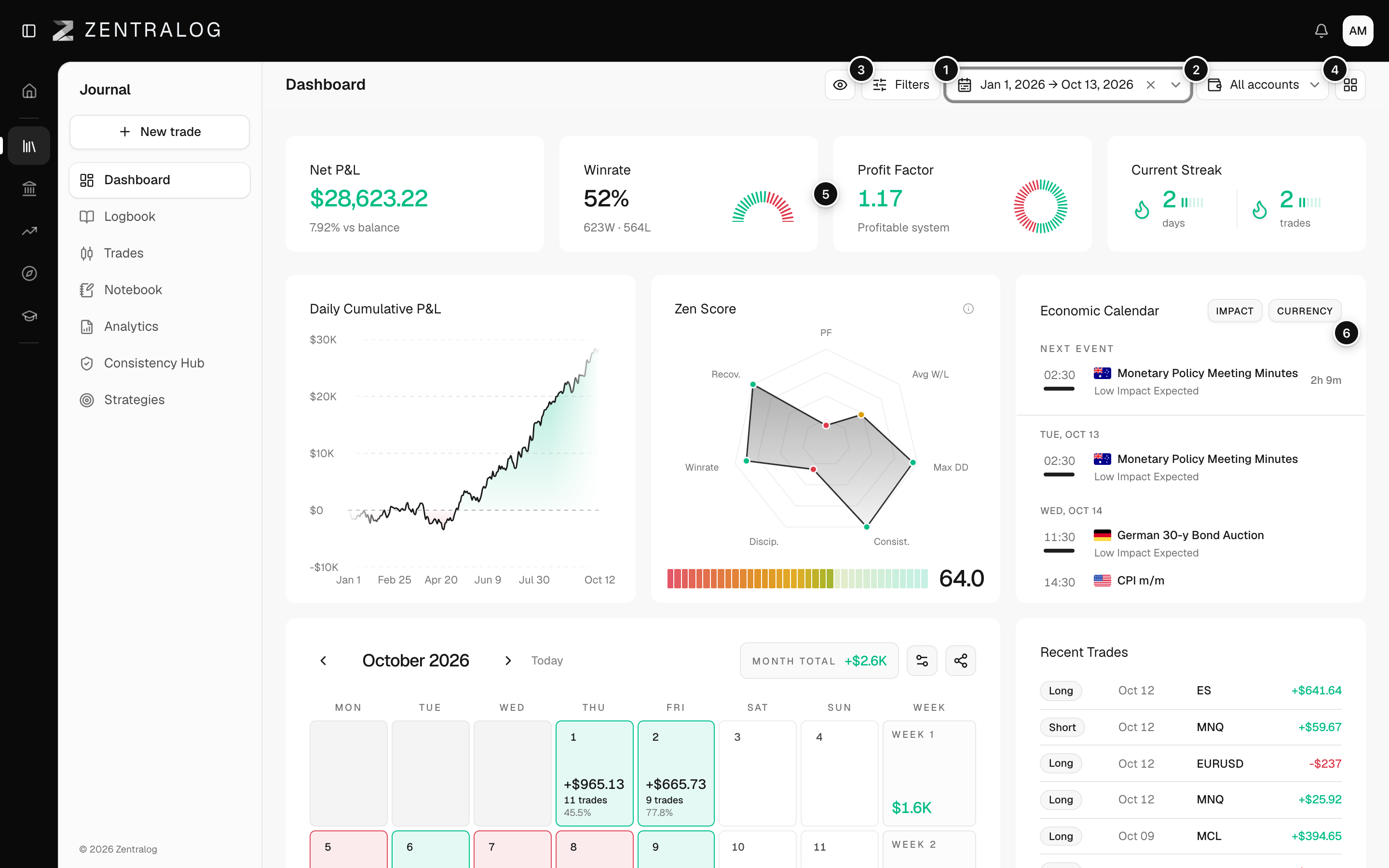
- Date range: the period every widget counts.
- Accounts: which accounts the dashboard includes.
- Filters: narrow the trades by side, result, instrument and more.
- Templates: switch, create or edit layouts.
- KPI row: small cards with your headline numbers.
- Body widgets: charts, calendars and lists.
The date range, accounts and filters are shared. Change them here and Trades, Analytics and Strategies show the same scope.
FAQ
Why is my dashboard empty?
There are no closed trades in your date range and accounts, or a filter hides them. Try All time and All accounts. With no accounts yet, you see a Finish your setup card with Connect account.
Is the dashboard the same as Analytics?
No. The dashboard is a quick summary you arrange yourself. Analytics has the full reports, tab by tab.
Do I need to refresh after changing a filter?
No. Every widget recalculates as soon as you change the dates, accounts or filters.
Related
Did this answer your question?