
Top bar and search
The bar at the top of every page, with your user menu, page search and connection warnings.
Updated 2 min read
Where: the top bar of every page.
Use the user menu
- Click your initials in the top right. The menu shows your name and email.
- Flip the Light / Dark switch to change the theme.
- Click Settings to open your profile and preferences.
- Click Help Center or Legal & Privacy. Both open in a new tab.
- Click Log out to end your session.
Jump to a page
- Press ⌘K on Mac or Ctrl+K on Windows.
- Type part of a page name in Search pages..., for example "analy".
- Press Enter, or click a result under Navigate.
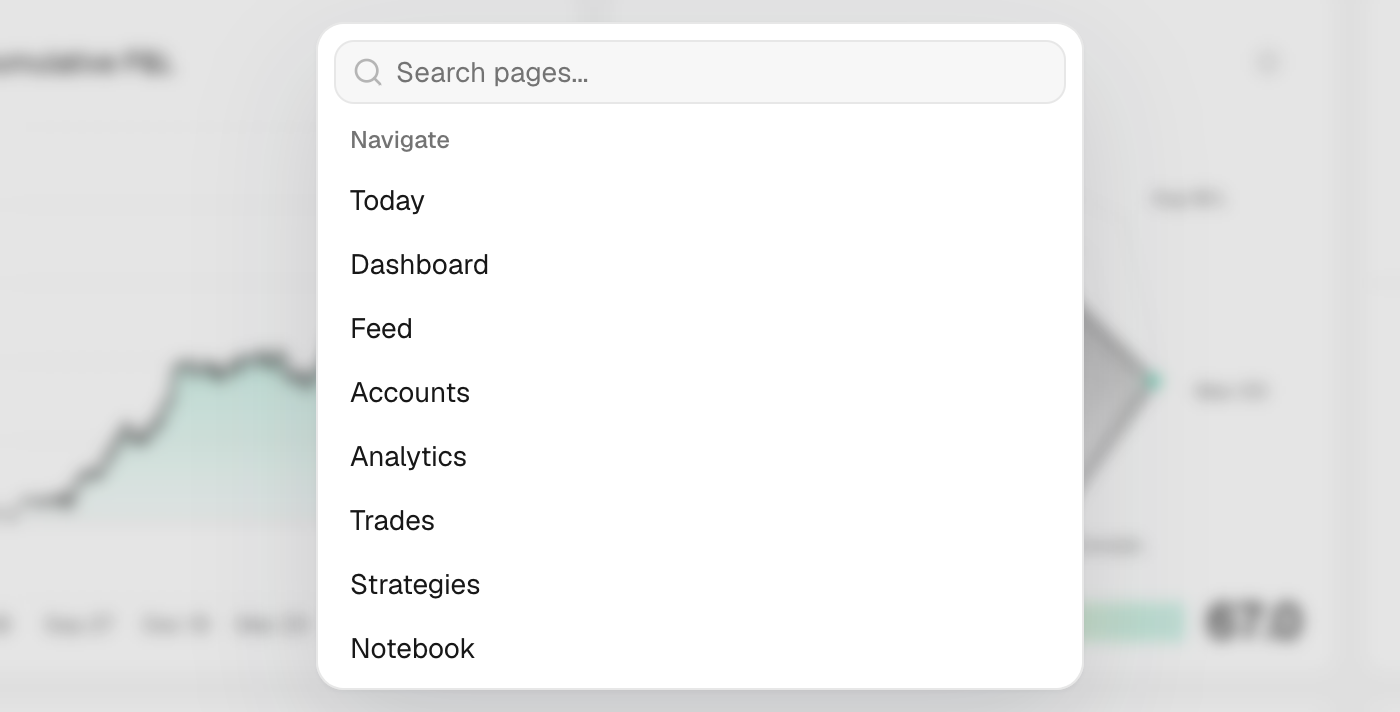
Fix a connection warning
- A warning icon with a number appears when a broker connection fails, for example 2 accounts need attention.
- Click it to open Accounts and reconnect.
The bell next to your initials opens your notifications, such as a weekly report that is ready.
On inner pages, the Go back arrow next to the title returns you to the screen it came from. The account selector and the privacy eye are explained in Filters.
What's on the screen
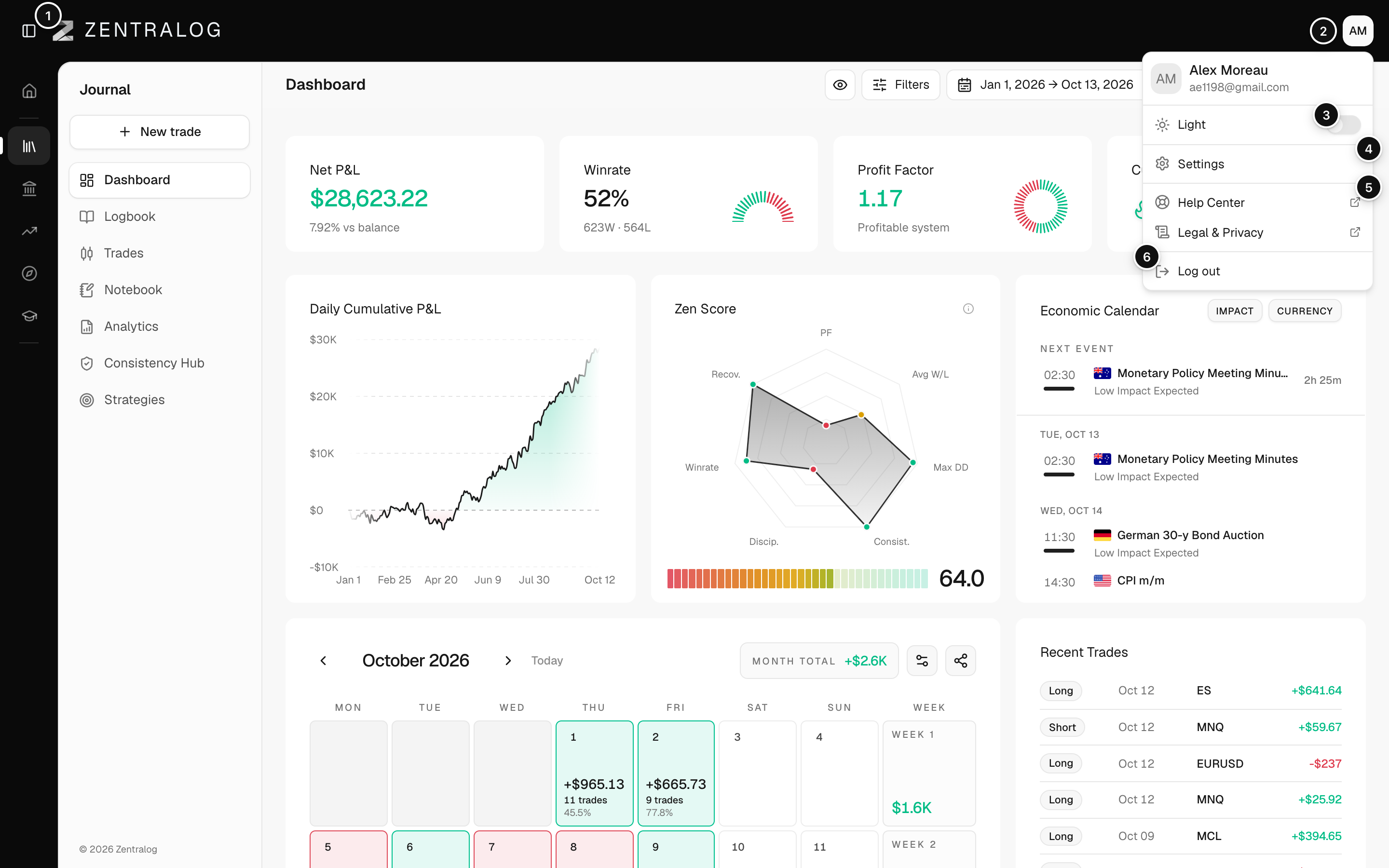
- Logo: back to the Dashboard.
- Your initials: open the user menu.
- Theme switch: light or dark theme.
- Settings: your profile and preferences.
- Help Center: this help, in a new tab.
- Log out: end your session and return to the sign-in page.
FAQ
Why are the search results in English?
The page search always lists page names in English, even when the app is in Spanish.
I don't see the warning on Today. Is that normal?
Yes. The warning shows on every page except Today. See Autosync needs attention to fix a failing account.
Related
Did this answer your question?