
Workspace tour
How the sidebar is organised and how to move between sections and pages.
Updated 2 min read
Where: the sidebar on the left of every page.
Move between sections
- Click an icon in the rail: Today, Journal, Accounts, Markets or Discover.
- The second column lists the pages of that section.
- Click a page to open it. Its name appears as the page title.
- Use the quick action at the top of the column, like New trade or Connect account.
The bell in the top right opens your notifications, such as a report that is ready.
The rail also has a Mentorship icon. If you are a mentor or a student, it opens a section with your mentorship pages. If not, it is a single link to the Mentorship page. See What is mentorship.
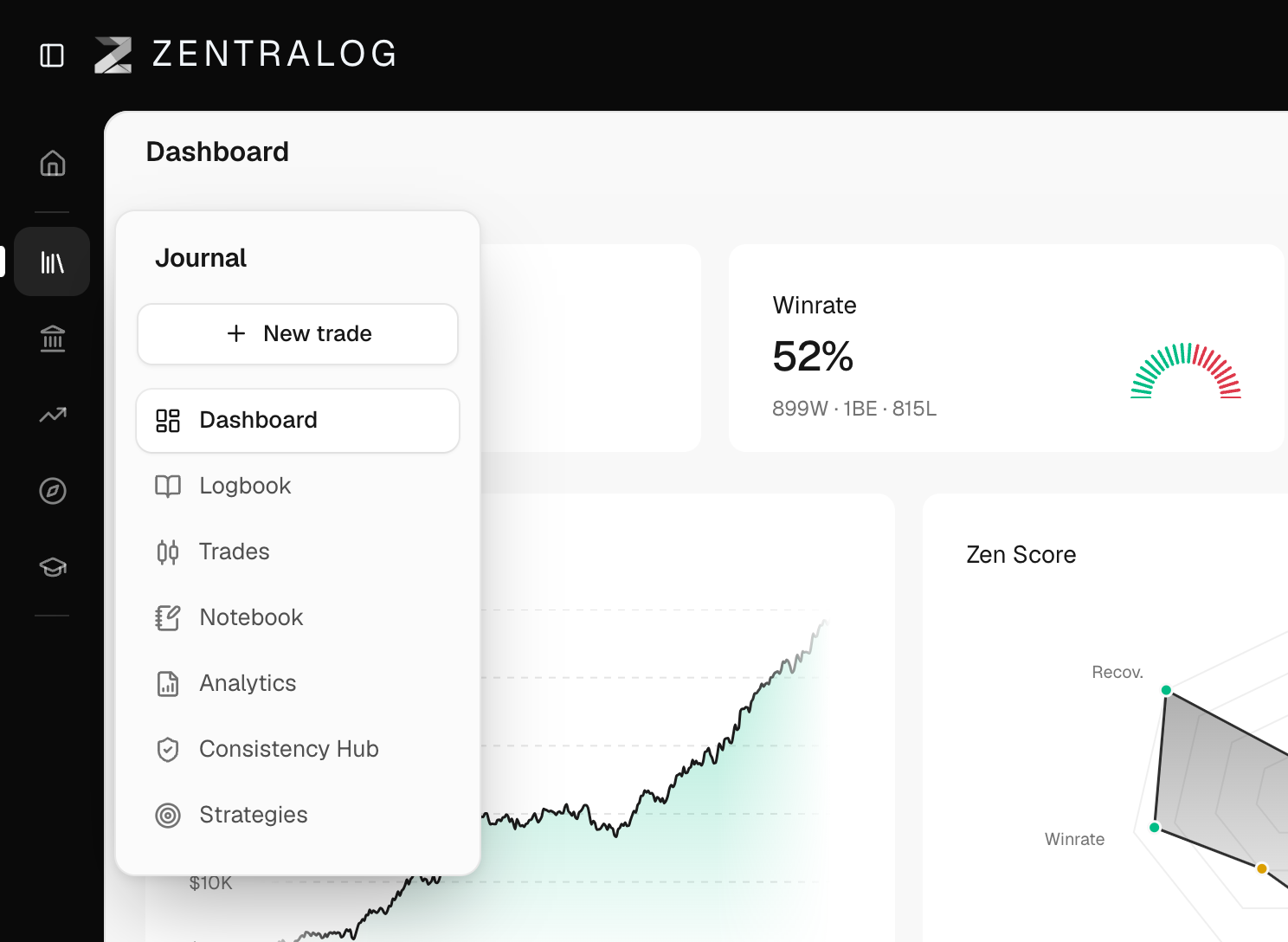
Collapse the sidebar
- Click Toggle Sidebar in the top bar, or press ⌘B (Ctrl+B on Windows).
- Hover a section icon to see its pages in a floating card.
- Click a page in the card to open it.
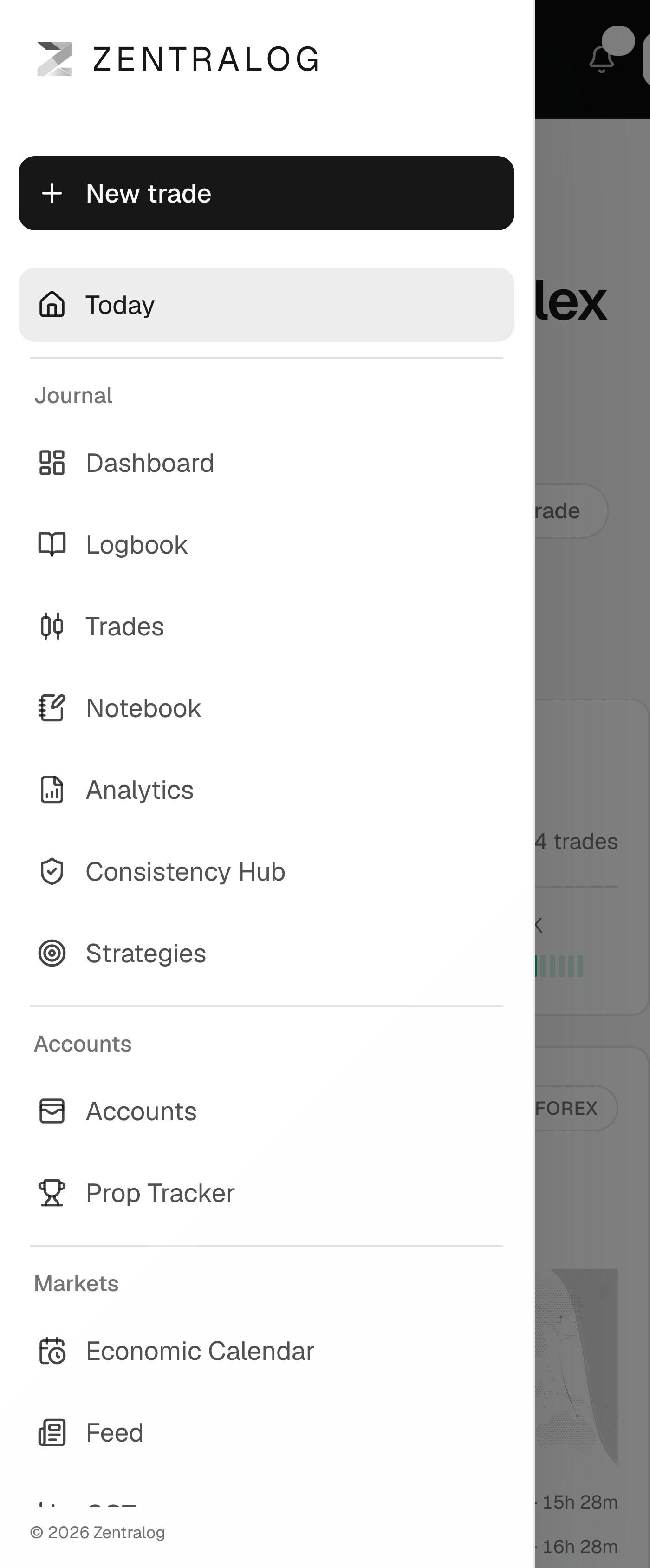
Use it on your phone
- Tap the ☰ menu at the top.
- Pick any section or page from the list.
What's on the screen
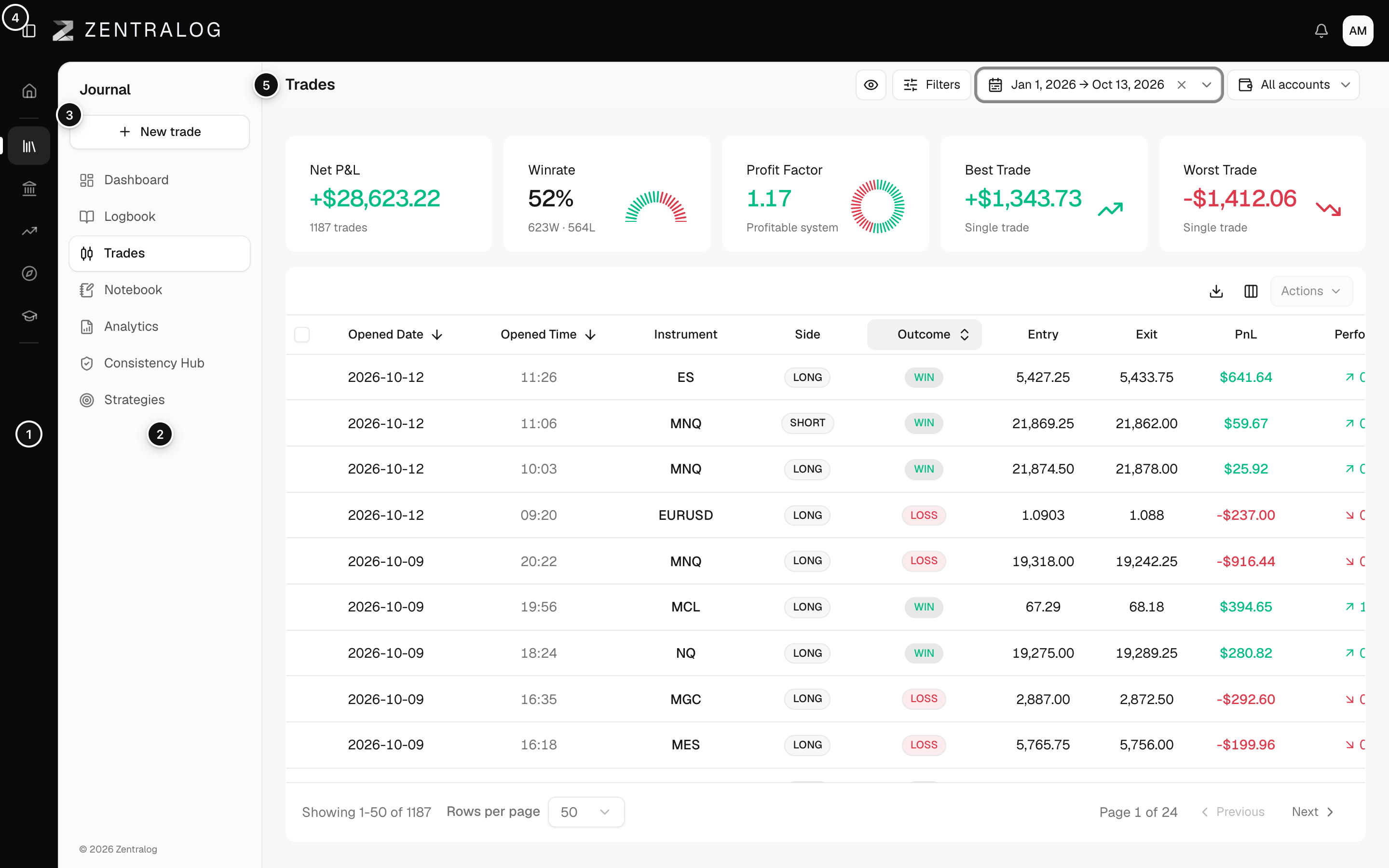
- Rail: one icon per section.
- Second column: the pages inside that section.
- Quick action: the main shortcut of the section.
- Toggle Sidebar: collapse or expand the sidebar (⌘B / Ctrl+B).
- Page title: the page you are on.
To jump straight to a page, press ⌘K (Ctrl+K) and type its name. See Top bar and search.
FAQ
Where is Connect account on my phone?
The mobile menu does not show it. Open Accounts and connect from there.
What does each section open first?
Journal opens the Dashboard, Accounts your account list and Markets the Economic Calendar.
Related
Did this answer your question?