
Organise your notes
Folders, search, the built-in categories and the Archive — how to keep your Notebook tidy.
Updated 2 min read
Where: Journal → Notebook → left sidebar
Create and manage folders
- Click Add folder at the top of the sidebar.
- Double-click the new folder's name to rename it.
- Drag notes into the folder, or drag folders to reorder them.
- To rename or delete it later, hover the folder and click ⋯, then Rename section or Delete section.
Find a note
- Type in Search notes… to filter notes and folders by text.
- Or click a category: All notes, Favorites, Daily Journal or Trade Notes.
- Click View all if a list shows only its first 6 notes.
Archive and restore
- Open a note and click Archive. It moves to Archive at the bottom of the sidebar.
- Open Archive and click the note. Archived notes are read-only.
- Click Restore to bring it back, or Delete to remove it for good.
What's on the screen
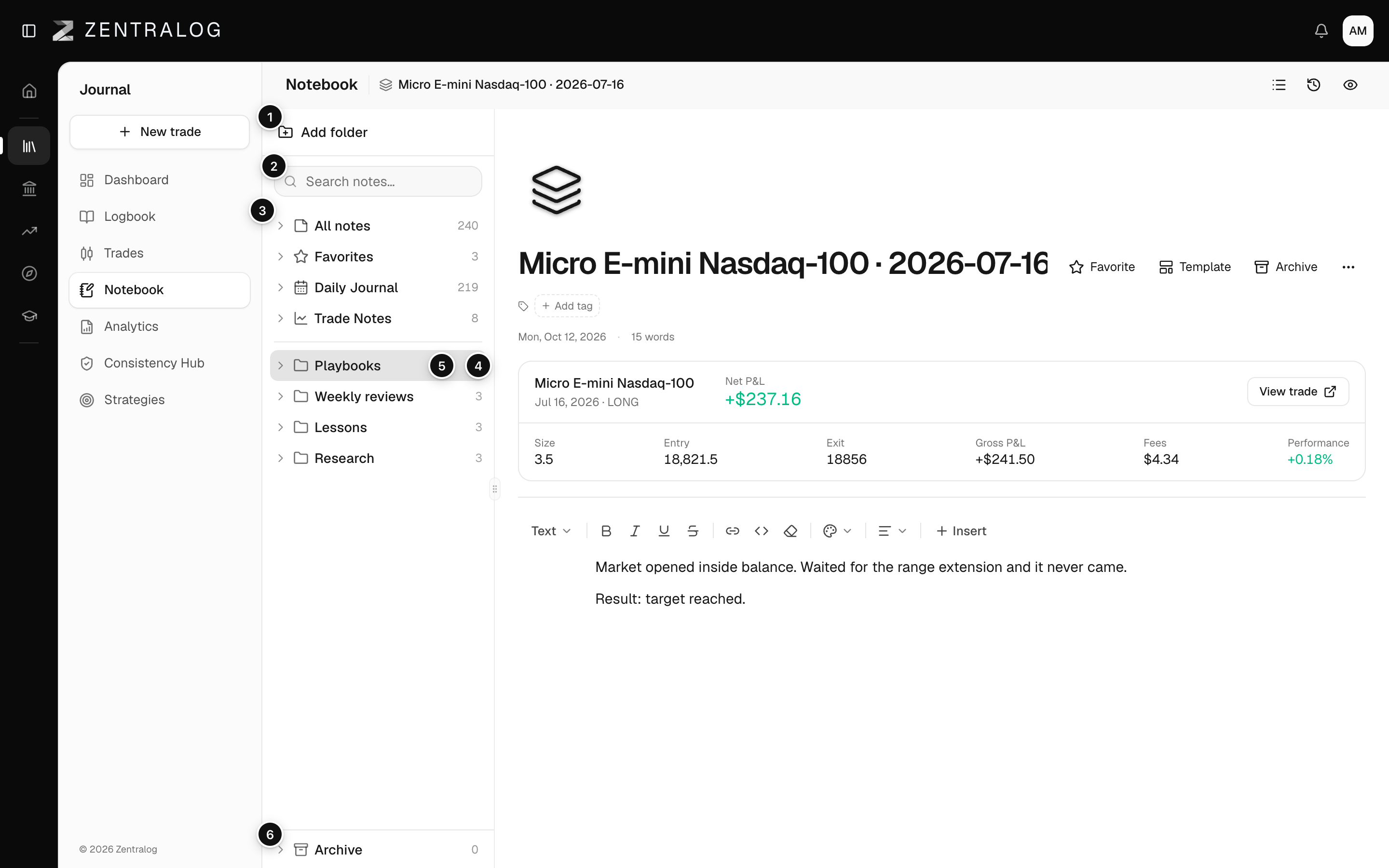
- Add folder: create a folder.
- Search: search across all notes.
- Categories: All notes, Favorites, Daily Journal and Trade Notes.
- New note: create a note inside this folder.
- Folder menu: rename or delete the folder.
- Archive: archived notes, to restore or delete.
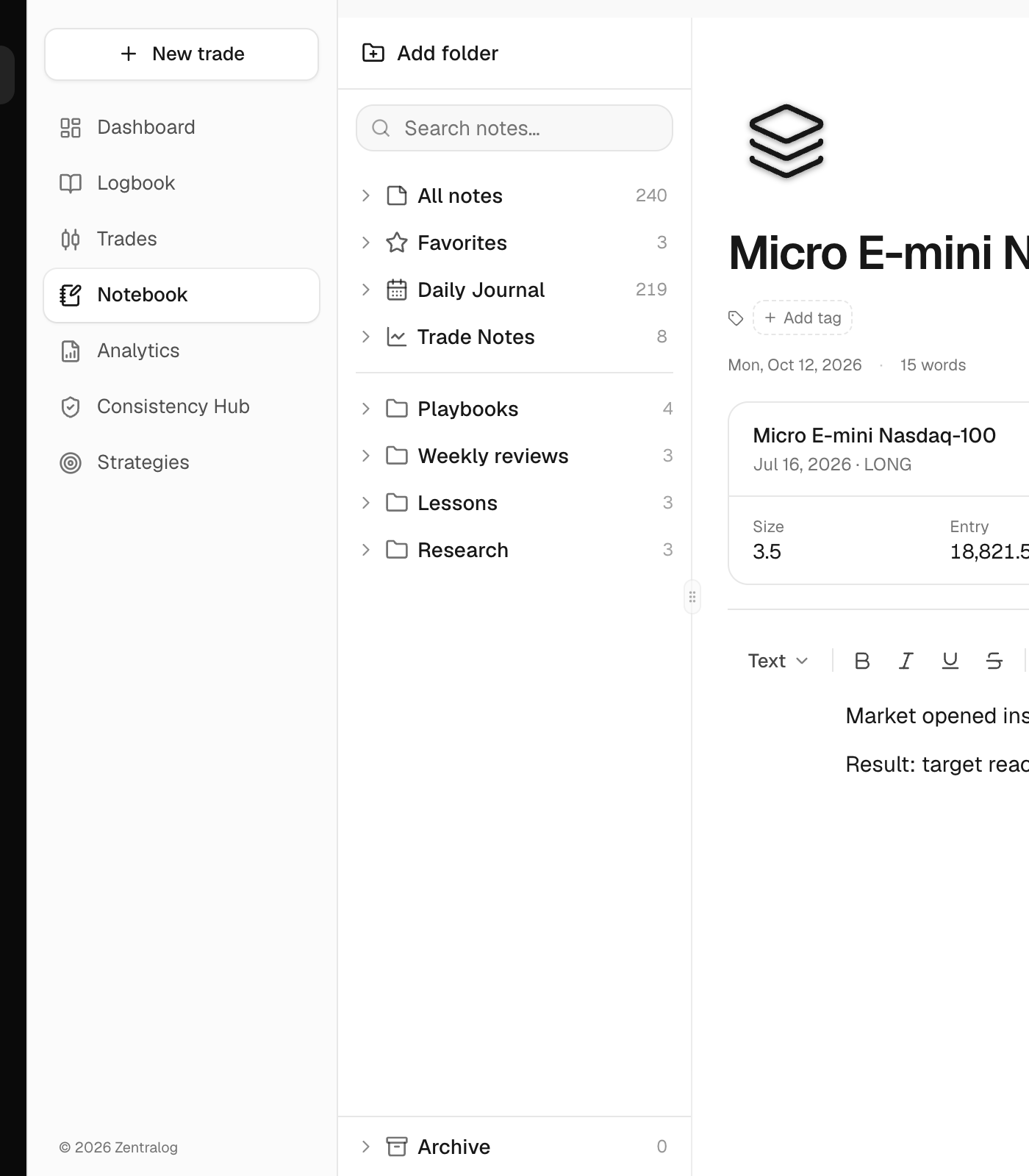
In the Archive list, the bin icon deletes a note for good without asking. Use Delete inside the note if you want a confirmation and a few seconds to undo.
FAQ
Does deleting a folder delete its notes?
No. The notes inside move out of the folder. Nothing is deleted.
Where do Daily Journal and Trade Notes come from?
Daily Journal holds your day notes from My Day. Trade Notes holds notes tied to a trade. See trade notes.
Related
Did this answer your question?