
Trade notes
Notes tied to a single trade, with the trade's numbers on top, so your review sits next to the result.
Updated 1 min read
Where: Journal → Notebook → Trade Notes
Link a note to a trade
- In the Notebook sidebar, hover Trade Notes and click + (New trade note).
- Click ⋯ (More note actions) at the top of the note.
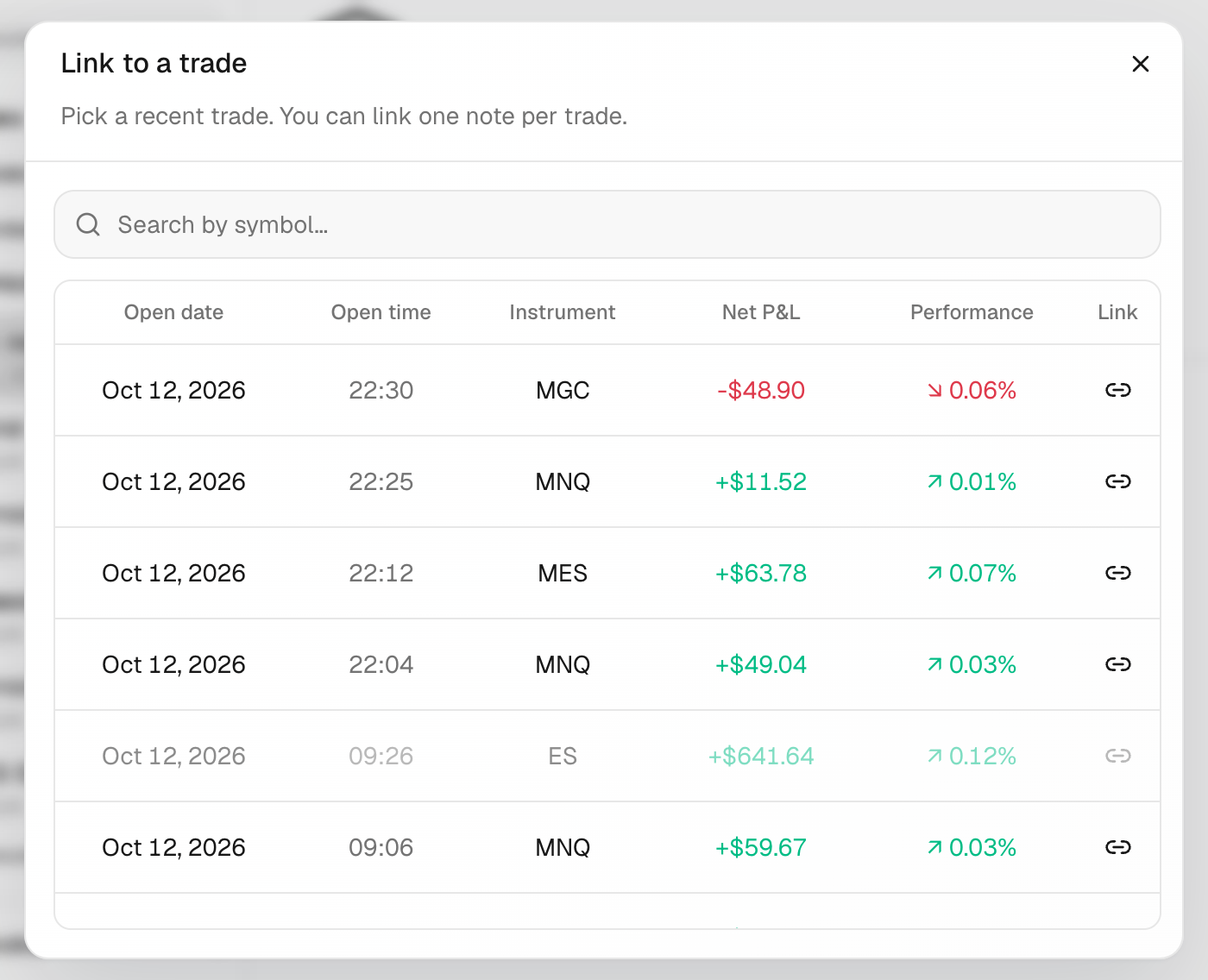
- Choose Link to a trade.
- Type a symbol in Search by symbol… and click the trade.
- The trade card appears on top of the note. Write your review below it.
Unlink a note
- Open the trade note.
- Click ⋯ and choose Unlink from trade.
- The note stays in Trade Notes with a broken-link mark, ready to link again.
What's on the screen
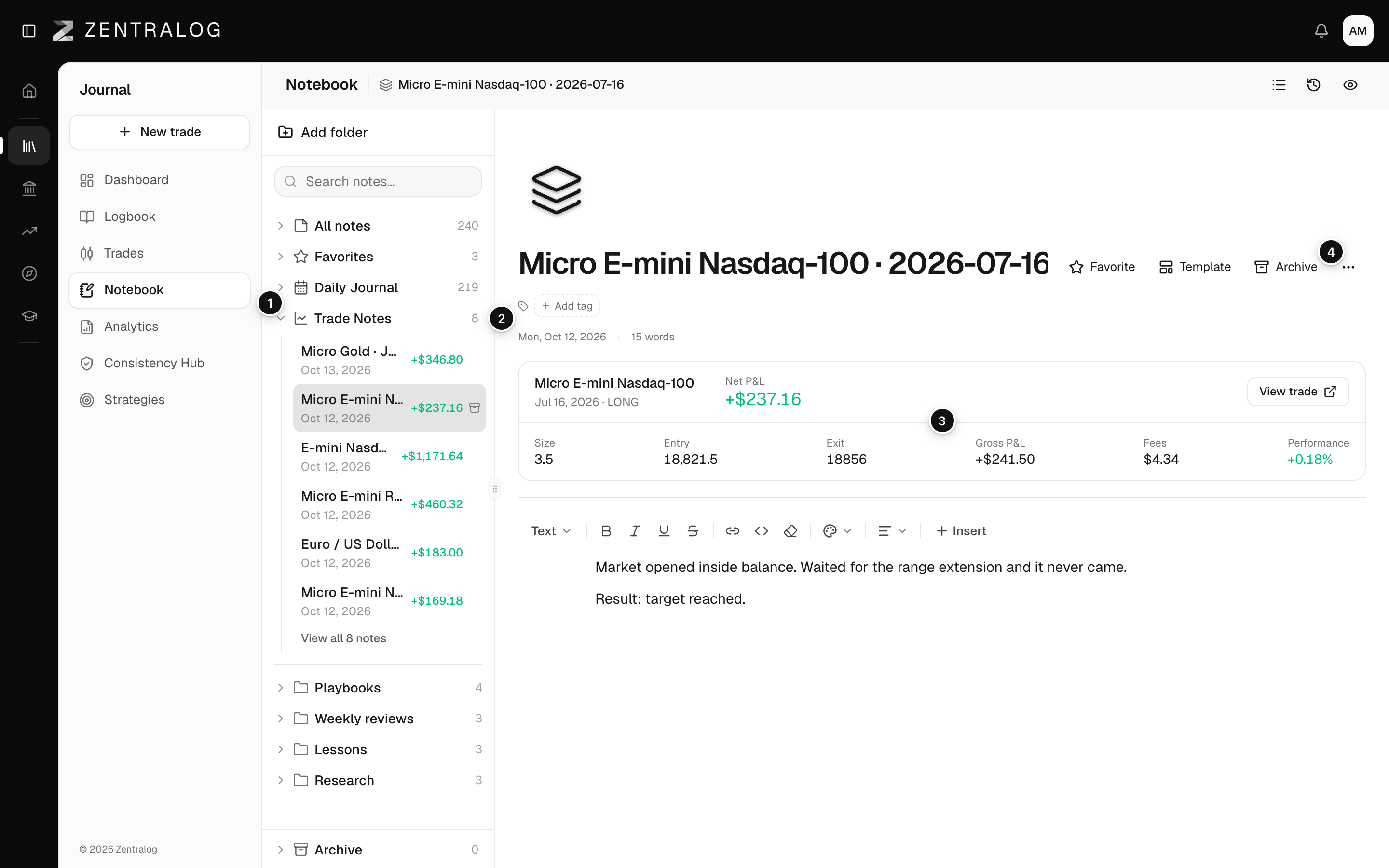
- Trade Notes: all notes tied to a trade.
- New trade note: start a new trade note.
- Trade card: net P&L, size, entry, exit and R (result measured in units of the risk you took). View trade opens the trade.
- Note menu: link to another trade or unlink.
FAQ
Is this the same note I see on the trade page?
Yes. A trade has one note. Editing it here or from the trade's page changes the same note. See the trade note.
Why doesn't a trade appear in the link list?
Each trade can have only one note. Trades that already have one are left out. Try searching by its symbol.
Related
Did this answer your question?