
Costs and commissions
Rules that add commissions and fees to trades your broker sent without them.
Updated 2 min read
Where: your avatar → Settings → Costs & commissions
Some brokers export trades without fees. A cost rule fills them in. Your gross P&L (before costs) stays the same. Your net P&L (after costs) goes down by the cost.
Add a cost rule
- Click Add rule.
- Choose the Account (leave it empty for all accounts) and the Asset class, for example Futures.
- Keep All symbols on, or turn it off and pick one symbol, such as NQ.
- Pick the Mode (Per execution or Per contract) and where it Apply: all executions, entry only or exit only.
- Type the Commission and the Fee, then click the check mark. You will see «Cost rule saved.»
New trades that arrive with no cost get the rule automatically.
Apply it to trades you already have
- Open the rule's ⋮ menu and click Apply to existing trades.
- By default it only fills trades with no commission (0 or empty).
- Tick Override existing commissions only to replace the broker's own costs too.
- Click Apply. A message tells you how many trades changed.
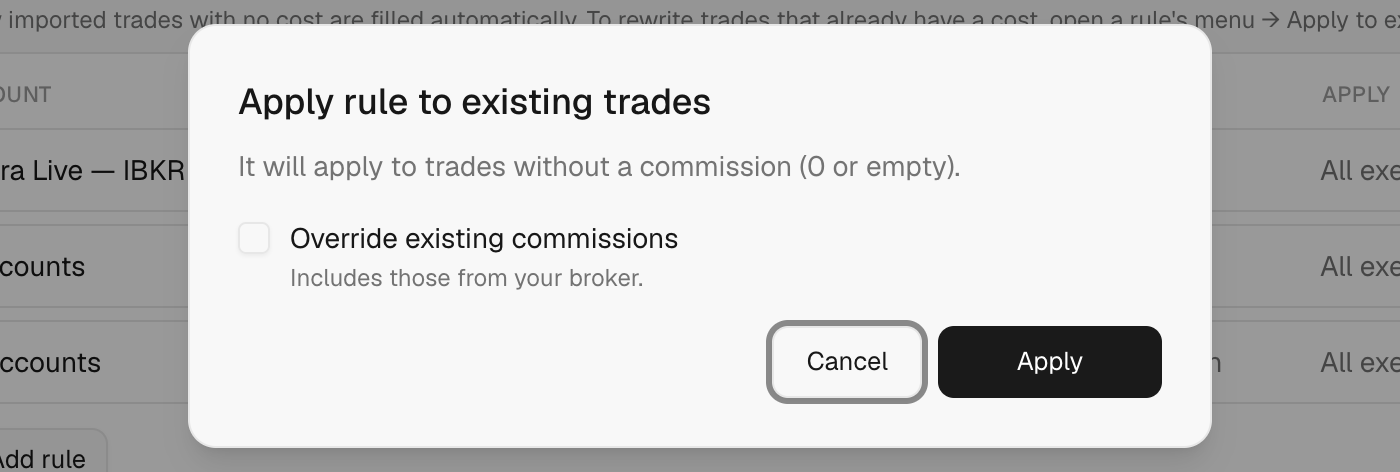
What's on the screen
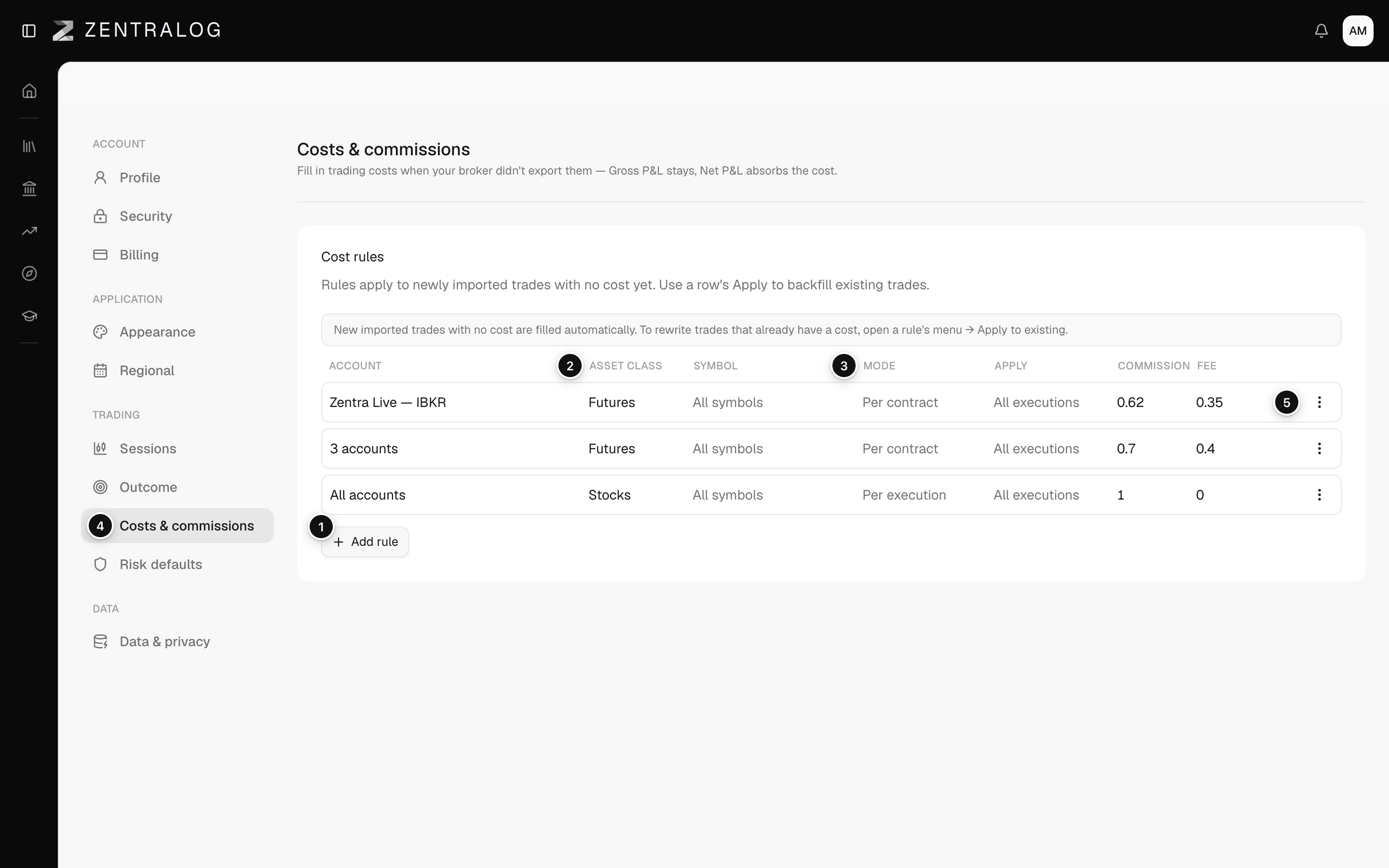
- Add rule: add a cost rule for trades without fees.
- Asset class: each rule matches an account, an asset class and a symbol.
- Mode: charged per execution or per contract.
- Commission: the commission and the extra fee per unit.
- ⋮ menu: apply to existing trades, edit or delete.
Delete rule removes the rule at once, with no confirmation.
FAQ
What is the difference between Commission and Fee?
Commission is what your broker charges. Fee covers extra exchange and regulatory charges. Both lower your net P&L.
Two rules match the same trade. Which one wins?
Keep one rule per account, asset class and symbol so the result is predictable.
Related
Did this answer your question?