
Export trades to CSV
Download the trades you are looking at as a CSV file you can open in any spreadsheet.
Updated 1 min read
Where: Journal → Trades → download icon above the table
Export the list
- Open Trades in the Journal panel.
- Set the date range, the accounts and any Filters. The file contains exactly what the table shows.
- Click the download icon (Export CSV) next to the columns icon.
- Wait while it shows Exporting and a percentage. The file downloads by itself when it is ready.
- Need it again? Click the same icon, now Download CSV.
The file has one row per trade, not per execution. Columns include open and close time, instrument, account, side, status, size, entry and exit price, net P&L, gross P&L, fees, risk, realized R, strategy, session and duration in minutes.
What's on the screen
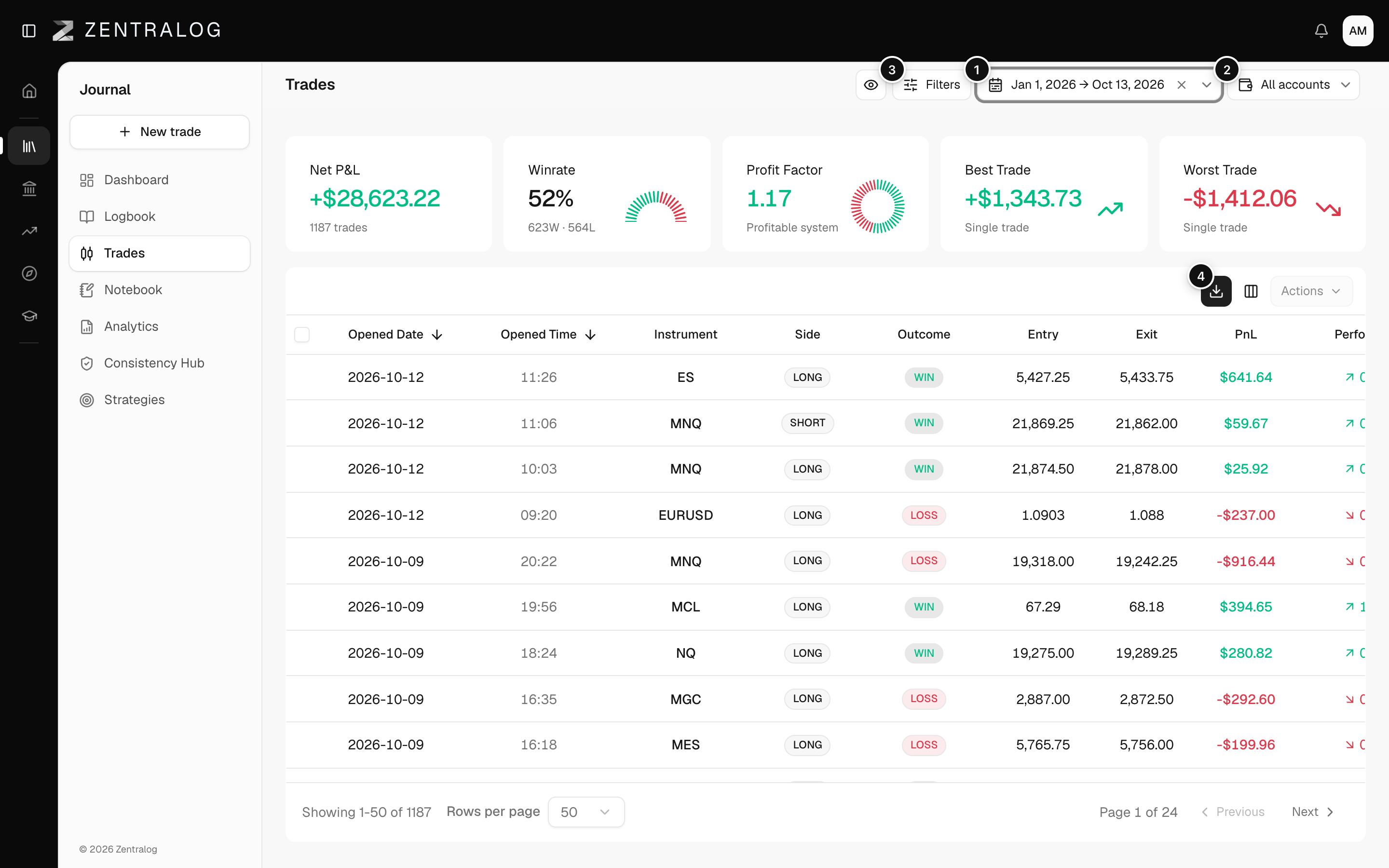
- Date range: the export follows the date range.
- Accounts: and the selected accounts.
- Filters: active filters also apply.
- Export CSV: start the export, then download the file.
To export everything, choose All accounts and All time and clear the filters first. See Dashboard filters.
FAQ
Can I re-import the exported file?
Not as-is. Import only accepts files from the supported platforms. To fix a trade, edit it in the trade detail.
Nothing downloaded. What happened?
Your browser may have blocked the download. Allow downloads for Zentralog and click Download CSV again.
Related
Did this answer your question?