
Fees and payouts
The list of everything you paid to prop firms and everything they paid you.
Updated 2 min read
Where: Accounts → Prop Tracker → Transactions
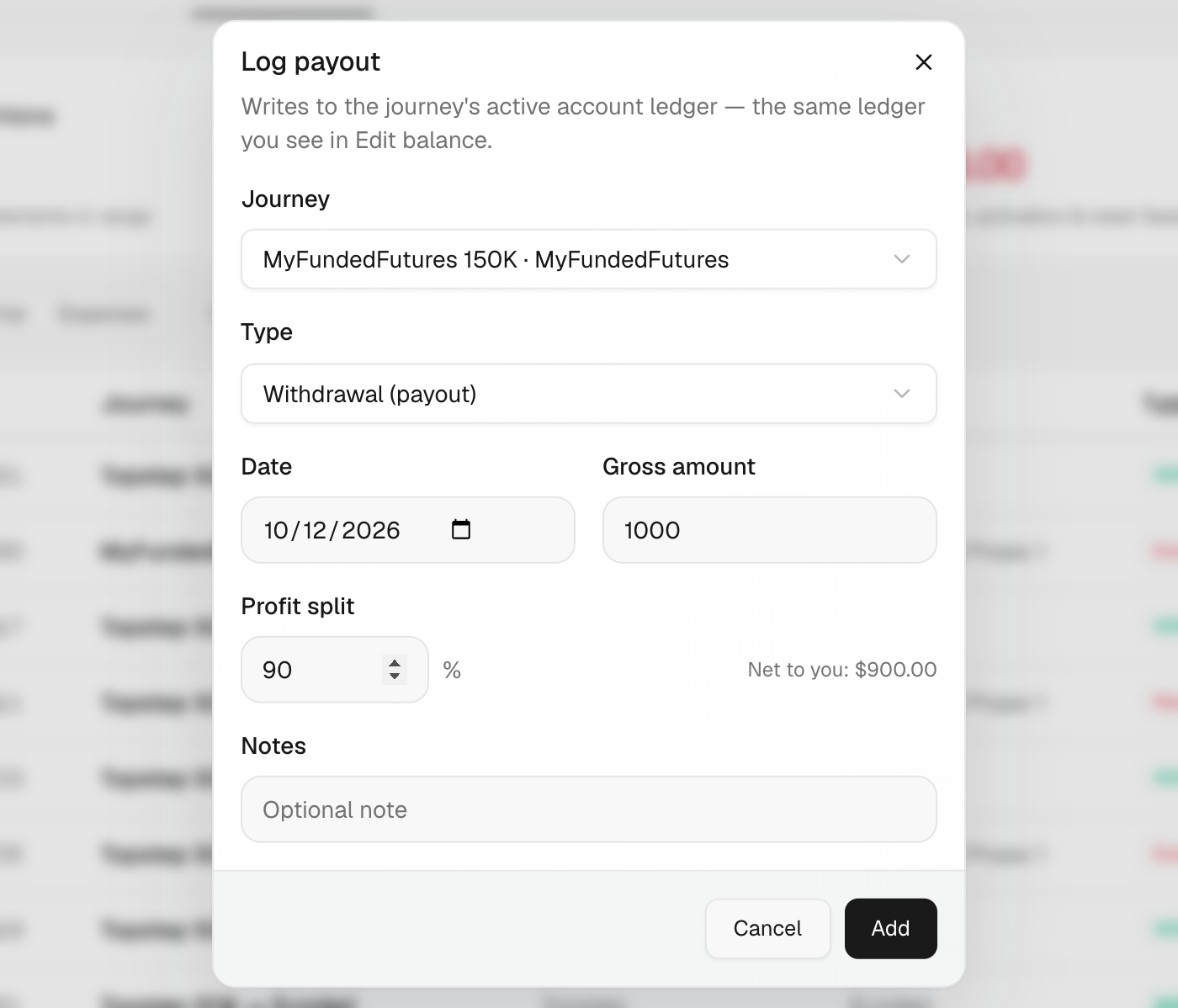
Log a payout
- In Prop Tracker, click the Transactions tab.
- Click Log payout.
- Choose the Journey and the Date, and type the Gross amount.
- Check the Profit split. Net to you updates as you type.
- Click Add.
The profit split is the share of the payout you keep. It starts at 90%.
Add a fee or fix a row
- Click Add transaction.
- Pick the Type: Evaluation fee, Activation fee, Reset fee, Withdrawal (payout) or Deposit (scaling).
- Fill in the journey, date and amount, then click Add.
- To correct a row, click its ⋯ and choose Edit or Delete.
Use All, Income or Expenses to filter. Rows marked auto were created by Zentralog, for example the evaluation fee of a new journey.
What's on the screen
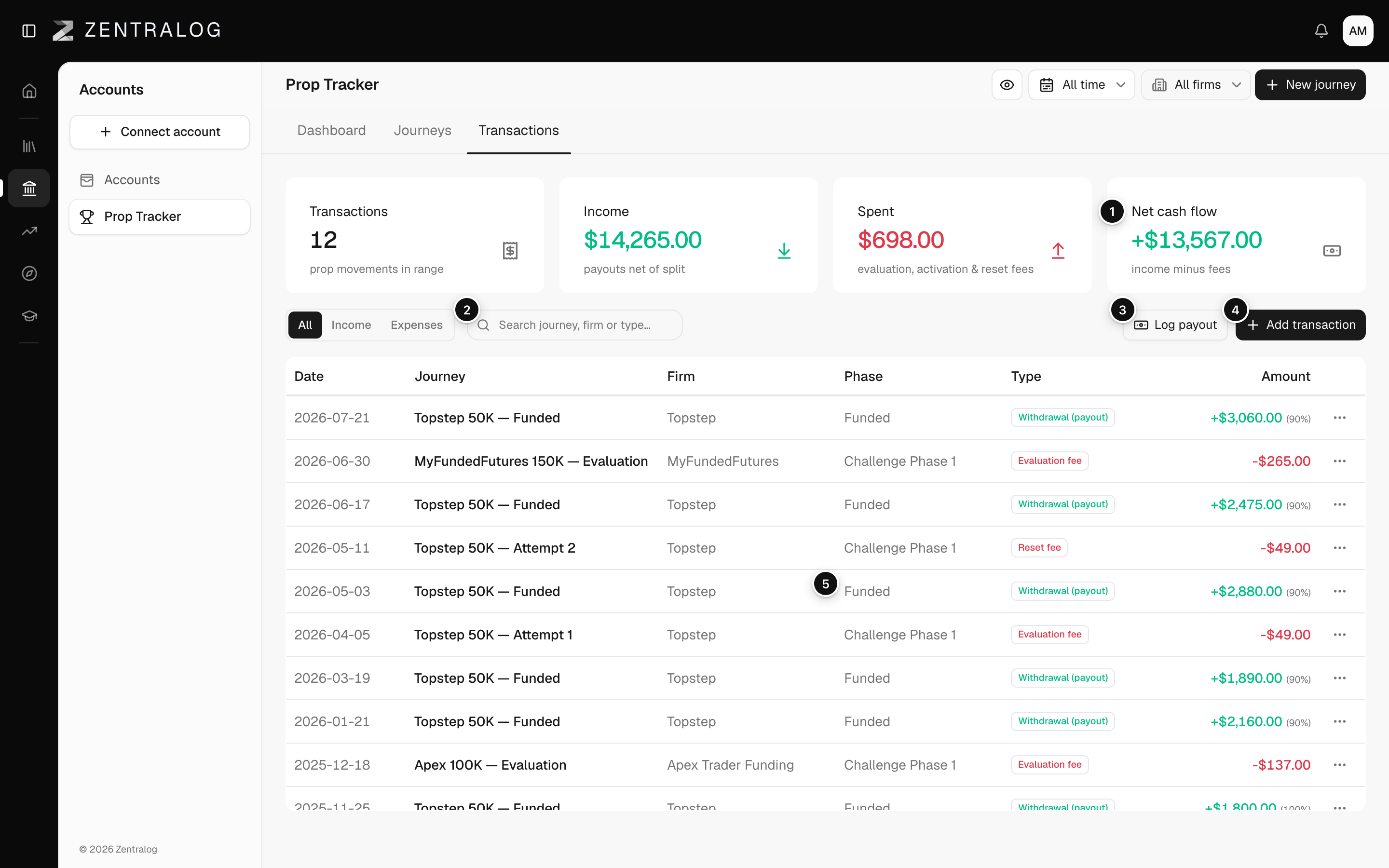
- Net cash flow: income minus spending.
- Search: find rows by journey, firm or type.
- Log payout: record a payout you received.
- Add transaction: add a fee, reset or deposit.
- Transactions list: every fee and payout, by date.
Each transaction is also written to the account's balance, the same list you see in Edit balance.
FAQ
Which dates does the list show?
The ones inside the date range at the top of the page. Widen it to see older rows.
Do I have to add the evaluation fee myself?
No. It is recorded when you create the journey. Add resets and activation fees as you pay them.
Related
Did this answer your question?