
The Calendar tab
Your trading year day by day, and a full report for any month.
Updated 2 min read
Where: Journal → Analytics → Calendar
Browse the year
- Click the Calendar tab.
- Use ‹ and › next to the year to change year.
- Pick P&L, Win % or Trades to choose what colors each day.
- Click a month to open its analysis below.
Read a month
- Move with ‹ and ›, or click This month. Click the year to go back up.
- Click ⚙ (Calendar settings) to choose what each day shows: P&L, Nº trades, Win rate. Tick Show weekends to add Saturday and Sunday.
- Click a day with trades to open its detail.
- Click Share month to create an image of the month.
What's on the screen
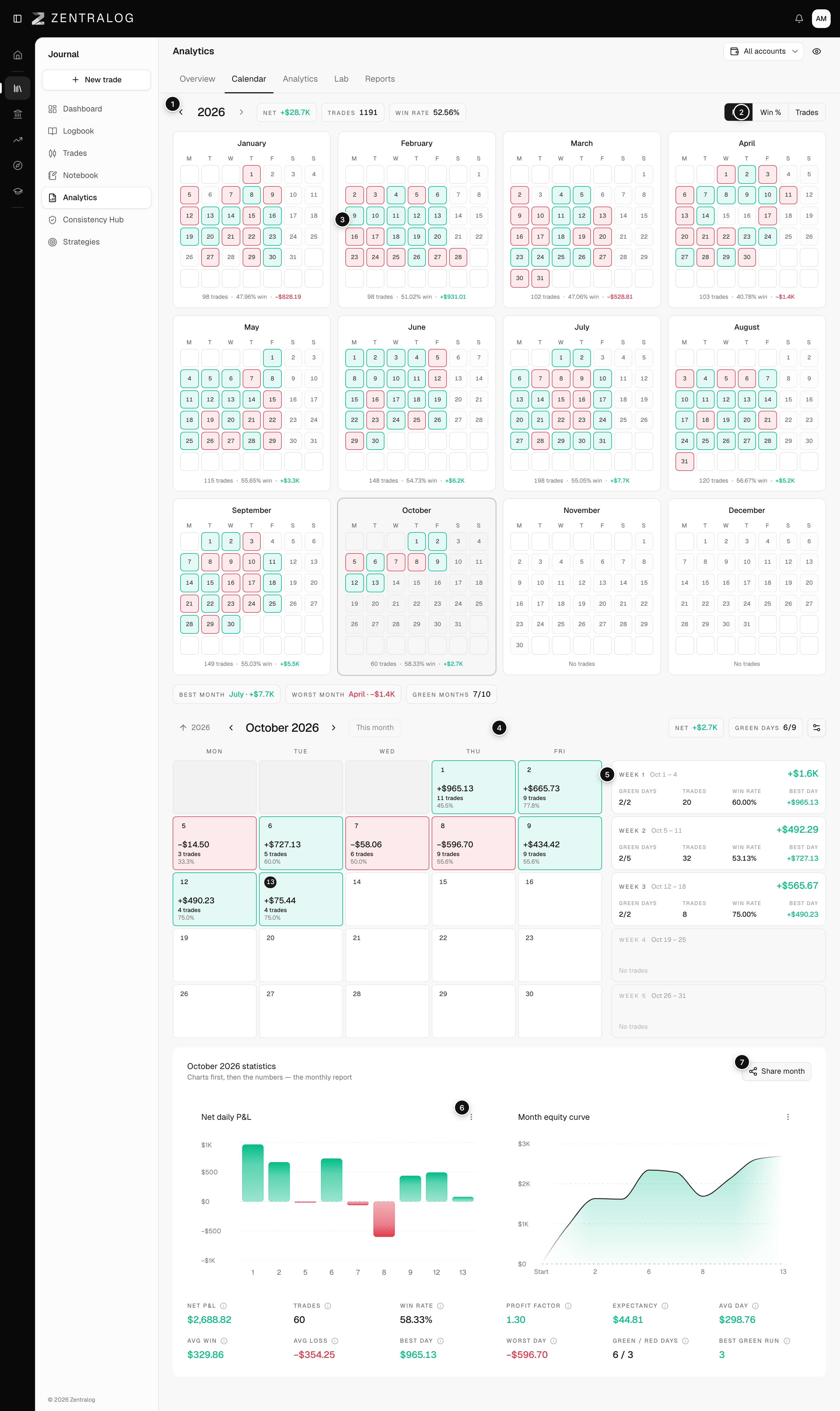
- Year header: change year, with the year's net, trades and win rate.
- Metric selector: what colors the days of the year.
- Mini months: twelve small grids. Click one to open it.
- Month header: move between months, the month's net and green days, and settings.
- Week cards: green days, trades, win rate and best day of each week.
- Month statistics: Net daily P&L, Month equity curve and the month's numbers, such as profit factor and Best green run.
- Share month: a recap image of the month.
The calendar follows only the account selector. The date range and Filters don't apply here.
FAQ
What is a green day?
A day whose net closes above your break-even threshold. A red day closes below it. See Outcome and break-even.
Can I open trades from the month numbers?
Yes. Best day and Worst day open that day's trades.
Are my calendar settings saved?
Yes, in this browser.
Related
Did this answer your question?