
Dashboard calendars
Calendar widgets that show your P&L per day, week or month and open any day's trades.
Updated 2 min read
Where: Journal → Dashboard → Monthly Calendar
Open a day
- In Monthly Calendar, use the arrows (Previous month, Next month) or Today.
- Click a day with trades.
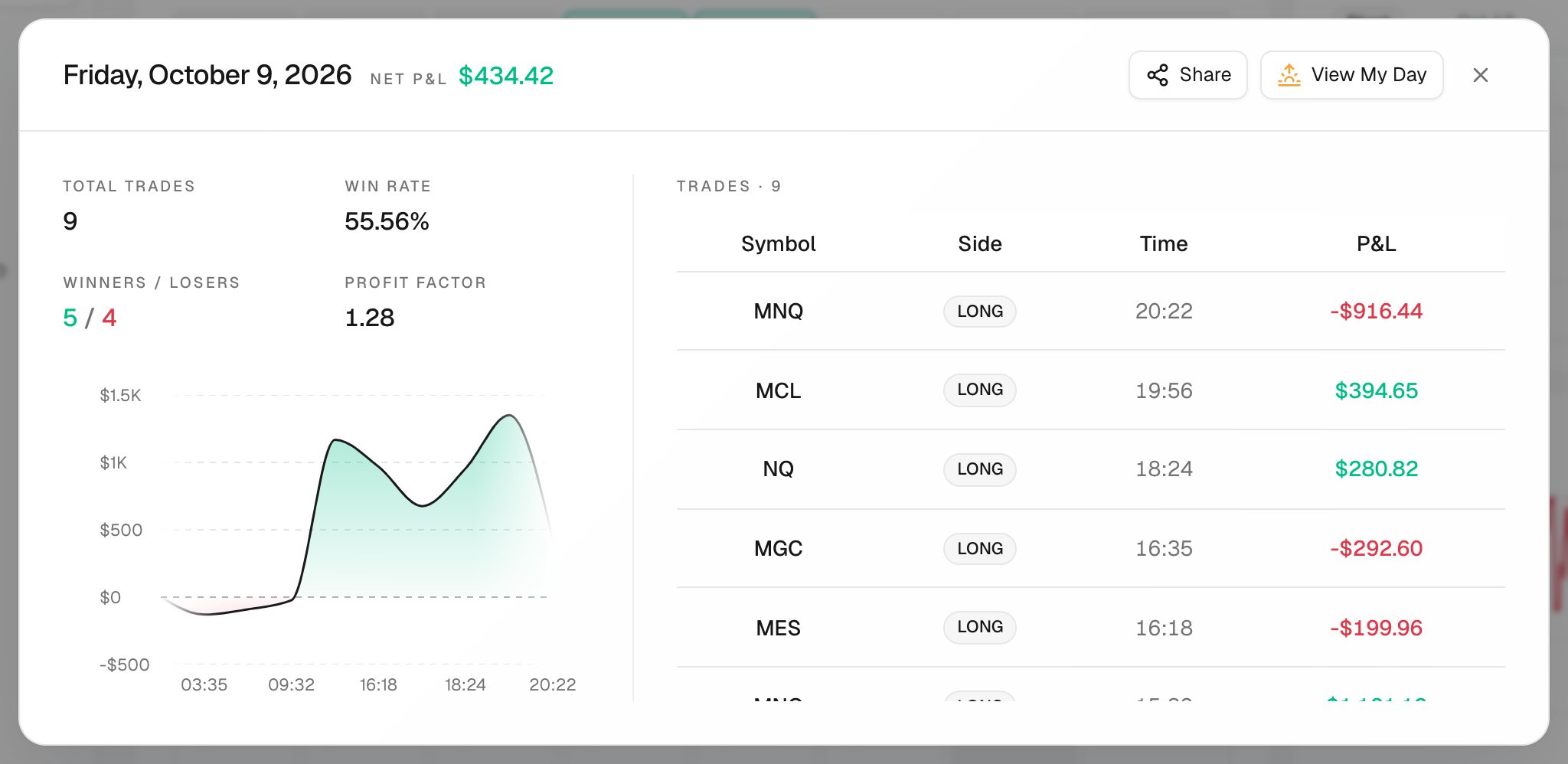
- Read the summary: Total trades, Win rate, Winners / Losers, Profit factor and the Cumulative P&L curve.
- Click a trade in the list to open it.
- Click View My Day to open that date in My Day, or Share to share the day.
Choose what each day shows
- Click the gear (Calendar settings).
- Under Show in day cell, tick P&L, Nº trades or Win rate.
- Turn Show weekends on or off.
Each week also shows its total. A week without trades shows «—» instead of $0. With weekends hidden, the week total still includes their trades: hover it to see that reminder.
Pick another calendar
Add them from the Calendar category in edit mode:
- Yearly Calendar: twelve months in a strip. Click a month to open its trades.
- Weekly Strip: one week in a row, with its own arrows and settings.
- Compact Calendar: a mini month where each day is green, red or empty.
What's on the screen
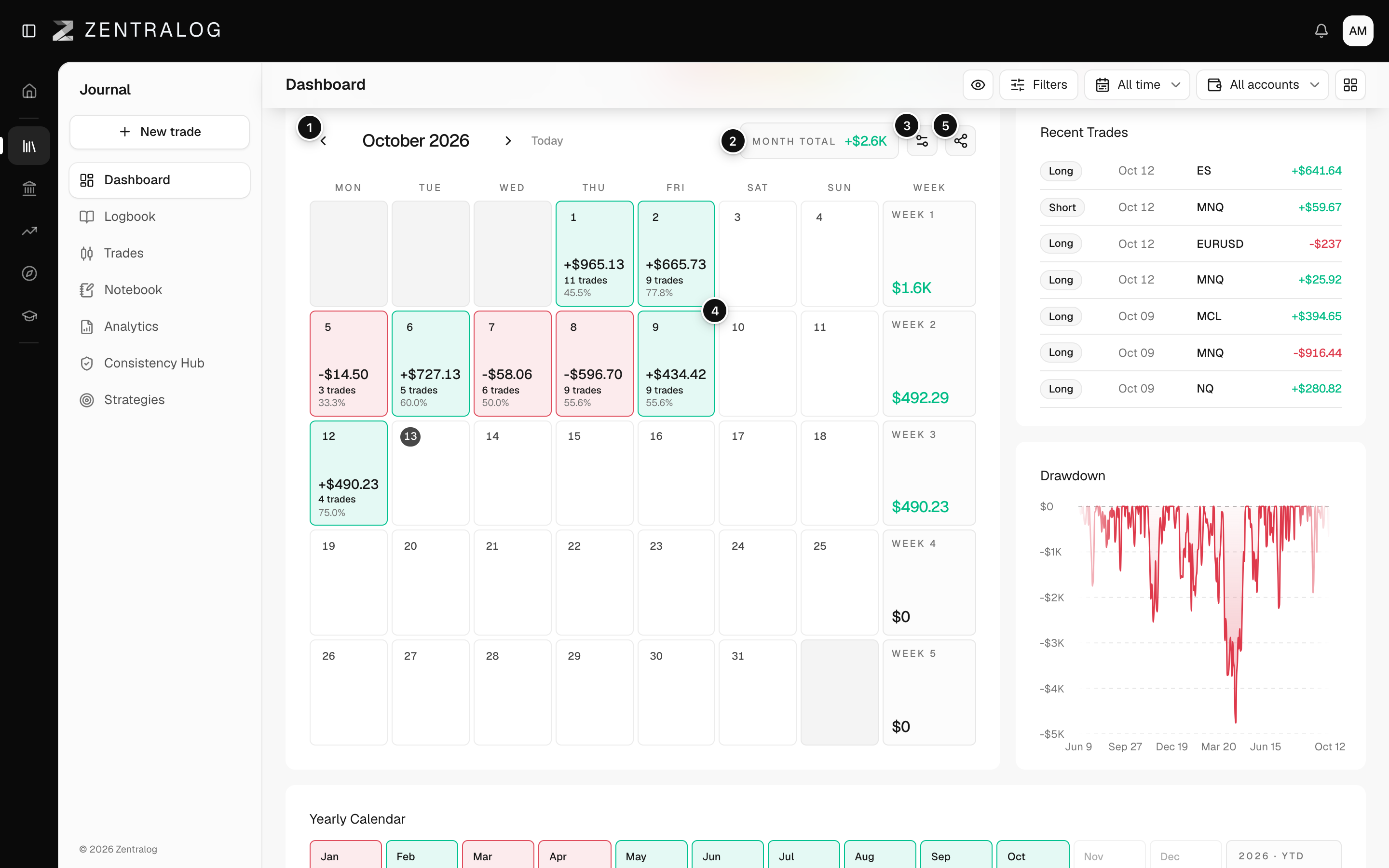
- Arrows and Today: move between months or jump to this month.
- Month total: the net result of the month on screen.
- Calendar settings: choose what each day cell shows.
- A day: click it to see its trades.
- Share: share the month as an image.
The calendar arrows only move that widget. Your date range in the top bar stays the same.
FAQ
Why is a day gray or empty?
You had no closed trades that day in the selected accounts and filters.
Why does Profit factor show «—» in a day summary?
Profit factor divides what you won by what you lost. With no losing trades that day, there is nothing to divide by, so it shows «—».
Does Share make my journal public?
No. Share creates an image card that you save or post yourself.
Related
Did this answer your question?